
Home > Get Started with Confide with SharePoint Embedded
Download this articleGet Started with Confide with SharePoint Embedded
This section walks you through the essential steps to get started with Confide with SharePoint Embedded, including how to sign in, familiarize yourself with the user interface, understand user roles, quickly share project documents or your own files with others, and view the objects other users shared with you.
Sign in to Confide with SharePoint Embedded
You can sign in to Confide with a Microsoft 365 account. Your account will be automatically signed out if there is no activity for 1 hour, and you can sign in again.
Sign in as Internal Users
To sign in to Confide with a Microsoft 365 account, complete the following steps:
-
Open the following URL in a browser: https://ent.confideshare.com.
-
On the sign-in page, click Sign in with Microsoft.
-
On the Microsoft 365 authentication page, enter an existing Microsoft 365 login ID and password.
NOTEIf you sign in with a local account, do not enter the account directly but proceed with the following steps:
-
Click Sign-in options.
-
Click Sign in to an organization.
-
Enter the domain name of your organization you’d like to sign in to.
-
Enter the email address.
-
Enter the code sent to your email.
NOTEWhen signing in to Confide for the first time or whenever there are updates to the application’s permissions, you must grant authorization to the AvePoint Confide with SharePoint Embedded application. Additionally, if a business user with the Microsoft 365 Global Administrator role selects the Consent on behalf of your organization option on the Permissions requested page during authorization, other business users will not be prompted to provide authorization.
The following permissions will be requested.
API Permission Type Purpose Microsoft Graph email
(View users' email address)Delegated Read users' primary email addresses. Microsoft Graph offline_access
(Maintain access to data you have given it access to)Delegated Read and update the data users have given the app access to and refresh the token. Microsoft Graph openid
(Sign users in)Delegated Sign users in and read basic user profile information. Microsoft Graph profile
(View users' basic profile)Delegated Read basic user profile information, including picture, username, and email address. Microsoft Graph User.Invite.All
(Invite guest users to the organization)Delegated Invite guest users to the current organization. Microsoft Graph User.Read
(Sign in and read user profile)Delegated Retrieve signed-in user information. Microsoft Graph User.Read.All
(Read all users' full profiles)Delegated Retrieve and display user information. SharePoint Container.Selected
(Access selected file storage containers)Delegated Manage containers. NOTEIf you are using the Microsoft 365 account to sign in to another app on the same browser, you will be automatically signed in to Confide.
-
-
Click Sign in.
Sign in as External Users after Being Invited
As an external user, you can refer to the steps below to sign in to Confide with SharePoint Embedded after you have been invited to collaborate on a project or an object in the share center:
-
After being invited, you’ll receive a notification email from Confide.
-
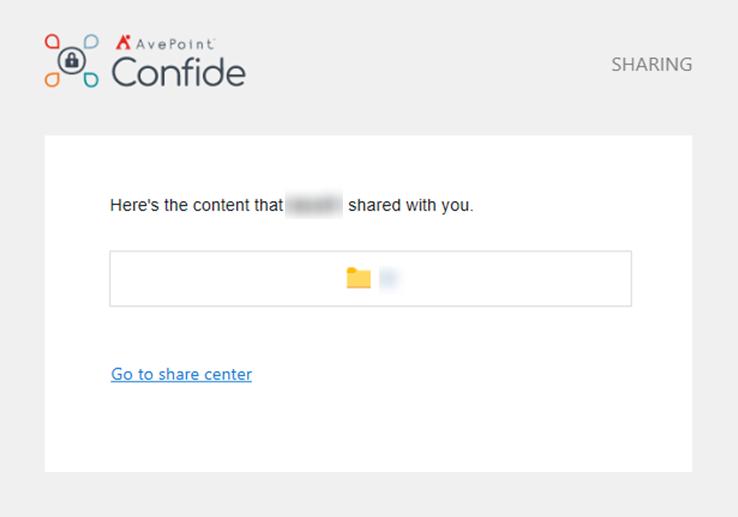
If you are shared with files from the share center, click Go to share center in the received email to access the sign-in page.
-
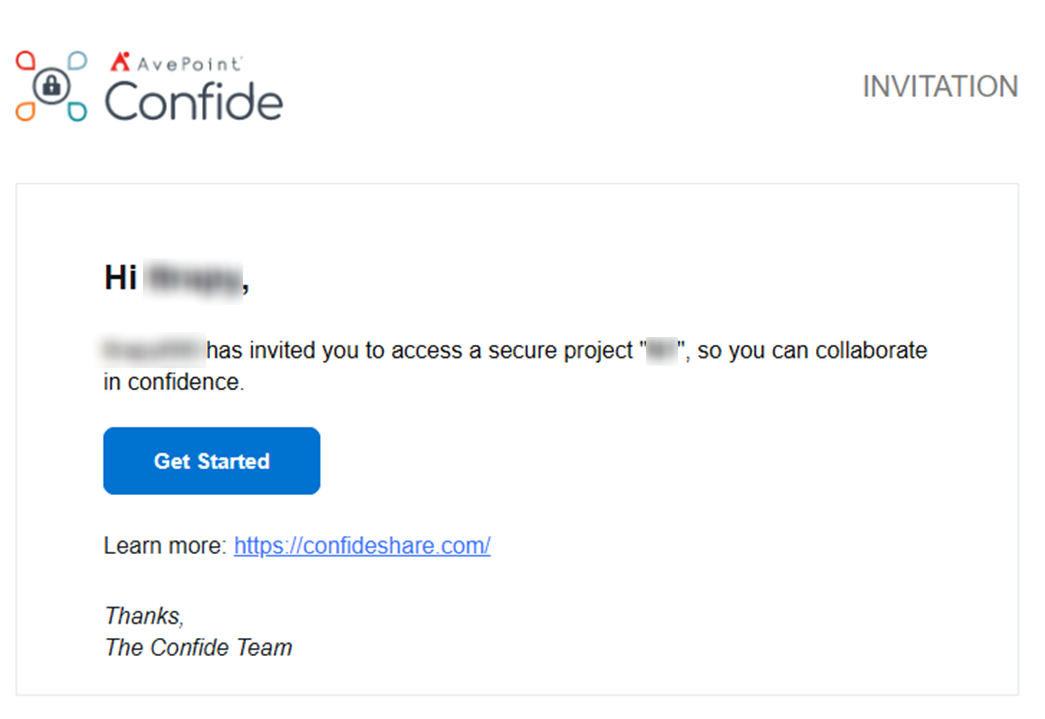
If you are shared with project files, click Get Started in the received email to access the sign-in page.
-
-
On the sign-in page, click Sign in with Microsoft.
-
If you access the sign-in page by navigating to the product URL in your browser, you will need to locate the organization to which you have been invited.
-
Click Sign-in options from the Sign in page.
-
Click Sign in to an organization.
-
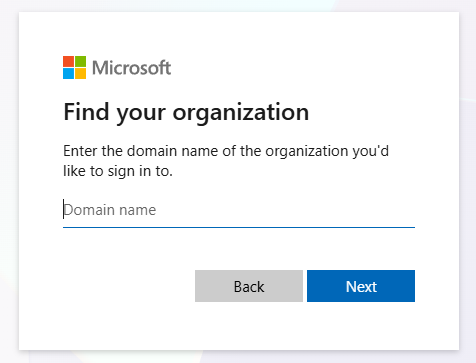
Enter the domain name of the organization you have been invited for collaboration and click Next.
-
-
Enter your email address and click Next.
-
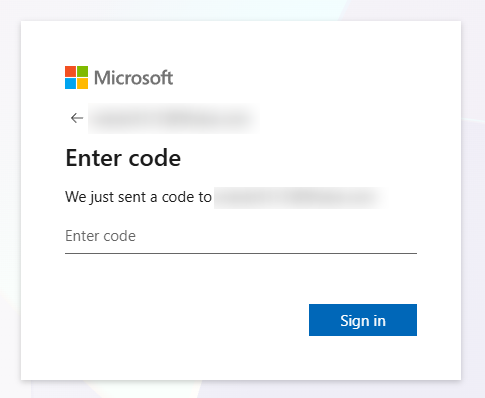
Enter the account verification code from the Microsoft email you received and click Sign in.
-
Click Accept to accept the required permissions and sign in to Confide with SharePoint Embedded.
NOTEThis is only required for your first sign-in.
Familiarize Yourself with Confide with SharePoint Embedded
After signing in to Confide with SharePoint Embedded, you will find the following buttons on the upper-right corner of most pages:
-
Notifications – Click the Notifications button to view the notifications sent to you.
Every time you open a project, if there are new notifications sent to you, the Notifications panel will be automatically expanded.
-
A number is displayed indicating how many new notifications there are.
-
You can click Dismiss all to dismiss notifications.
-
You can click the Notification history button to view notifications from the last 12 months, and then set a date range to filter notifications within that specific date range.
-
-
Submit feedback – Click the Feedback button to submit feedback based on your experience while using Confide.
-
Help – Click the Help button to view the business user guide for detailed instructions.
-
Account – Click the account button to view your account information.
-
Click Personal settings to configure personal settings for your account.
-
Language – Click the language drop-down list to switch to another language. Currently, Confide supports the following languages: English and Japanese.
NOTEIf this is the first time you sign in to Confide (no language has ever been set), the language of your browser will determine the language that you see in Confide. If your browser uses a language other than English or Japanese, Confide will be displayed in English.
-
Date format – Select the date format you’d like to use in Confide from the drop-down list.
-
-
You can then click Sign out to sign out of Confide.
-
Collapse or expand the left pane navigation, and then select a particular section from the left pane to access that specific section.
The search box on the top allows you to find desired items. Enter the partial or full text of a specific property in the search text box, and then click the Search button. All matching items are displayed.
Within a specific project, you can use Global Search to search for files, folders, and tasks, and within the project. Note that there are different search scopes and search criteria on different pages. After you enter the partial or full text of a specific property in the search text box, matching items are displayed. You can also access the global search page to view all search results and perform operations on files.
File content is also searchable when file content encryption is not enabled. After entering a keyword, files that contain the entered keyword will also be searched out.
User Roles in Confide with SharePoint Embedded
User roles in Confide with SharePoint Embedded are detailed below:
-
Business Owner – Business Owners can add Project Leads to work on projects. If a Project Lead is no longer involved, Business Owners can delete the Project Lead. Business Owners can also create and manage projects like Project Leads.
-
Project Lead / Project Admin – Project Leads can create projects and manage the projects they created. Project Admin can manage their projects.
-
User – Users can work on files in the projects where they have been invited with permissions assigned.
Share Folders and Files
As an internal user, you can share project documents or your own files with others for secure collaboration.
Invite Users to a Project
You can invite users, both internal and external, into a project to collaborate on folders and files of the project.
In the project for which you are the Project Admin or Project Lead, you can add users to the project and assign them to one or multiple user groups. The users will be able to access the project and have permissions to folders and files in the project library by inheriting permissions from the user groups.
For more information, refer to Create Groups and Assign Permissions and Invite Users to Collaborate on a Project.
Share Content from Share Center
If you are granted permission to manage and share objects in the share center, you can share your files from the share center with others.
From the My files page of the share center, select the folders and files that you want to share and click Share.
-
To share the objects with an internal user, enter the username or email address of the user and select the user from the suggestion list.
-
To share the objects with an external user, enter the username or email address of the user in the text box, and click the check button to the right to select the user.
Select the permission you want to share and set an expiration date for the sharing permission and click Share to share the objects. For more information, refer to Manage Objects.
Share Content via a Download Link
Instead of sharing direct permissions, you can generate an anonymous link to a folder or file. Then, share this link along with its protected password with the users you want. This option is available for both project folders/files and your folders/files in the share center.
Select the folder or file from the project > Project library > All files page or Share center > My files, and click Generate download link.
You can set an expiration date and choose to generate the link with a random password or a reusable password. After clicking Generate link, you can view and copy the link and password for sharing.
Share Folders via Upload Links
To allow users to collaborate on a folder, you can generate an anonymous link to a folder. Then, share this link along with its protected password with the users you want. They can then upload folders and files to this folder for collaboration. This option is available for both project folders and your folders in the share center.
Select the folder from the project > Project library > All files page or Share center > My files, and click Generate upload link.
You can set an expiration date, predefine the folder structure, set anti-virus scan setting, and choose to generate the link with random password or reusable password. After clicking Generate link, you can view and copy the link and password for sharing.
View Shared Folders and Files
If you are newly invited to collaborate on a Confide project or shared objects from Confide, you can refer to the sections below to view the shared objects.
Invited to a Project
If you are invited into a project, you will receive an email as below.
-
You can view the shared contents in Confide project by clicking Get Started in the email. After signing in to Confide, you will access the project library with the shared folders and files displayed on the right panel.
-
Alternatively, you can open the Confide portal via the URL https://ent.confideshare.com. After signing in to Confide, you can find the project where you have been invited in My Projects. Click the project to access the project. Then, you can click Project library on the left navigation to view the shared folders and files in the project library.
You can also find the shared documents by searching for the document name or property in the search box on the top. For more information, refer to Manage Files in Project Library.
Shared with Content from the Share Center
If you are shared with one or multiple folders and files from the share center, you will receive an email as below.
-
You can click the folder or file name in the email to view all files in the folder or the file content directly after signing in to Confide.
-
You can view the shared content in Confide share center by clicking Go to share center in the email. After signing in to Confide, you will access the Shared with me page in the share center and the folders and files shared with you are listed in the table.
-
Access the Confide portal via the URL https://ent.confideshare.com. After signing in to Confide, click Shared with me under Share center on the left navigation. You can view the folders and files shared with you. For more information, refer to Shared with Me.
Shared via a Download Link
If a Confide user shares a folder or file with you via an anonymous link, you can view the shared content by accessing the link, entering the password provided together with the link, and clicking Continue.
Shared via an Upload Link
If a Confide user shares a folder via an anonymous link to invite you to collaborate on the folder, you will see the following page after accessing the link. You need to enter the password provided together with the link, your full name, email address, and company name.
After providing the required information, click Continue to access the page where you can upload folders and files to the shared folder. You can also leave a message for the user who shared the link with you, and click Upload to upload your folders and files to the shared folder.