Command Centers
Command Centers have been launched in both the Commercial and U.S. Government production environments. This centralized hub of reports allows your organization to leverage data analysis powered by the Confidence Platform services, aiding in strategic decisions for cloud data governance. If your tenant does not have a subscription, you can view sample reports by clicking Show sandbox data or purchase a subscription by clicking Contact sales.
The Command centers option in the left navigation pane is available to all users who have access to AvePoint Online Services. Click Command centers to be directed to the interface, starting with the AI Confidence command center.
Select your desired tenant from the Tenant drop-down list, and then refer to the following sections to explore each command center.
AI Confidence
- The **AI Confidence** command center provides a comprehensive overview of Copilot licenses, security risks, data ownership, and other essential details, providing the insights required to drive your AI-driven initiatives forward.
- The **AI Confidence** command center includes the following reports:
- **State of AI adoption** – Track the state of AI adoption with insights into Copilot usage and utilization, improving AI adoption by analyzing key metrics here. To utilize the full functionalities of this report, you need a subscription to tyGraph.

- **AI-exposed sensitivity** – Identify high-risk or overshared files and items, and apply sensitivity classifications to ensure data security for AI engagement. To utilize the full functionalities of this report, you need a subscription to Insights and a subscription to tyGraph.
Clicking the following links will open the Insights interfaces for you to manage sensitive items.
- **Sensitive items with high exposure**
- **Sensitive items missing classification**
- **Sensitive items shared with Everyone**

- **Security** – This report features bar charts that provide a clear and accessible overview of managed workspaces and their renewal statuses, allowing for easy monitoring and decision-making. To utilize the full functionalities of this report, you need a subscription to Cloud Governance.

- **Workspace overview** – Leverage this report to identify underutilized workspaces, enabling you to minimize clutter and optimize your SaaS expenditures effectively. Click on the values for **Inactive workspaces** and **Ownerless workspaces** to access the EnPower interface and manage these workspaces effectively. To utilize the full functionalities of this report, you need a subscription to EnPower.
***Note**: This report is coming soon! Organizations with a subscription to EnPower can now view the sample data.
- **Risky workspaces** – Check the number of workspaces with high risk. Clicking the number value of **Workspaces with high risk** will open the Insights interface for you to manage risky workspaces. To utilize the full functionalities of this report, you need a subscription to Insights.

- **ROT** – Identify and archive redundant, obsolete, and trivial content. To utilize full functionalities of this report, you need a subscription to Opus.

- **AI policies** – Review objects without protection policies and assess violation summaries to ensure compliance. Address gaps by applying necessary policies and fixing issues to prepare your data for AI. To utilize the full functionalities of this report, you need a subscription to Policies for Microsoft 365.
Clicking the following links will open the Policies for Microsoft 365 interfaces for you to manage policies.
- **Nodes without policy coverage**
- **Manage AI policies**

Recommendations
Refer to the following recommendations to assist you in contributing to your organization’s AI strategy.
- **Enable AI-readiness policies** – With a subscription to Policies for Microsoft 365, clicking this tile will redirect you to the policy creation interface, and you can set up policies with AI recommendation rules to keep your workspaces governed.

- **Archive ROT data** – With a subscription to Opus, clicking this tile will redirect you to the ROT data overview, and you can take further actions in Opus to clean up redundant, obsolete, and trivial contents.

- **Set sensitivity labels to protect data** – With a subscription to Insights, clicking this tile will redirect you to the list with items at the **High** risk level, and you can set sensitivity labels to protect content.
Data Resiliency
This dashboard provides Microsoft 365 administrators with a centralized tool for monitoring data resilience. It tracks storage consumption, backup data, and associated costs, offering actionable insights to optimize storage usage and enhance data protection. By addressing the challenges of managing data across Microsoft 365 services, the dashboard empowers IT managers to improve data management efficiency and reduce expenses in a digital workspace.
Data Resiliency includes the following reports:
- The value of consumed storage and the **Storage usage history** bar chart.

- **Workspace overview** – Monitor the status of your organization’s protected workspaces.

To utilize the full functionalities of this report, you need a subscription to Cloud Backup for Microsoft 365.
Recommendations
Refer to the following recommendations and complete configurations to fulfill the utilization of the Data Resiliency command center.
- **Enable Backup Express** – Backup Express is tailored for large data volumes, leveraging Microsoft 365 backup storage to achieve recovery speeds of up to 3 Terabytes per hour. It offers rapid backups with multiple recovery points each hour and supports SharePoint Online, OneDrive, and Exchange Online, ensuring one year of retention within the Microsoft security boundary. You can click the link () to visit the website and learn more details.
- **Optimize backup frequency for low-impact data** – Prioritize backup resources for critical data by reducing backup frequency or excluding low-impact data. This approach minimizes storage consumption and enhances backup efficiency. You can click the link () to access Cloud Backup for Microsoft 365 and set up configurations.
Operational Efficiency
This command center integrates reports from Cloud Governance, EnPower, Insights, and Policies for Microsoft 365. It displays information about service requests, workspace management and renewal, as well as violations detected by pre-configured policies. If your tenant does not have a subscription to a specific service, you can click Show sandbox data to view sample reports or click Contact sales to purchase a subscription.
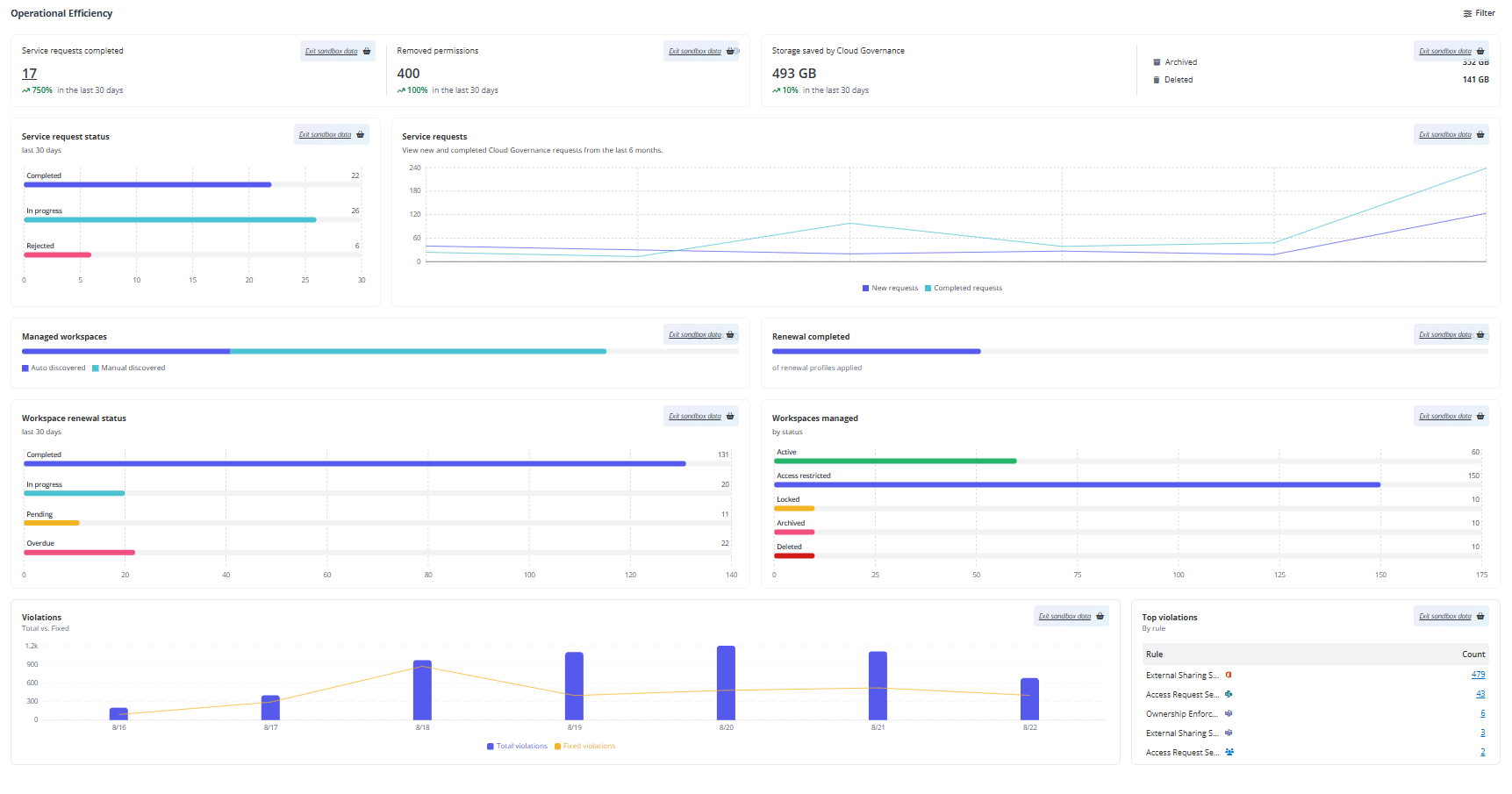
You can filter specific data types using the filter on the upper-right corner of the command center. Click Filter to select data types, and then click Apply.
Optimization & ROI
The Optimization & ROI command center helps organizations identify areas impacting operations across collaboration platforms like Microsoft 365 and Salesforce.
The Optimization & ROI command center includes the following reports:
- Have an overview of the protected scope, protected storage, and restored content within your tenant. To utilize the full functionalities of this report, you need a subscription to Cloud Backup for Microsoft 365.

- **License assignment and inactivity** – View this report to gain insights into license utilization, identify inactive users, and take action to reduce costs effectively. To utilize the full functionalities of this report, you need a subscription to Cense.

- Gain a sight of the storage optimization, including archived storage, archived files, and estimated cost savings. Clicking each underlined link will open the related pages in Opus. To utilize the full functionalities of this report, you need a subscription to Opus.

- **Adopted users by Microsoft 365 platform** – With this graph, you can easily view which platforms are most popular based on user adoption. The detailed information will be displayed in the tooltip when hovering the mouse on a point. To utilize full functionalities of this report, you need a subscription to tyGraph.

- **API usage** – This report tracks the percentage of the API usage in Cloud Backup for Salesforce® as well as the API usage limit percentage of the organization in the last 7 days. The detailed information will be displayed in the tooltip when hovering the mouse on a point. To utilize the full functionalities of this report, you need a subscription to Cloud Backup for Salesforce®.

- **SharePoint content publishing** – Includes the following information:
- **Publishing benchmark** calculates your overall publishing effectiveness by analyzing the metrics in news posting and page publication activities.
- **Saturation level** assesses content saturation by measuring the deviation of each day's post count from the mean.
To utilize the full functionalities of this report, you need a subscription to tyGraph.

Recommendations
Refer to the following recommendations and complete configurations to fulfill the utilization of the Optimization & ROI command center.
- **Data optimization** – With a subscription to Opus, clicking this tile will redirect you to the Opus environment. You can run an ROT analysis to identify areas to optimize spending on your collaboration platform.

- **Improve organization adoption** – With a subscription to tyGraph, clicking this tile will redirect you to the tyGraph environment. You can configure adoption reporting to understand license consumption.

- **Clear unused licenses** – With a subscription to Policies for Microsoft 365, clicking this tile will redirect you to the policies configuration pages, and you can set up rules to monitor for orphaned accounts and licenses.

- **Automate release license capacity** – With a subscription to EnPower, clicking this tile will redirect you to the EnPower environment, and you can configure offboarding templates to reclaim licenses from users who leave their roles.
Risk Posture
The Risk Posture command center provides in-depth insights for security teams to configure policies, monitor risks, and track compliance-related events.
The Risk Posture command center includes the following reports:
- Glance at the security concerns within your tenant, including untrusted external users, sharing links (external), and high-risk items. Clicking each underlined link will open the related pages in Insights. To utilize the full functionalities of this report, you need a subscription to Insights.

- **Backup scope** – Displays the number of objects within the backup scope compared to the total objects detected over the past 12 months. The detailed information will be displayed in the tooltip when hovering the mouse on a bar in the chart. To utilize the full functionalities of this report, you need a subscription to Cloud Backup for Microsoft 365.

- Monitor the potential risks in your tenant, such as risky apps, ownerless workspaces, and high sensitivity items. Clicking each underlined link will open the related pages in EnPower or Insights. To utilize the full functionalities of this report, you need a subscription to EnPower and Insights.

> ***Note**: The workspace report in EnPower is coming soon! Organizations with a subscription to EnPower can now view the sample data.
- **Unusual activities analysis (ransomware events)** – Shows the number of objects under potential ransomware attacks and those with unusual activities in the past 7 days. The detailed information will be displayed in the tooltip when hovering the mouse on a point. To utilize the full functionalities of this report, you need a subscription to Cloud Backup for Microsoft 365.
 report".")
Recommendations
Refer to the following recommendations and complete configurations to fulfill the utilization of the Risk Posture command center.
- **Omit external risks** – With a subscription to Insights, clicking this tile will redirect you to the Insights environment, and you can review access for external users.

- **Clear up risky items** – With a subscription to Insights, clicking this tile will redirect you to the Insights environment, and you can review “broad” high-risk access internally.

- **Recertify individual’s OneDrive** – With a subscription to Cloud Governance, clicking this tile will redirect you to the Cloud Governance environment, and you can create OneDrive assessments to assign accountability.

- **Ransomware alert** – With a subscription to Cloud Backup for Microsoft 365, clicking this tile will redirect you to the Cloud Backup for Microsoft 365 environment, and you can set up alerts for ransomware activities.
