
Home > Command Centers > AgentPulse > Agent Inventory
Download this articleAgent Inventory
Under the Agent Inventory tab, you can view a detailed report for all AI agents detected within your organization. Inventory for some agent types such as Copilot Studio lite or Microsoft 365 Agents Toolkit are only available if they have had activity within the reporting period.
By clicking the Agent Inventory tab, select the tenant you want to view. The table will display all agents detected in the selected tenant, along with their details. You can click the tenant to switch the tenant later.
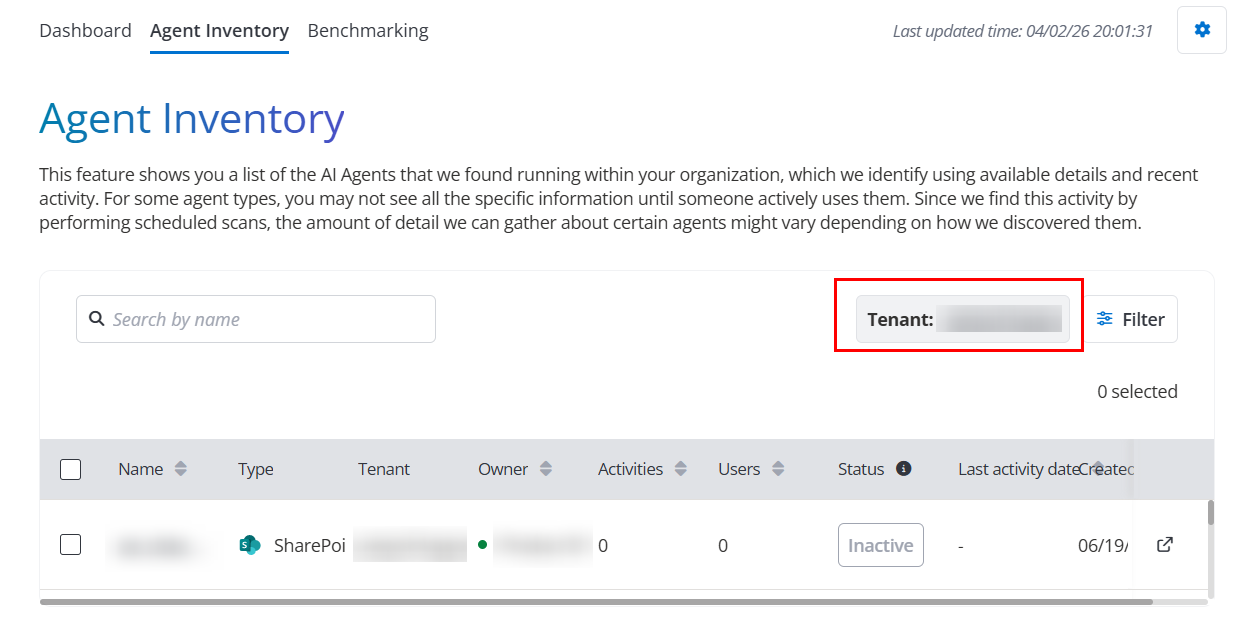
The Source column is available in the Agent Inventory table. With an Agent 365 or Microsoft 365 E7 license, AgentPulse can also show additional fields such as agent instructions.
To view detailed information for a specific agent, click its name in the table to open the following three tabs.
You can also click Manage in EnPower to view and manage the agent in EnPower. For detailed information, refer to Agent Inventory.
-
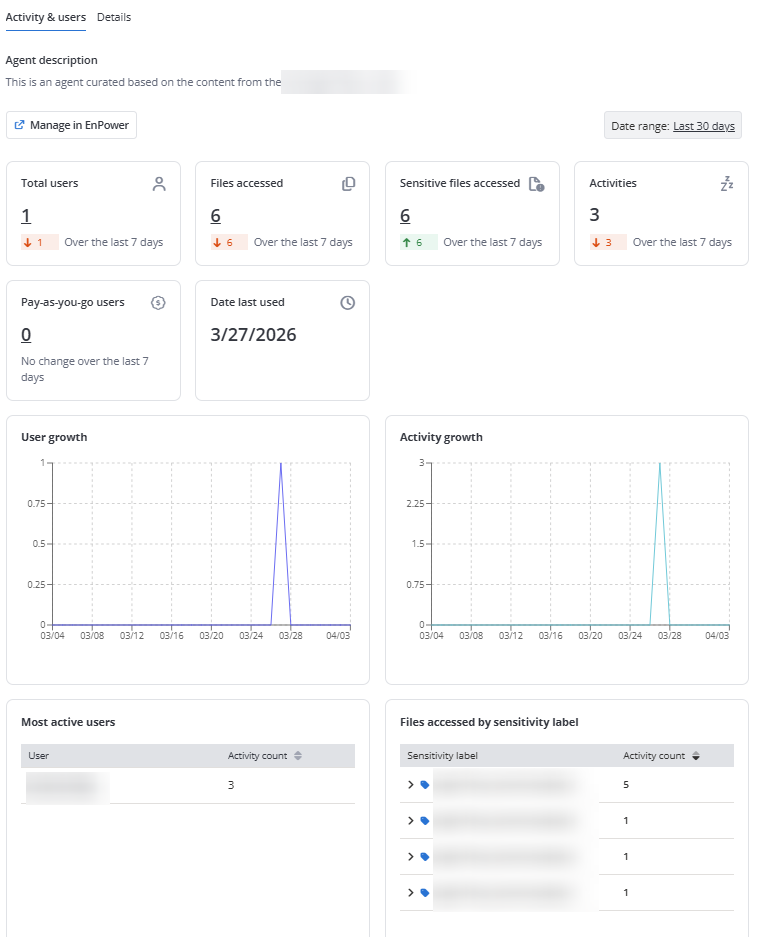
Activity & Users – The following reports are displayed. You can also click Manage in EnPower to view and manage the agent in EnPower. For detailed information, refer to Agent Inventory.
-
Total users card – Displays the total number of active users and the change compared to last week’s data in the specified tenant.
-
Files accessed – Displays file access over the last 7 days and the change compared to last week’s data in the specified tenant.
-
Sensitive files accessed – Displays the number of sensitive files accessed over the last 7 days and the change compared to last week’s data in the specified tenant.
-
Activities – Displays the number of activities over the last 7 days and the change compared to last week’s data in the specified tenant.
-
Pay-as-you-go users – Displays the number of pay-as-you-go users over the last 7 days and the change compared to last week’s data in the specified tenant.
-
Date last used – Displays the last date when the agent was used.
-
User growth – Displays the daily count of active users over the custom date range.
-
Activity growth – Displays the daily count of activities over the custom date range.
NOTEThe Details tab is only available for the following types of agents that are scanned in your containers:
-
Microsoft Foundry agents
-
SharePoint
-
Copilot Studio agents
-
Agent Platform
-
-
Top users table – Displays the top users with the highest activity counts with the agent.
-
Files accessed by sensitivity label – Displays the activity count of the agent over the custom date range, categorized by sensitivity label.
-
-
Details – This tab provides detailed agent configuration and permission information.
NOTEThe Details tab is available only when the agent's Is inventory value is Yes. You can click Filter to narrow the results and quickly find eligible agents.
The following reports are displayed:
-
General Information – Displays the comprehensive agent information.
-
Permissions – Displays the users/groups that have access to the agent. With an EnPower subscription, click the chart name to go to the EnPower for detailed information.
-
Knowledge sources – Displays the knowledge sources that the agent is connected to. With an Insights subscription, click the chart name to go to the Insights for detailed information.
-
-
Governance – Displays the governance information of the agent. The Governance tab is available only for Microsoft agents that are not Classic Microsoft Foundry agents, agent's Is Inventory value is Yes and active Control Suite subscriptions.
You can also click Edit Governance in EnPower to go to the EnPower for detailed information. For more information, refer to Agent Inventory.
-
Basic information – Displays the basic information of the agent.
-
Metadata – Displays the metadata of the agent.
-