
Home > Google > Configure Custom Google App Profiles (Recommended) > Consent to Custom Google Apps
Export to PDFConsent to Custom Google Apps
Refer to the following instructions to configure app profiles for custom apps and consent to custom apps.
-
Navigate to Management > App management, and then click Create.
-
Select services – Select a tenant and select services for which you want to create app profiles. Click Next.
-
Choose setup method – Select the Custom mode option. Note that the Custom mode option only appears when the selected services support custom apps.
-
Consent to apps – Refer to the instructions in the following sections to consent to a custom Google app.
-
App profile name – Enter a name for the profile.
-
Admin account – Enter the name of the Admin account that has the required privileges/roles. Refer to the table below for the required privileges/roles that vary with different features. For additional details, refer to the Manage Admin Roles and Privileges section below.
-
| Service | Function/Module | Admin account permissions |
|---|---|---|
| Cloud Backup for Google Workspace | User services protection (including Gmail, Drive, Calendar, Contacts, and Chat) | Admin API privileges: Users > Read |
| Cloud Backup for Google Workspace | Shared drives protection | Admin console privileges: Drive and Docs > Settings |
| Cloud Backup for Google Workspace | Google Vault protection | Admin console privileges:Google Vault > View All MattersGoogle Vault > Manage ExportsGoogle Vault > Manage Holds |
| Cloud Backup for Google Workspace | Google Classroom protection | Super Admin |
| Cloud Backup for Google Workspace | Google Directory protection | Admin console privileges: Security Center > This user has full administrative rights for Security Center > Audit and Investigation > ViewAdmin API privileges:Groups > Create, Read, and UpdateUsers > Create, Read, and Update Custom Attributes |
| Fly | Gmail migration | Admin API privileges:Users > ReadGroups > ReadAdmin console privileges:Calendar > All Settings > Buildings and Resources > Room InsightsReportsMake changes to events permission to the calendar, or assign the Super Admin role to the Admin account. See more details in the Fly user guide. |
| Fly | Google Drive migration | Admin console privileges:Users > ReadDrive and Docs > SettingsReportsContent manager of shared drives See more details in the Fly user guide. |
| Insights | All features for Google Workspace | Super Admin |
| Confidence Platform for Google | Administration | Super Admin |
| Confidence Platform for Google | Governance | Super Admin |
| Confidence Platform for Google | Risk Intelligence | ● Super Admin, or the following privileges:● Admin API privileges:Users > ReadDomain Management● Admin console privileges:Drive and Docs > SettingsReportsData Classification > Manage Labels |
| Confidence Platform for Google | Policy Enforcement | ● Super Admin, or the following privileges:● Admin API privileges:Users > ReadDomain Management● Admin console privileges:Drive and Docs > SettingsReportsData Classification > Manage Labels |
| Confidence Platform for Google | Information management | ● Admin API privilegesUsers > ReadGroup > ReadDomain ManagementReports● Admin console privileges:Drive and Docs > SettingsData Classification > Manage Labels |
| Opus | All features for Google Workspace | Super Admin, or the following privileges assigned to a custom role: Admin API privileges: Users > ReadDomain ManagementAdmin console privileges:Drive and Docs > SettingsReportsData Classification > Manage Labels |
Manage Admin Roles and Privileges
Refer to the instructions below to manage roles and privileges for an Admin account:
*Note: The user must have the Super Admin role to manage roles and privileges.
-
Go to the Google .
-
Click Manage in the Users section.
-
Click the user you want to assign the roles. The user details page appears.
-
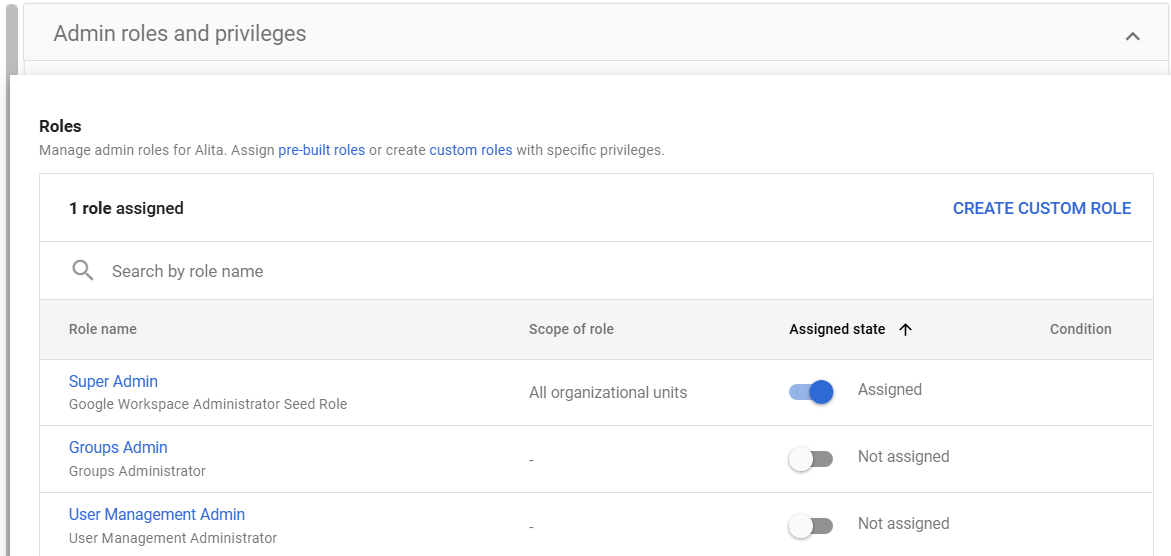
In the Admin roles and privileges section, click the Expand (
 ) button.
 -
If you want to assign a pre-built role such as Super Admin or User Management Admin to the account, toggle the switch to Assigned in the Assigned state column.
-
Click SAVE.
-
If you want to create a custom role with required privileges, click CREATE CUSTOM ROLE.
-
Click Create new role.

-
The Create role page appears. Enter a role name and click CONTINUE.

-
In the Select Privileges section, select required privileges by referring to the Admin account table above.
-
Click CONTINUE.
-
Click CREATE ROLE. The custom role is successfully created.
-
You can assign the custom role to the Admin account.