
Home > Microsoft > Configure App Profiles or Service Account Profiles > Configure App Profiles for Custom Azure Apps > API Permissions Required by Custom Microsoft Azure Apps
Export to PDFAPI Permissions Required by Custom Microsoft Azure Apps
For the custom app created in your Microsoft Entra ID, to ensure it is available for common features in AvePoint Online Services, refer to the table below to assign the required permissions accordingly.
*Note: If the Sites.FullControl.All SharePoint API permission is not allowed by your organization’s security policy, you can add the Sites.Selected application permission as a replacement. For more information, see What Should I Do If the Sites.FullControl.All Permission Cannot be Added to My Custom App?
| API | Permission | Type | Purpose |
|---|---|---|---|
| Microsoft Graph | Organization.Read.All(Read organization information) | Application | Check the status of app profiles. |
| Microsoft Graph | Group.Read.All(Read all groups) | Application | Scan mailboxes, Microsoft 365 Groups, Teams, and Viva Engage communities. Invite users and groups in User management. |
| Microsoft Graph | User.Read.All(Read all users) | Application | Scan mailboxes, Microsoft 365 Groups, Teams, and Viva Engage communities. Invite users and groups in User management. |
| SharePoint/Office 365 SharePoint Online | Sites.FullControl.All(Have full control of all site collections) | Application | Scan SharePoint Online site collections, Project Online site collections, OneDrive, and Microsoft 365 Group team sites. |
| SharePoint/Office 365 SharePoint Online | User.Read.All(Read user profiles) | Application | Scan OneDrive to retrieve the OneDrive URL of each user from SharePoint user profiles. |
| Office 365 Exchange Online | full_access_as_app(Use Exchange Web Services with full access to all mailboxes) | Application | Scan Exchange Online Public Folders and in-place archived mailboxes (if necessary). |
| Office 365 Exchange Online | Exchange.ManageAsApp(Manage Exchange As Application) | Application | Only required by custom apps of the following services: Cloud Backup for Microsoft 365, Cloud Management, Cloud Governance, Fly, EnPower, Opus, and Policies for Microsoft 365. |
The following services support using a custom Azure app for authentication. The permissions of the custom app vary with the different cloud services your tenant is using.
Click the links listed below to view the required permissions for your services.
*Note: You do not need any permissions or Microsoft licenses other than those listed in this guide.
Notes for Organizations in the Microsoft 365 U.S. Government Environment
If you are using a Microsoft 365 U.S. Government environment and you want to use a custom Azure app for Exchange/SharePoint management, note the following:
| API | Permission | resourceAppId | id | type |
|---|---|---|---|---|
| Office 365 Exchange Online | full_access_as_app(Use Exchange Web Services with full access to all mailboxes) | 00000002-0000-0ff1-ce00-000000000000 | dc890d15-9560-4a4c-9b7f-a736ec74ec40 | Role |
| API | Permission | resourceAppId | id | type |
|---|---|---|---|---|
| SharePoint | Sites.FullControl.All(Have full control of all site collections) | 00000003-0000-0ff1-ce00-000000000000 | 678536fe-1083-478a-9c59-b99265e6b0d3 | Role |
| SharePoint | TermStore.ReadWrite.All(Read and write managed metadata) | 00000003-0000-0ff1-ce00-000000000000 | c8e3537c-ec53-43b9-bed3-b2bd3617ae97 | Role |
| SharePoint | User.ReadWrite.All(Read and write user profiles) | 00000003-0000-0ff1-ce00-000000000000 | 741f803b-c850-494e-b5df-cde7c675a1ca | Role |
What Should I Do If the Sites.FullControl.All Permission Cannot be Added to My Custom App?
If the Sites.FullControl.All SharePoint API permission is not allowed by your organization’s security policy, you can add the Sites.Selected application permission as a replacement and refer to the steps below:
-
Configure your custom Azure app by referring to Create Custom Azure Apps. When adding SharePoint API permissions, add the Sites.Selected permission instead of the Sites.FullControl.All permission. Ensure you click Grant admin consent for [Tenant name] to grant admin consent.
-
Specify which sites an app can access. For more information, refer to Specify Selected Sites via Graph Explorer.
-
Then, you can import these sites by referring to Import Objects in Batch.
Specify Selected Sites via Graph Explorer
Refer to the steps below to specify which sites the app can access.
-
Go to , and click the profile icon to sign in.

When the pop-up window appears, click Accept.

-
Refer to the steps below to search for sites that match your provided keywords.
-
From the left navigation, click search for a SharePoint site by keyword.

-
Under the Modify permissions tab, ensure that Sites.Read.All or Sites.ReadWrite.All permissions are granted. If not, click Consent to grant the permissions.

-
Replace the text after search= with the desired site name. Take the screenshot below as an example.

-
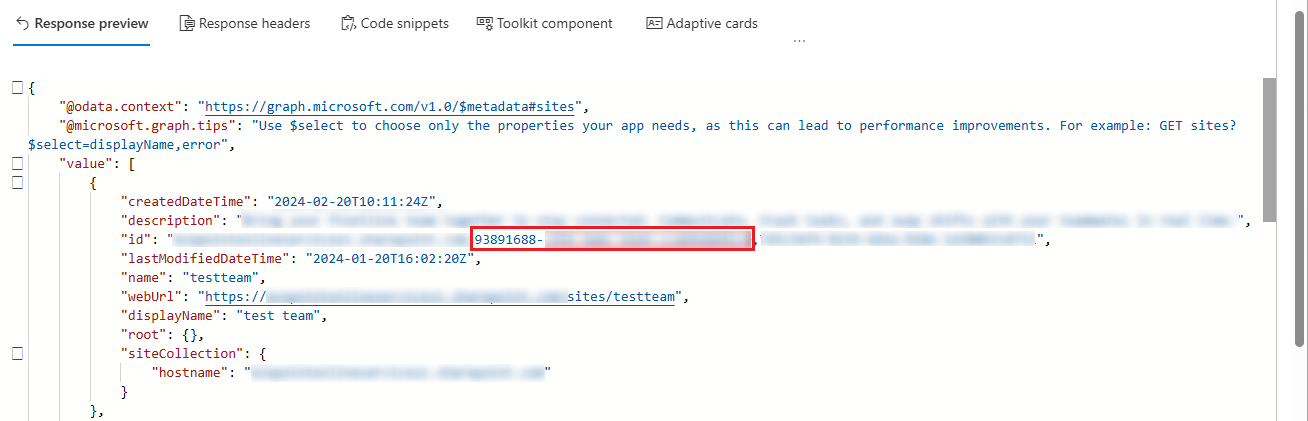
Click Run query. Then, check the response result and note down the site ID value that matches the position of the red box in the screenshot below. The site ID value will be used in the following steps.
-
-
Use the following API call to grant the FullControl permission for your app to access a specific site.
-
Change the request method to POST.
-
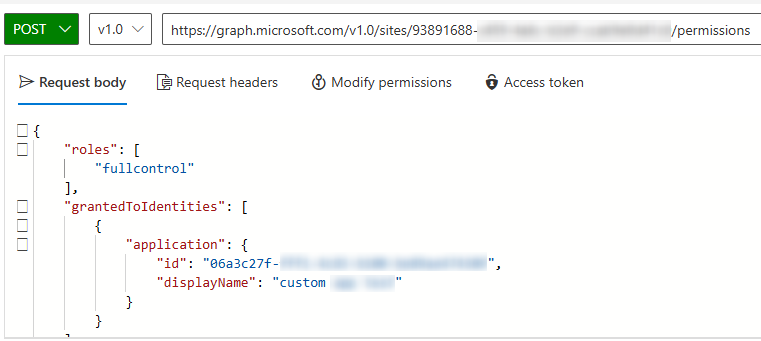
Enter the following URL in the address bar, replacing {site-id} with the site ID value obtained in the previous step.
https://graph.microsoft.com/v1.0/sites/{site-id}/permissions

-
In the Request body text box, enter the following JSON, replacing {app-id} and {app-name} with the custom app's client ID and display name.
{
}
-
Under the Modify permissions tab, ensure that the Sites.FullControl.All permission has been granted. If not, click Consent to grant the permissions.

-
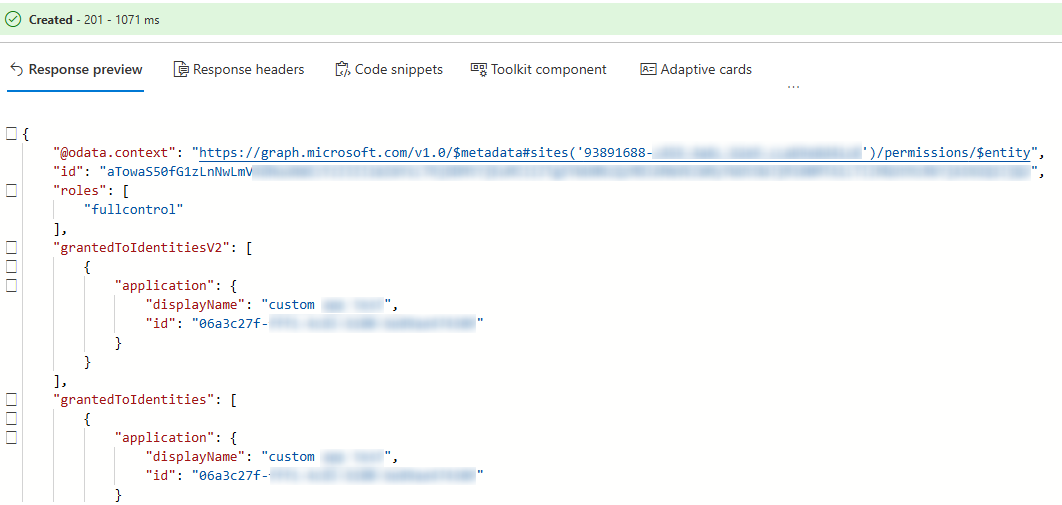
Click Run query to execute the request. A successful execution indicates that the specified site operation is complete.
-