
Home > Microsoft Teams Chat to Google Chat Space Migration Process
Download this articleMicrosoft Teams Chat to Google Chat Space Migration Process
The sections below contain the general migration process for Microsoft Teams Chat to Google Spaces Migration. The details outlined in this document can serve as general guidelines with some minor adjustments.
More steps may be needed, and some steps included in the process may be optional according to your migration requirements.
Preparation
Before migration, you need to identify what object types you want to migrate. See the Supported and Unsupported List.
1. Create an app profile with required permissions for source connection
To connect Fly to your Teams Chat, create an app profile with the required permissions for the source connection.
2. Create an app profile with required permissions for destination connection
To connect Fly to your spaces, create an app profile with the required permissions for destination connection.
3. Create users in destination tenant
User mappings are required when executing migrations. Make sure users of the following data are created in the destination tenant before the migration.
-
Team Membership
-
Conversation sent by
-
Permission
-
Other data that needs users
4. External users
External users cannot be added directly to destination spaces during migration. Make sure the external users have been added to the contacts before the migration.
5. Create source and destination connections
Refer to Create a Connection to connect Fly to your source and destination. The source connection using Fly app profile or custom app profile is recommended. The destination connection using the Google custom app profile is recommended.
6. Project setup
Generally, we recommend you keep using the source chats during the migration process until you migrate all data to the destination.
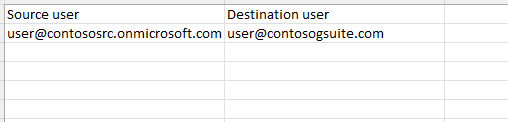
7. Prepare mapping files
Configure Teams Chat to Spaces mapping files and user mapping files:
-
Examples in the Teams Chat to Spaces mapping file
-
Examples in the user mapping file

8. Define the migration policy
Microsoft Teams Chat to Google Spaces migration policy allows you to define the migration scope of Teams Chat, whether to migrate chat file attachments, the conflict resolution for chat file attachments, how to map chat users, and how to manage the sensitivity labels of chat file attachments for Microsoft Teams Chat to Google Spaces migrations. Refer to Create a Migration Policy for details.
The Automatically complete newly created spaces option helps you to auto complete the destination new spaces after the full/incremental migration job. By default, the option will not be selected. If you want to enable the auto complete, you can select the option in the migration policy.
9. Migration throughput
In Microsoft Teams Chat to Google Spaces migrations, the job speed depends on the size of Microsoft Teams Chat Files folder and the number of conversations.
Conversation Migration Throughput:
Generally, a reasonable conversation migration speed is 3600 messages/hour/mapping.
The number of mappings that run in parallel is automatically allocated based on your purchased subscription. The more subscriptions you purchase, the more mappings you can run in parallel.
There are many factors which may affect migration performance:
-
The above throughput number is for the full migration. Generally, it may be lower for the incremental migration since Fly needs to spend quite some time checking the migrated items’ status for the incremental migration.
-
The above results are only ideal values after many tests. The migration speeds of different tenants may be different. We recommend that you estimate the daily throughput in the same way as the results of the pilot job.
10. Plan a pilot run
We recommend you perform a pilot run for the following purposes:
-
Get familiar with the Fly interface and understand the whole migration process.
-
Discover and resolve any potential issues before production migration.
-
Understand the throttling situation in case content size is large and then try to resolve with source and destination.
Migration Execution
Refer to the following sections to execute the migration.
1. Configure projects and mappings in Fly
To configure projects and mappings, refer to Create a Project and Create Migration Mappings for details. Use the mapping file of data to be migrated to configure the migration project.
2. Perform regular full migrations
Before running the job, we recommend you verify the mappings to ensure that the mappings are available for migration. Refer to Pre-analyze Mappings for details.
Then you can run a full migration job to migrate the objects based on your configured migration policy. Refer to Run Migrations to Migrate Objects for details.
3. Perform regular incremental migrations
Some issues may occur during a full migration job. Run an incremental migration job to handle new, updated, and failed data. Refer to Run Migrations to Migrate Objects about how to perform regular incremental migrations.
4. Perform the final incremental migration
Notify all users and make sure the source Teams Chats do not have any new/modified objects. Then perform the final incremental migration job.
5. Run a complete migration job (optional)
Run a complete migration job to make the destination spaces available for end users.
You also can select the Replace outside attachment URLs option to replace external attachment URLs.
6. Perform the replace attachment URLs (optional)
After your migration jobs are finished, some attachment URLs may fail to be replaced with the corresponding destination Google Drive URLs, rendering them inaccessible to destination users. To ensure accessibility after the migration, you can run a Replace attachment URLs job.
By default, only URLs of attachments within the current URLs for attachments in the current user's Teams Chat Files folder can be replaced.
If your source Teams Chats contain URLs of attachments from other Teams or OneDrive, you can generate URL mapping report to get the inaccessible external attachments and configure URL mappings for them. Then, you can select the Replace external attachment URLs checkbox and run the Replace attachment URLs job to replace their URLs.
7. Perform incremental migrations for other waves (optional)
If there are new or modified objects in the source after the complete job, you can perform the incremental migrations to make sure all source changes are migrated to the destination.
8. Validate migration results
Check the following items during the validation period:
-
Number of messages
-
Number of files
-
Format of conversations
-
Destination space members