
Home > Manage Auto Discovery > Helpful Notes When Auto Discovery Scan Results Return Error Codes

Export to PDF

Helpful Notes When Auto Discovery Scan Results Return Error Codes

The table below lists auto discovery scan jobs’ error messages and related error codes. You can click the error code links to view the helpful notes.

Error MessageError Code
SharePoint Online has throttled requests from this scan job.cs0000001
The SharePoint Online environment is temporarily unavailable.cs0000002
The number of simultaneous PowerShell Sessions a user can open to Exchange Online has reached its limit.cs0000003
The Group team sites of some Microsoft 365 Groups, Microsoft Teams, and Viva Engage communities cannot be retrieved.cs0000004
The service account has multi-factor authentication enabled, but MFA has not been configured in the service account profile.cs0000005
The account in the authentication method profile used by this scan profile does not have the license to access the Environments listed below.ps0000001
The account in the authentication method profile used by this scan profile does not have sufficient permissions to access the Environments listed below.ps0000002

cs0000001

SharePoint Online has a that prevents too many simultaneous requests (SharePoint Online returns the HTTP status code 429). To avoid getting throttled in SharePoint Online, choose the following solutions based on your scenario:

- When the app profile authentication method cannot meet your data management requirements, and you still want to use the service account method, try the following solutions and rerun the scan job: - If your organization has configured service account pools in the AOS classic UI (before June 2023 release), add enough users to the account pool. For additional details on users in an account pool, refer to [How Many Accounts Should be Added into an Account Pool?](#missing-link) Note that the scan profile’s service account cannot be added to the account pool. For additional details, refer to [Manage Account Pool (Obsolete)](#missing-link). - Check the scan profile’s settings to ensure that scan jobs will not run when there are other services sending a high volume of requests to SharePoint Online. > ***Note**: If your organization has configured scan profiles with the service account authentication method before June 2023 release, to continue using service account authentication method for Auto discovery scan jobs, you must not update your Auto discovery scan profiles. Otherwise, the service account authentication methods will be absent from scan profiles.

cs0000002

SharePoint Online has a when the environment is too busy (SharePoint Online returns HTTP status code 503). To avoid getting throttled in SharePoint Online, choose the following solutions based on your scenario:

- Configure app profiles to rerun the scan job with the app profile authentication method. For more information about app profile, refer to [Manage App Profiles](#missing-link). - If the error still exists, you can refer to the steps below to check the audit log details. 1. Search for jobs. You can refer to the screenshot below to configure the search conditions. ![Searching for jobs.](/en/aos/manage-app-profiles/create-custom-apps/create-a-custom-google-app/step-2-turn-off-policies-and-create-a-service-account/images/image86.png "Searching for jobs.") 2. The jobs which meet your search conditions will be added to the queue. You can select a job in the **Completed** status to export audit logs. ![Selecting a job in the Completed status to export audit logs.](/en/aos/manage-app-profiles/create-custom-apps/create-a-custom-google-app/step-2-turn-off-policies-and-create-a-service-account/images/image87.png "Selecting a job in the Completed status to export audit logs.") 3. Click **Export** to export audit logs. ![Clicking Export to export audit logs.](/en/aos/manage-app-profiles/create-custom-apps/create-a-custom-google-app/step-2-turn-off-policies-and-create-a-service-account/images/image88.png "Clicking Export to export audit logs.") > ***Note**: For more information about audit logs, see . If your SharePoint Online environment has been unavailable for a long time, we suggest you contact Microsoft for help.

cs0000003

Exchange Online PowerShell has a limit for the number of simultaneous sessions a user can open. The screenshot below indicates that an error occurs when the number of sessions exceeds the limit.
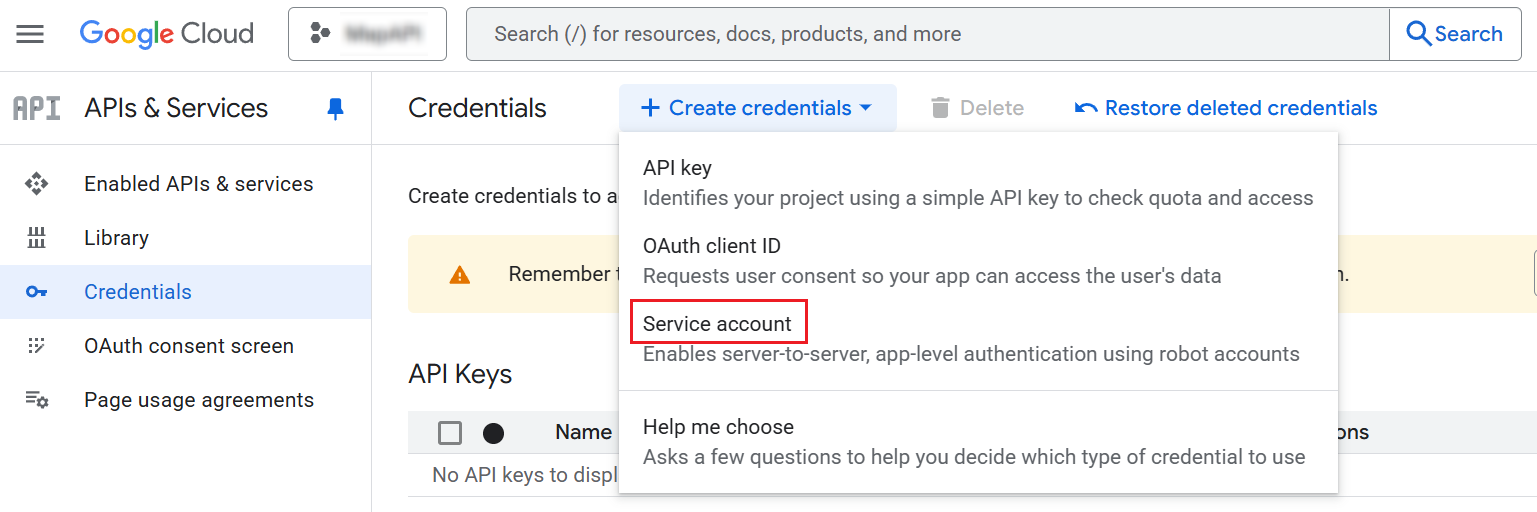
The error information for sessions exceeding their limits.

To avoid this error, try the following methods based on your scenario:

- Configure related app profiles and run scan profiles with the app profile authentication method. - Make sure that you are not connecting to Exchange Online PowerShell when a scan job is running. - If you need to connect to Exchange Online PowerShell for other services, try contacting Microsoft to modify the limits for your Microsoft 365 tenant.

cs0000004

Auto discovery uses Microsoft PowerShell to scan Microsoft 365 Groups, Microsoft Teams, and Viva Engage communities, and the Group team sites will be scanned as the Microsoft 365 Groups’ properties. Sometimes, even if there are no existing Group team sites, the property needs to be initialized in Microsoft 365 Outlook.

The scan result of this issue is Partially added. To initialize the Group team sites, sign in to Outlook with a Global Admin account, find Microsoft 365 Groups / Microsoft Teams / Viva Engage communities under the Group tab, and then click Files. Then, the initialization will be completed. You can refer to the screenshot below as an example:
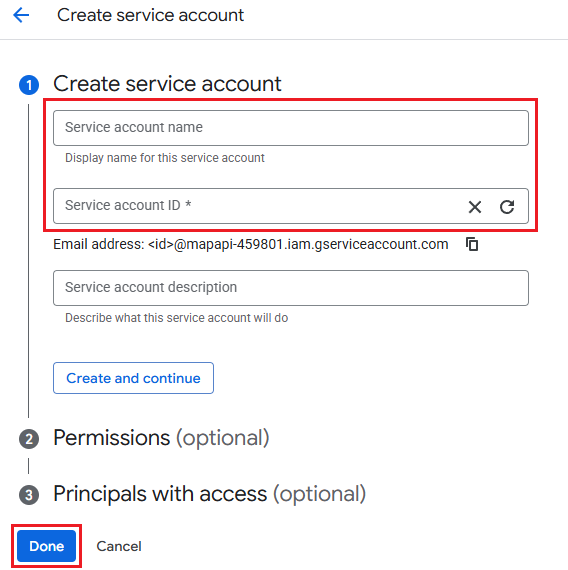
Initializing the property for a Group team site.

cs0000005

For organizations that use multi-factor authentication in Microsoft 365 or have enabled conditional access policies in Microsoft Azure, it is recommended to configure the app profiles to be used by the scan profiles in Auto discovery. For additional details on app profiles and auto discovery, refer to Manage App Profiles and Manage Auto Discovery.

If your organization still wants to use scan profiles with the service account authentication method (these scan profiles were transferred from the AOS classic UI in June 2023 release), you must not update the scan profiles. To troubleshoot this error, you can edit the service account profile to update the Microsoft 365 account used in the profile by referring to instructions in Helpful Notes for Passing the Validation Test of a Service Account.

ps0000001

Go to Microsoft 365 admin center and navigate to Users > Active users, find the account (applied in the service account profile or used to authorize the delegated app), and then click Manage product licenses from the More actions (![The "More actions" icon.](/en/configuration-and-deployment/manage-auto-discovery/images/image91.png "The "More actions" icon.")) drop-down list.

![Clicking "Manage product licenses".](/en/configuration-and-deployment/manage-auto-discovery/images/image92.png "Clicking "Manage product licenses".")

In the account details panel, click the Licenses and apps tab, and ensure that the licenses and apps related to Power Automate or Power Apps have been selected. Click Save changes.
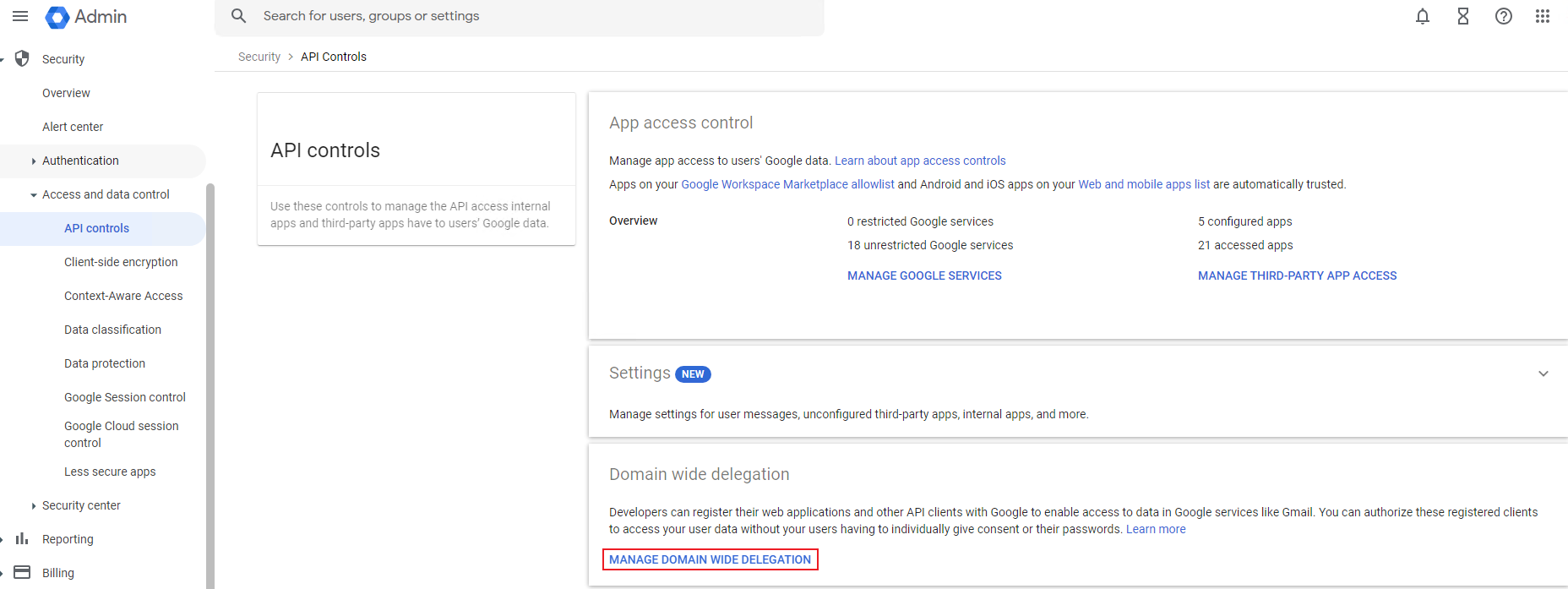
Checking licenses and apps related to Power Automate or Power Apps.

After the changes are saved, check if this account can successfully sign into Power Automate or Power Apps. If so, wait for at least 15 minutes, and then go to AvePoint Online Services to run the scan profile again.

For more information about the Power Platform licenses, refer to the following Microsoft articles: and .

ps0000002

Go to the Power Platform admin center, click Environments, and click an environment which is reported in the scan history. Click Settings on the ribbon of the environment details page.

![Clicking "Settings" on the ribbon of the environment details page.](/en/configuration-and-deployment/manage-auto-discovery/images/image94.png "Clicking "Settings" on the ribbon of the environment details page.")

On the Settings page, navigate to Users + permissions > Users.

![Clicking "Users + permissions" and "Users".](/en/configuration-and-deployment/manage-auto-discovery/images/image95.png "Clicking "Users + permissions" and "Users".")

On the Users page, find the account (applied in the service account profile or used to authorize the delegated app) and take the following actions based on your scenarios:

- If the account is not in the users list, click **Add user** to add the account. ![Clicking "Add user".](/en/configuration-and-deployment/manage-auto-discovery/images/image96.png "Clicking "Add user".") - If the account is in the users list, check if this account has the **System Administrator** role. ![Checking the "System Administrator" role.](/en/configuration-and-deployment/manage-auto-discovery/images/image97.png "Checking the "System Administrator" role.") If the **System Administrator** role is not displayed, either click **Manage roles** and assign the role to the account, or click **Refresh user** to synchronize the role from Microsoft Entra. ![Clicking "Manage roles" to assign the role to the account, or clicking "Refresh user" to synchronize user role from Azure AD.](/en/configuration-and-deployment/manage-auto-discovery/images/image98.png "Clicking "Manage roles" to assign the role to the account, or clicking "Refresh user" to synchronize user role from Azure AD.") After the changes are saved, check if this account can successfully sign into Power Automate or Power Apps. If so, wait for at least 15 minutes, and then go to AvePoint Online Services to run the scan profile again. For more information, refer to this .