Home > tyGraph Support Articles > Update from a Power BI Template App > Step 1: Backup Old Reports
この記事をダウンロードStep 1: Backup Old Reports
Follow this step only if you have customized the tyGraph report and want to retain your changes. Otherwise, continue to Step 2.
Before selecting Get it now, review any default reports you have customized. If a report still uses its default name, the update can replace it. To preserve your work, rename customized reports before proceeding. At a minimum, take screenshots of any layouts you want to recreate later. The out-of-the-box default objects are shown below.
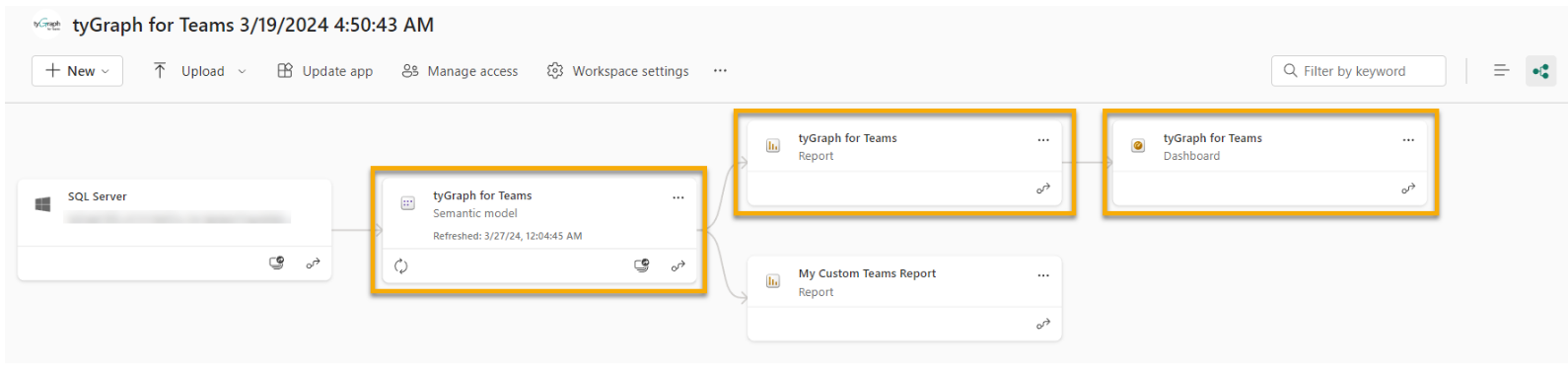
Also note that visuals can break if attribute names have changed since the previous version. For example, we recently renamed the Location attribute to User Location. After the update, you will need to revise any customized visuals that still reference the older attribute name.
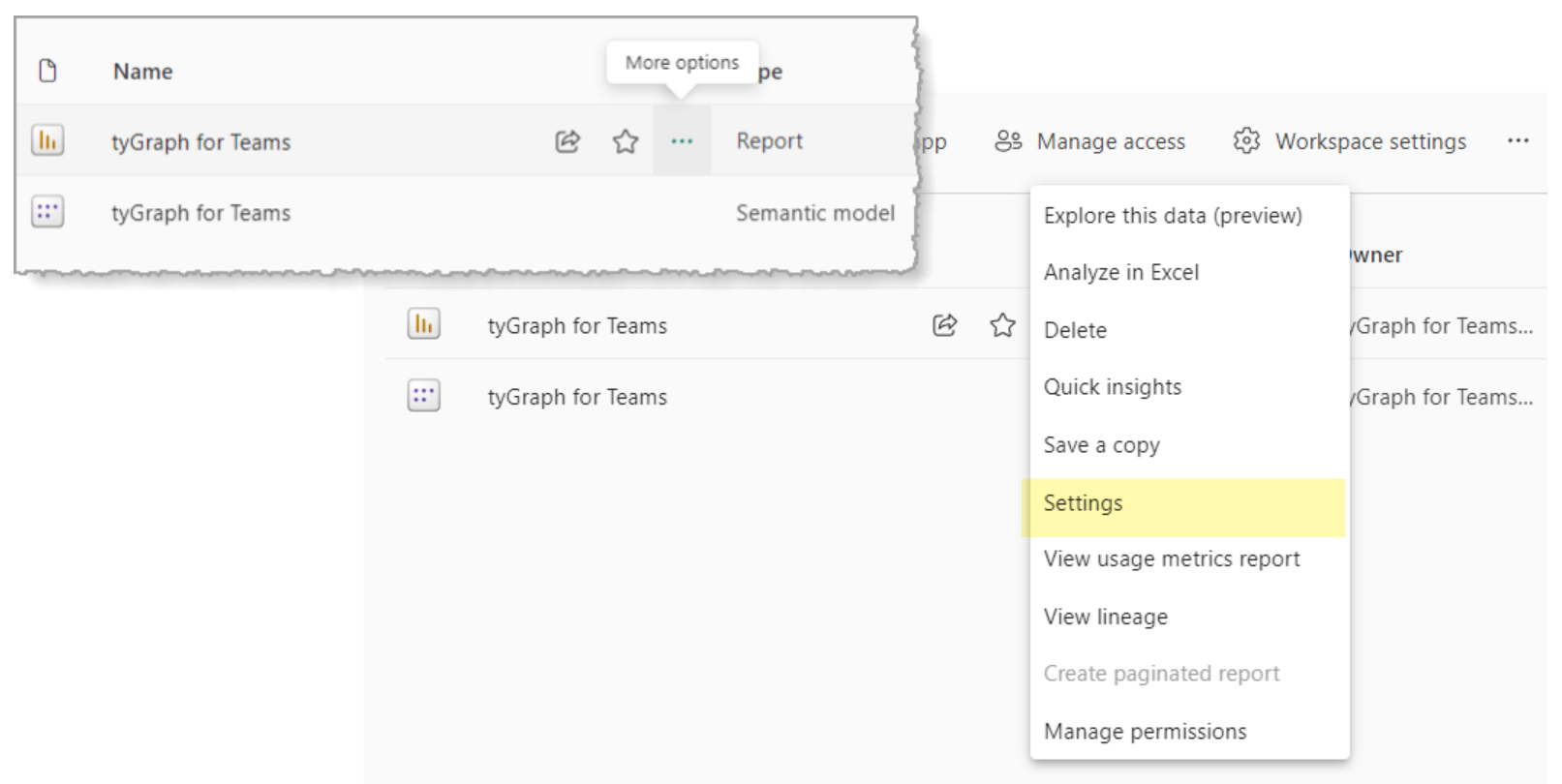
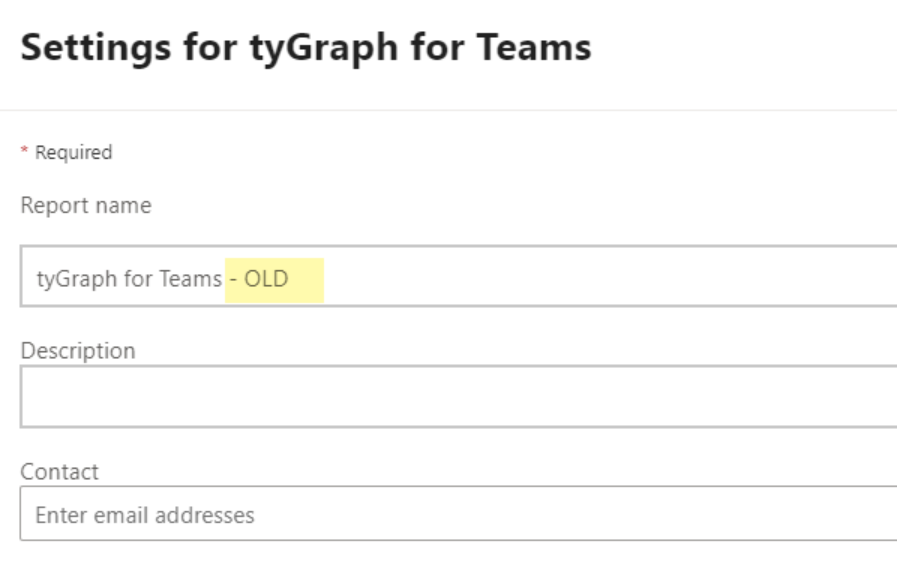
If you want to keep an out-of-the-box report that you previously customized, rename it by adding a suffix such as - OLD.