Home > tyGraph Support Articles > Add referring URL information to your SharePoint links
Download this articleAdd Referring URL Information to Your SharePoint Links
In some scenarios, tyGraph Pages cannot capture referring URL information automatically. For example, when SharePoint links are posted in Yammer or Teams, Microsoft may intentionally remove the original referrer information.
To capture a referrer in tyGraph Pages, append a referrer parameter to the link URL as shown below.

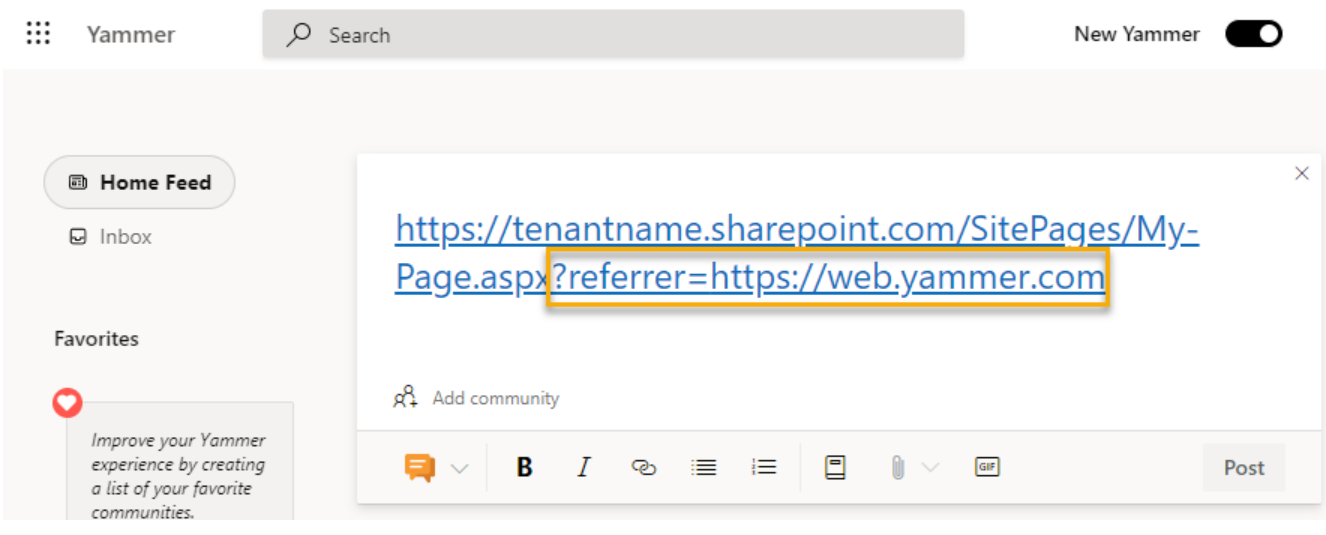
For example, update a link such as https://tenantname.sharepoint.com/SitePages/My-Page.aspx to:
https://tenantname.sharepoint.com/SitePages/My-Page.aspx?referrer=https://web.yammer.com
See the example below.
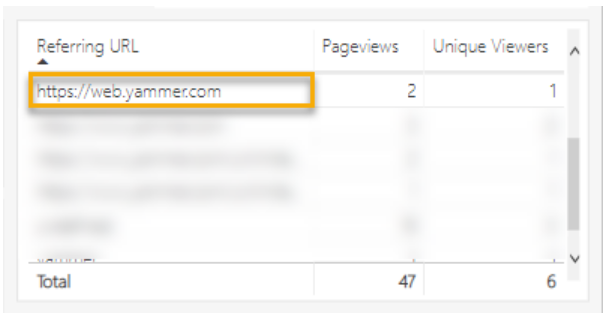
tyGraph Pages will then display the referring URL, as shown in the example below.
For example, you can track a specific email campaign with ?referrer=emailMyCampaign.
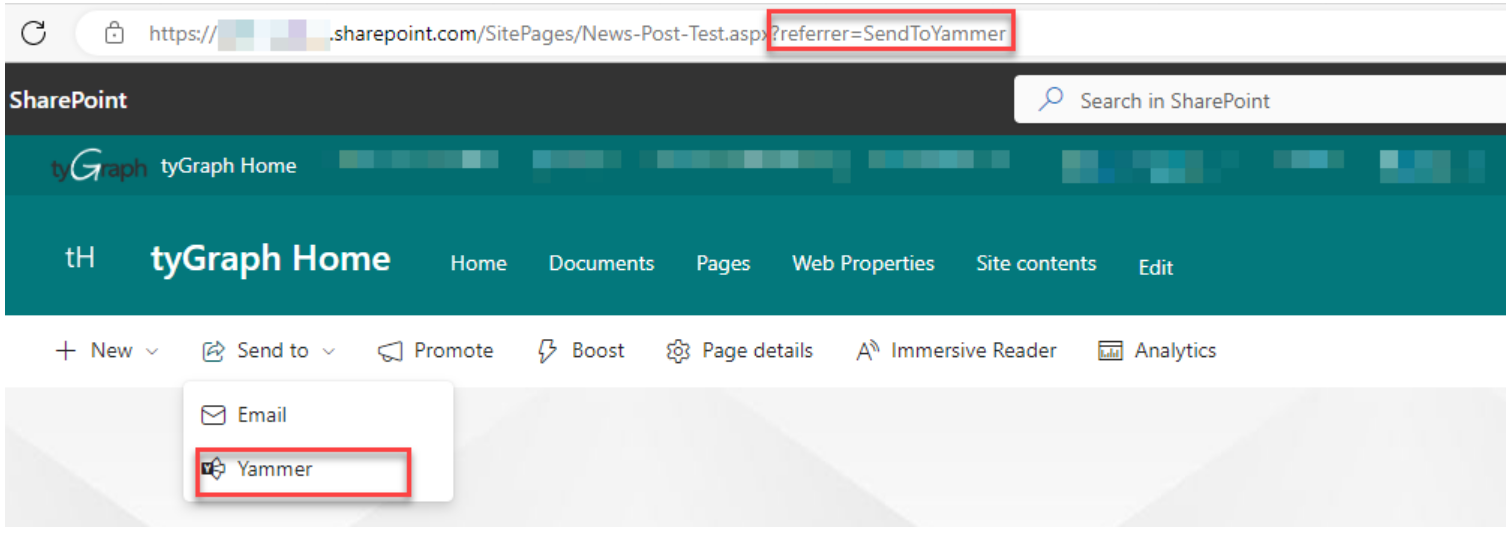
If you share pages using Send to > Yammer in SharePoint, append ?referrer=SendToYammer to the end of the URL before clicking the Share to Yammer button. This ensures the shared Yammer post includes the referrer parameter so page views from Yammer can be tracked.