
Home > tyGraph Support Articles > Update from a Power BI Template App > Step 2: Load New App
Download this articleStep 2: Load New App
Once you have saved or recorded any customized report layouts, you can proceed with the update. If you see a notification in the Notification Center, click the Get it link for the relevant application.
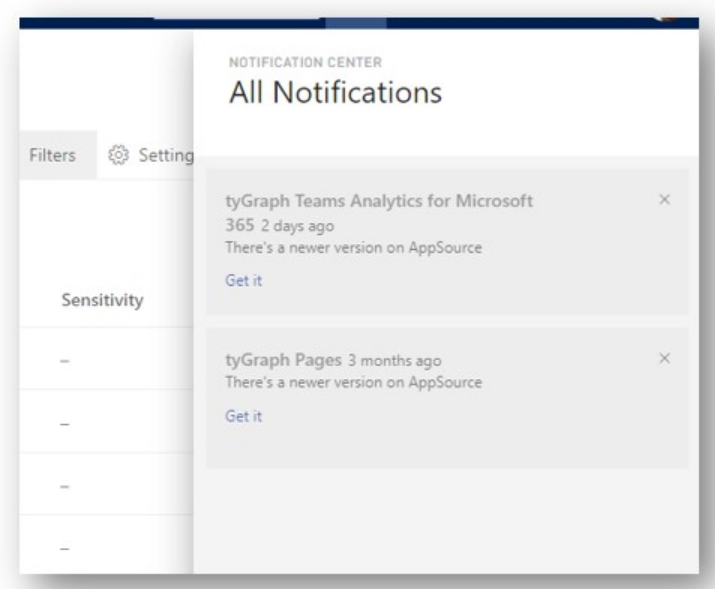
If you see a banner at the top of your workspace with a Get it now button, you can use that instead.

If these notifications do not appear, go to the Apps section and update the app manually.
-
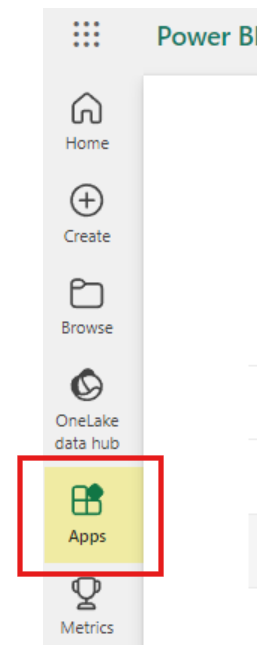
Click Apps in the left navigation menu.
-
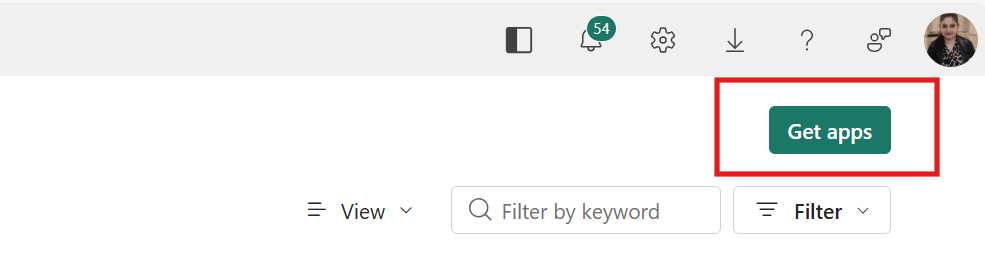
Click Get apps in the upper-right corner.
-
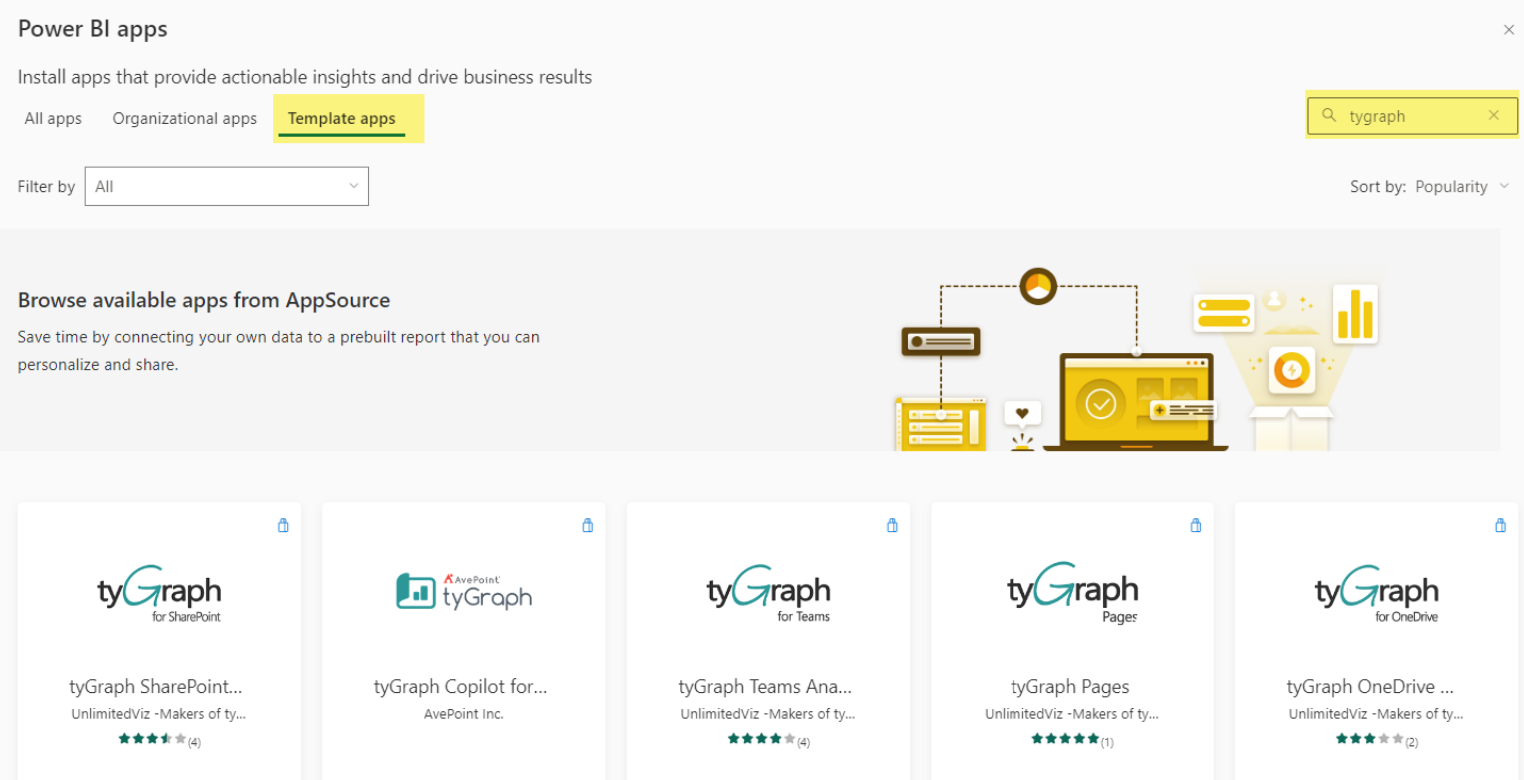
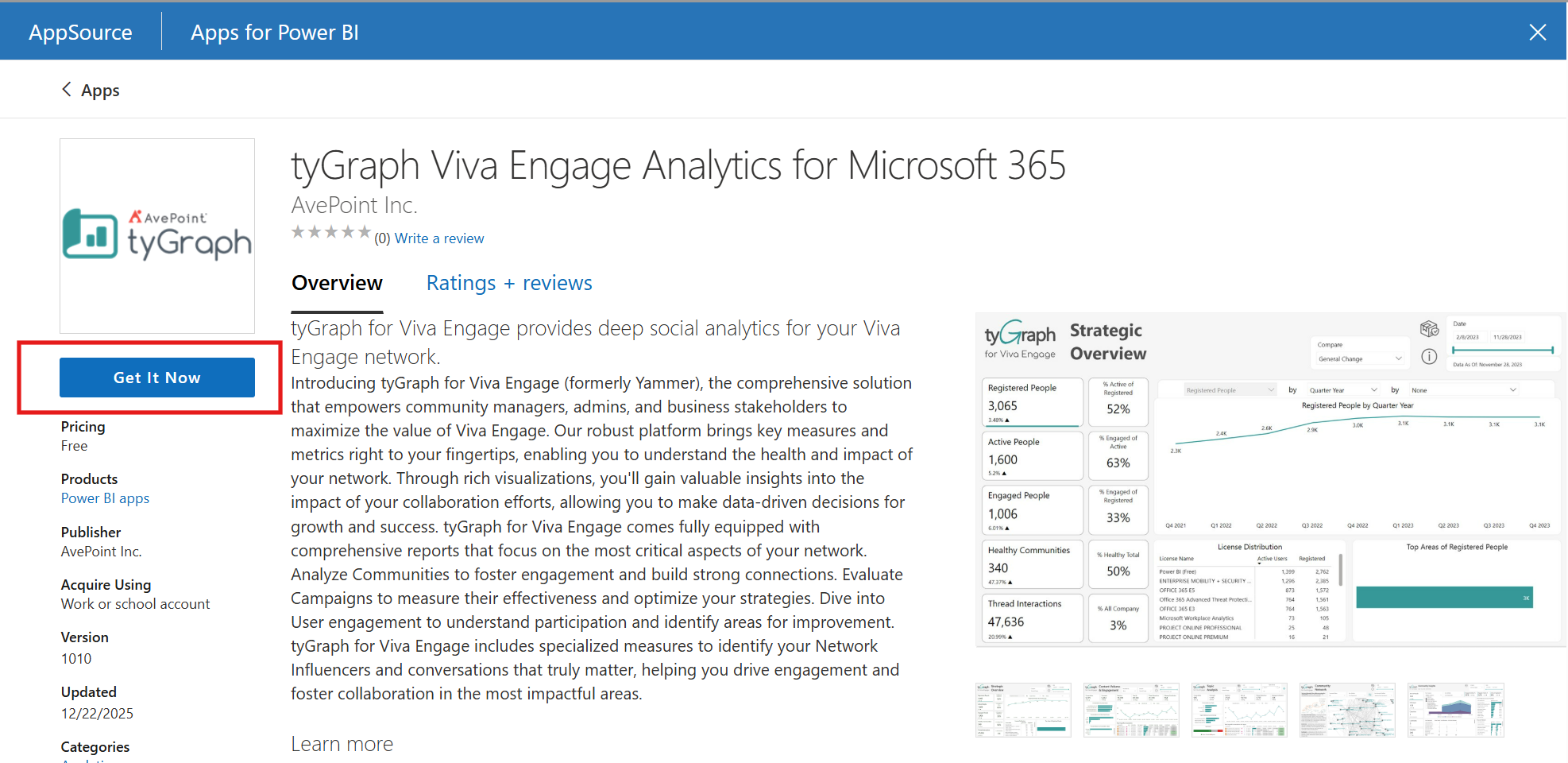
Search for tyGraph under Template apps, then select the appropriate app.
-
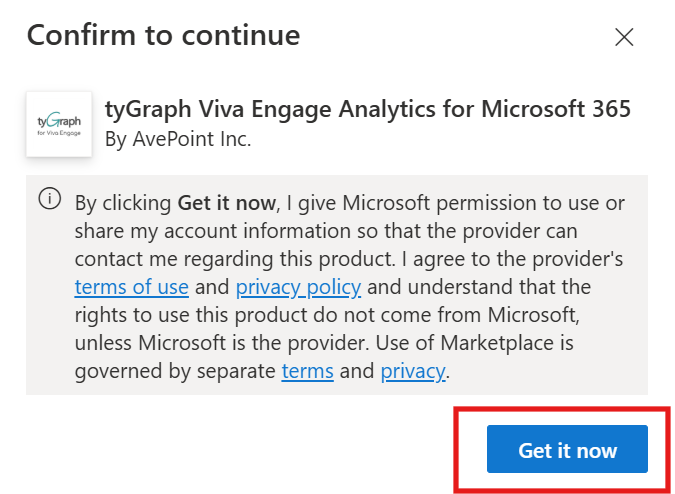
Click Get it now, then confirm to continue.
-
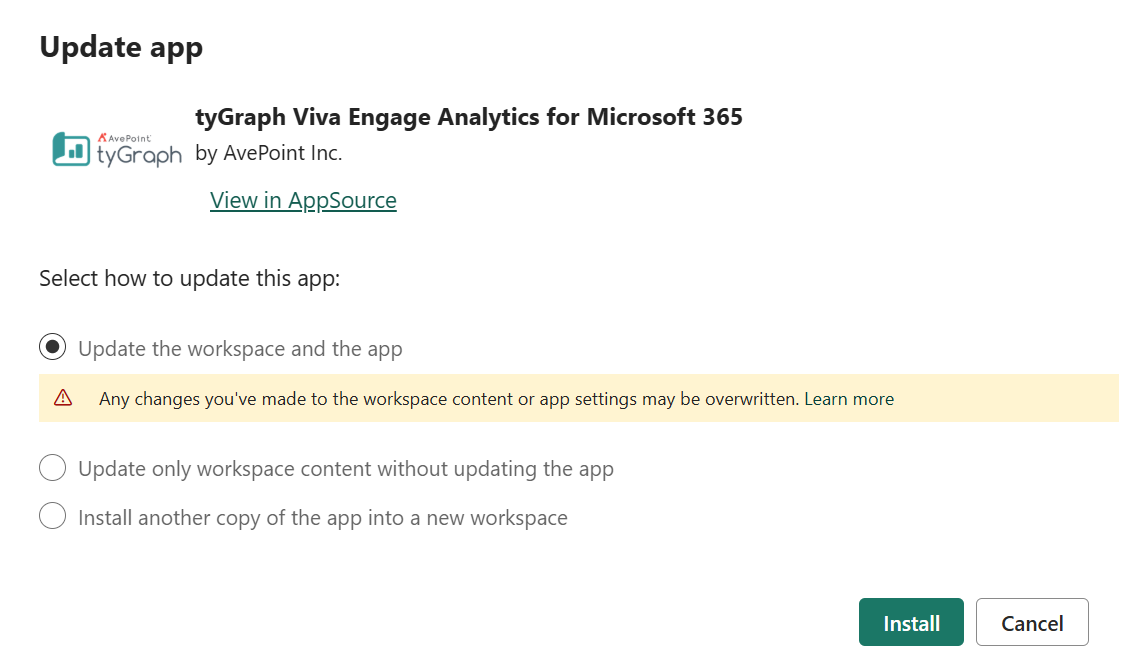
Select Update the workspace and the app, unless you want to install a separate new workspace. If you have multiple installed workspaces for the same product, a drop-down list will appear so you can choose which workspace to update. You will also see the currently installed version number.
-
Click Install.