
Home > tyGraph Support Articles > Update from a Power BI Template App > Step 3: Refresh and Cleanup
Download this articleStep 3: Refresh and Cleanup
Observe the Refresh
After the update begins, the template app will update the default workspace content and automatically start a refresh for the semantic model so the new reports can load your data. This may take a few minutes for the workspace update and anywhere from a few minutes to about an hour for the refresh, depending on the size of your organization. If your data does not appear after the update, review the semantic model parameters.
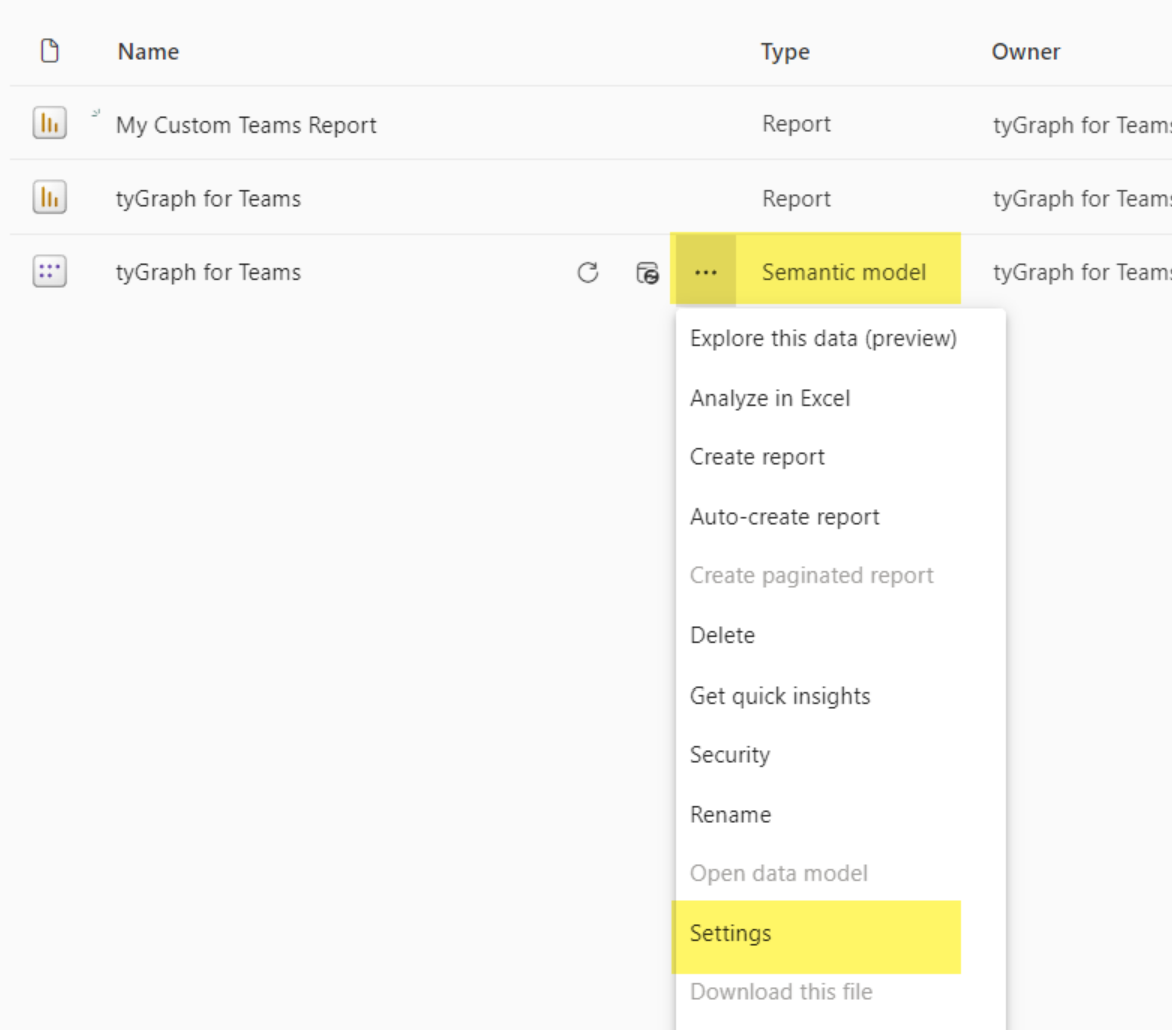
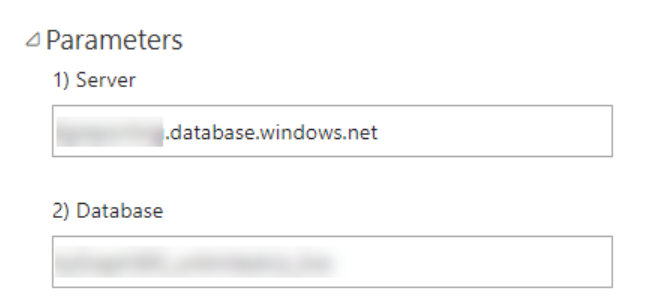
If you change any parameters, return to the workspace and start a refresh immediately so the updated values are applied.
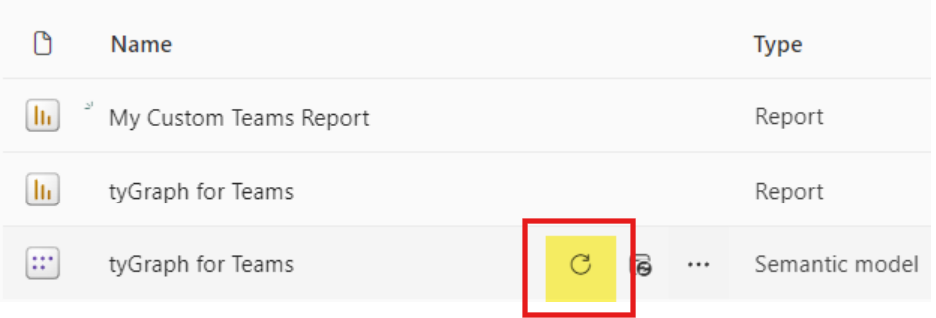
Resolve Any Broken Visuals
If you kept an older report that uses attributes which were renamed, you may see an error because the visual can no longer find the original field in the updated semantic model. In that case, edit the visual and replace the old field with the new one.
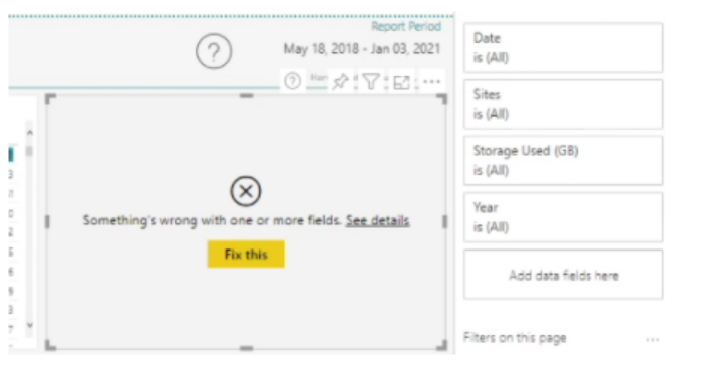
For example, the Location field was renamed to User Location, so any older visuals using the previous name must be updated.
We sometimes refactor tables to improve model efficiency, which can also affect older reports after an update. If that happens, update the visual to use the replacement field.
-
Switch to edit mode.
-
Select the visual with the issue.
-
Locate the field with the changed name.
-
Remove the old field.
-
Add the new field.
-
Save the report.
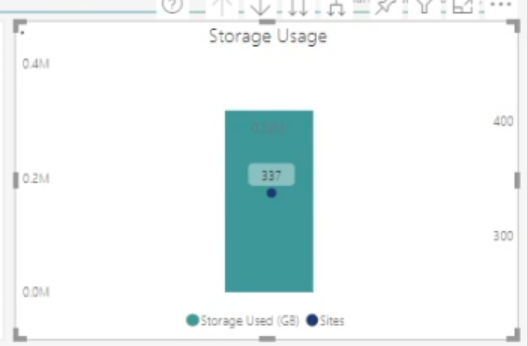
This is also a good time to remove outdated visuals and delete reports that are no longer needed.
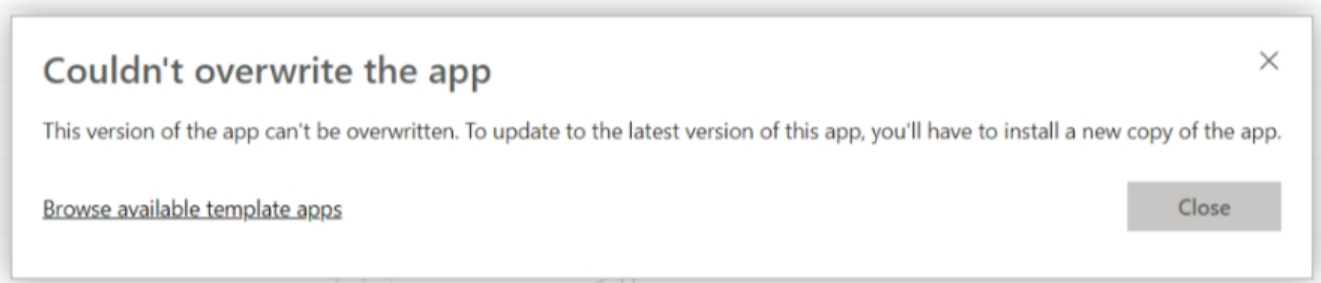
Couldn't Overwrite the App
If you receive this error while updating your workspace, follow these steps.
-
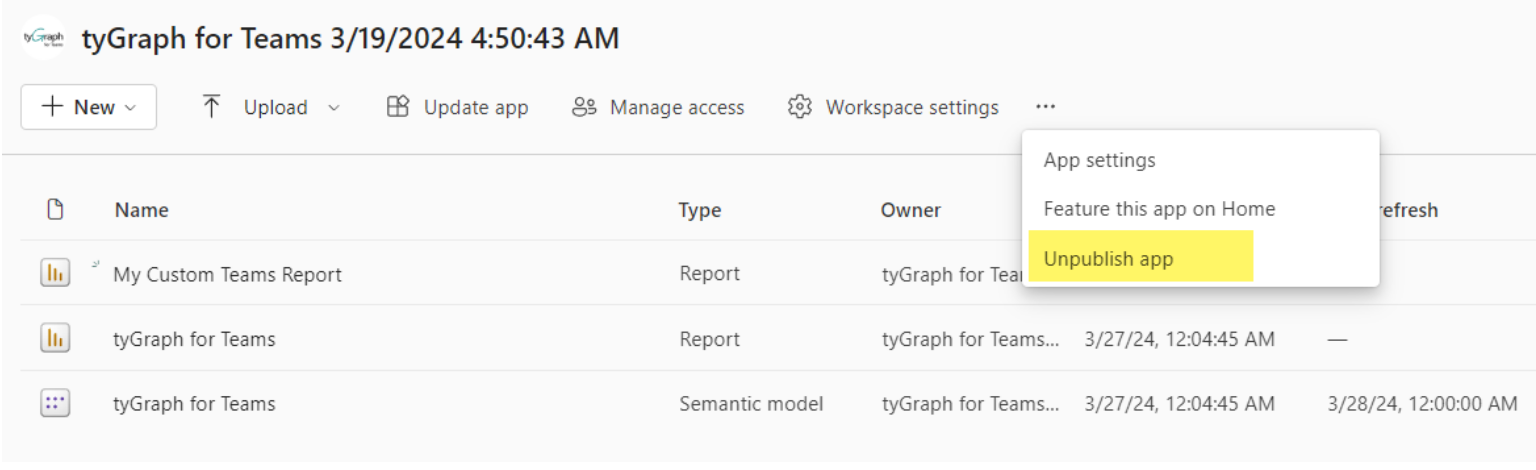
Unpublish your app.
-
Get the latest update by clicking Get it now in the workspace.

-
Confirm that your semantic model is connected and refreshed with your data.
-
Republish your app by clicking Create App.
