
Home > tyGraph Support Articles > How to Refresh a Power BI Semantic Model
Download this articleHow to Refresh a Power BI Semantic Model
This process applies to any product deployed in the Power BI service. Sign in with your Microsoft 365 account at https://app.powerbi.com/ before following these steps. You must have access to the relevant workspace.
Once you are in the workspace:
-
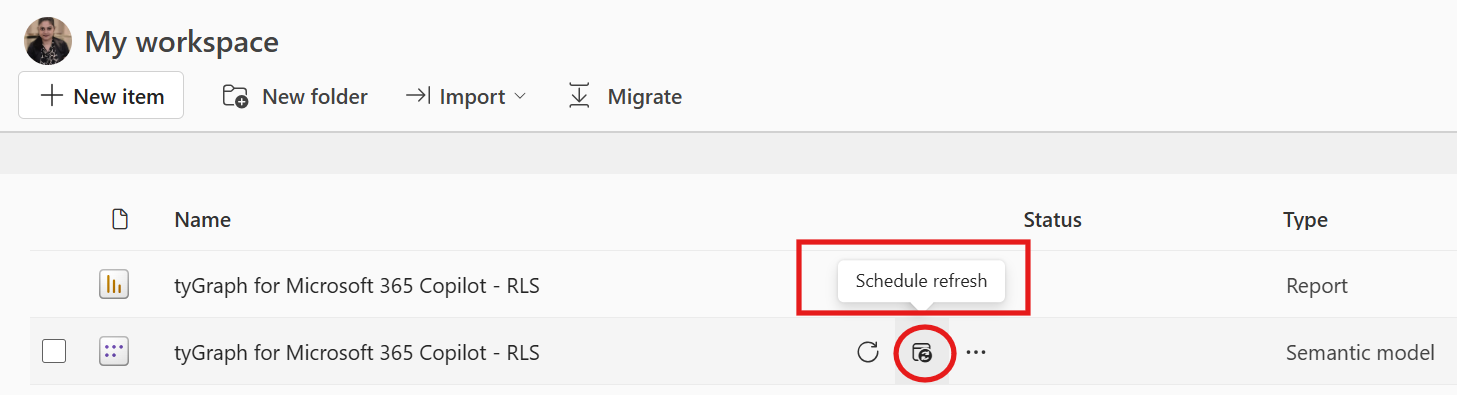
Locate your semantic model, previously called a dataset.
-
Select Refresh now to update the data immediately.
-
To automate future refreshes, click Schedule refresh.
-
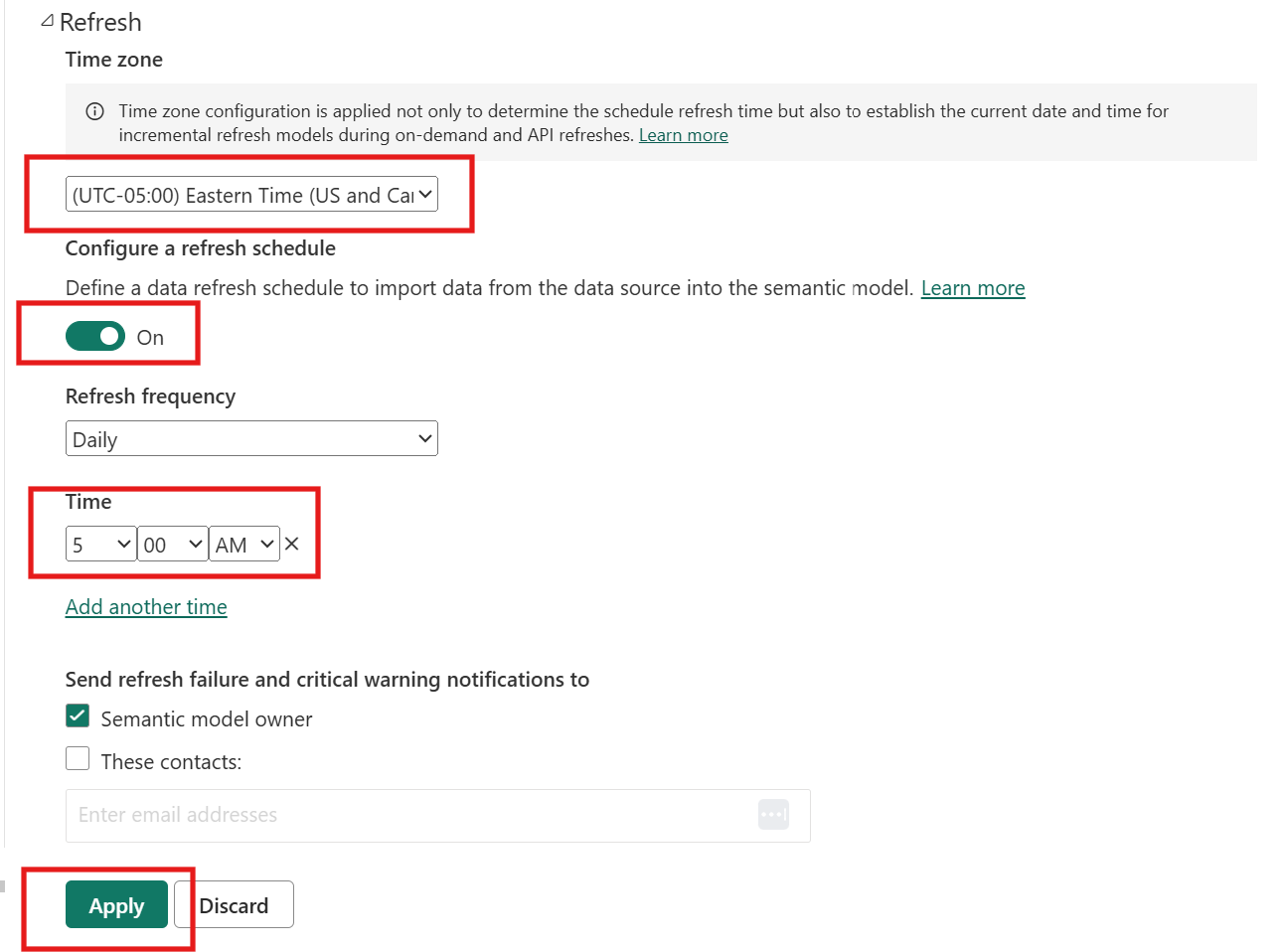
Open the Scheduled refresh panel for the semantic model.
-
Turn Keep your data up to date to On.
-
Set your preferred refresh times, if needed.
-
Click Apply.
-
Click the workspace name on the left to return to the main workspace view.
On this page