Home > tyGraph Support Articles > Setting Time Zone for tyGraph SP Analytics
Download this articleSetting the Time Zone for tyGraph SP Analytics
You can customize the report time zone used by tyGraph SP Analytics. This setting is applied at the semantic model level, so it affects any reports connected to that model.
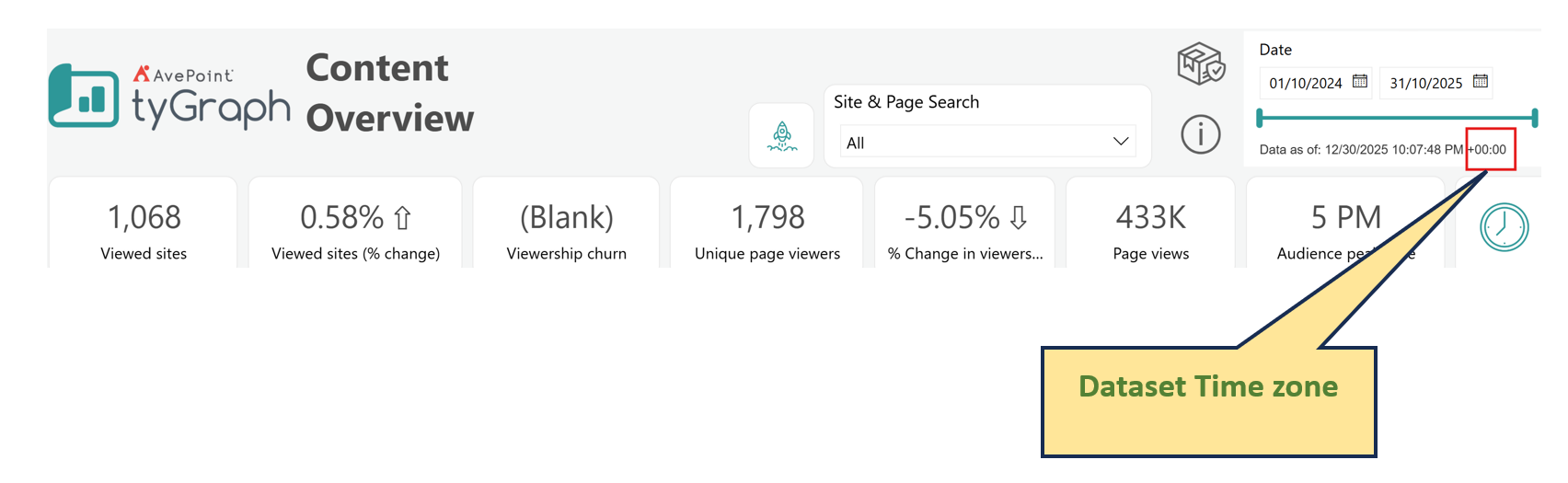
The time zone does not adjust automatically based on the viewer's location. If you are unsure which time zone is currently in use, check the upper-right corner of the report. Also note that this setting does not automatically adjust for daylight saving time.
Set the Semantic Model Time Zone
You must be the semantic model owner to complete these steps:
-
Open your workspace.
-
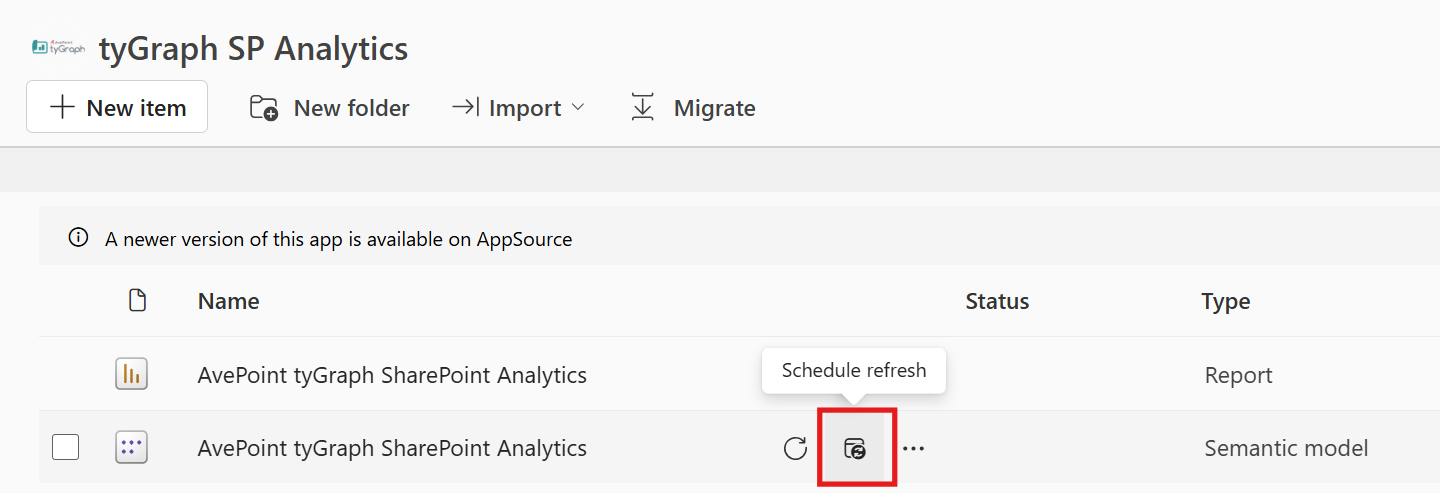
Locate the tyGraph SP Analytics semantic model and click Schedule refresh.
-
Open the Parameters section.
-
Enter your time zone offset from UTC using a plus or minus sign followed by the integer value.
Example:
-5for North American Eastern Time.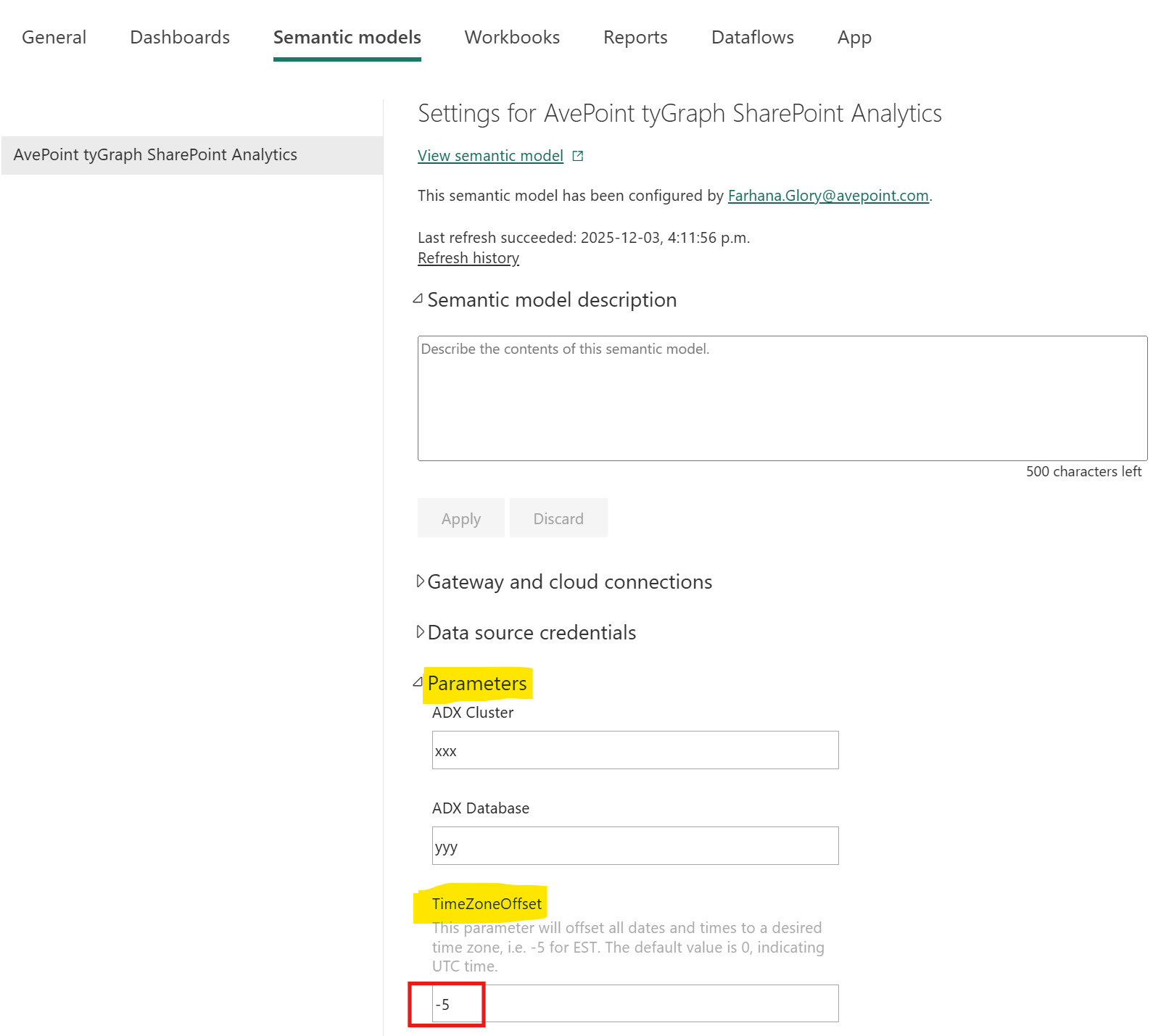
-
Click Apply.
-
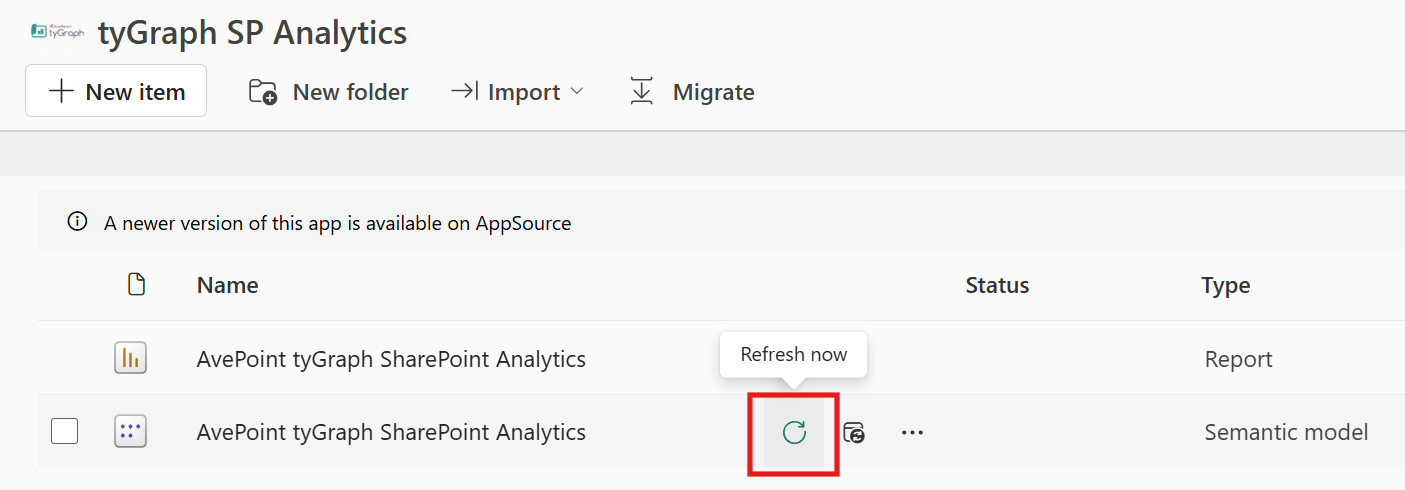
Return to the workspace.
-
Refresh the semantic model to apply the change immediately.