
Home > tyGraph Support Articles > Managing Power BI Parameters
Download this articleManaging Power BI Parameters
Accessing Semantic Model Parameters in Power BI Service
tyGraph Power BI reports use semantic model parameters to control which data source or environment the report connects to. These parameters allow you to adjust report behavior without modifying the data model itself.
For example, a parameter might define which SharePoint site or SQL database the report should use.
This article explains how to view and update these parameters in the Power BI service after installing or publishing a report. For report-specific parameter details, refer to the related subpages in this section.
Open the Semantic Model Settings
-
Open your Power BI workspace.
-
Locate the semantic model used by your report.
-
Click More options (⋯) next to the model name.
-
Select Settings.
Locate and Edit Parameters
-
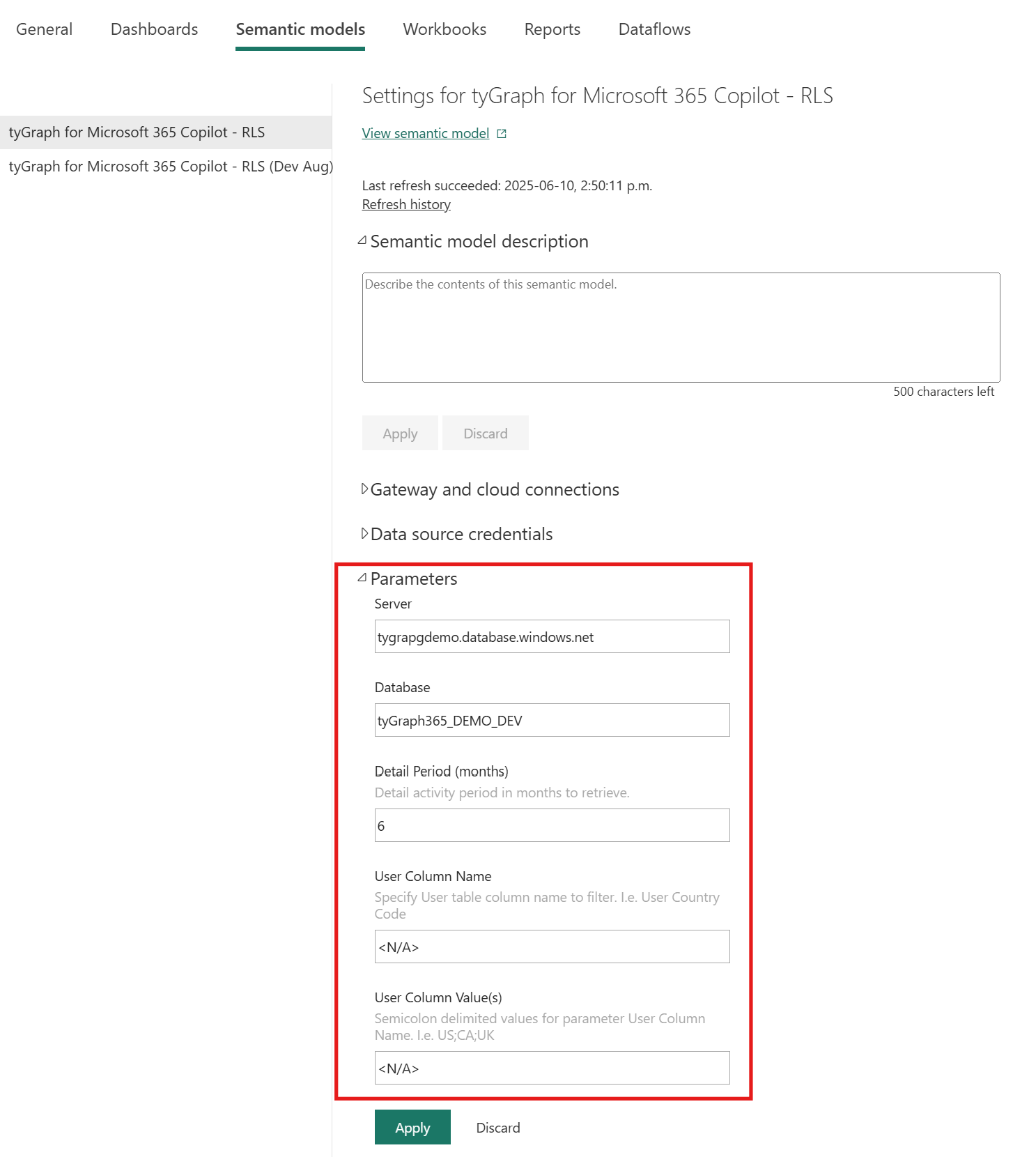
On the Settings page, scroll to the Parameters section.
-
Review the list of available parameters and their current values.
-
Update the values as needed.
For example, you might change an environment from Development to Production or update a site URL.
-
If you are unsure what a parameter controls, confirm its purpose with your report administrator before changing it.
Apply Changes and Refresh the Model
-
After updating the values, click Apply.
-
Return to the workspace and locate the semantic model again.
-
From More options (⋯), select Refresh now.
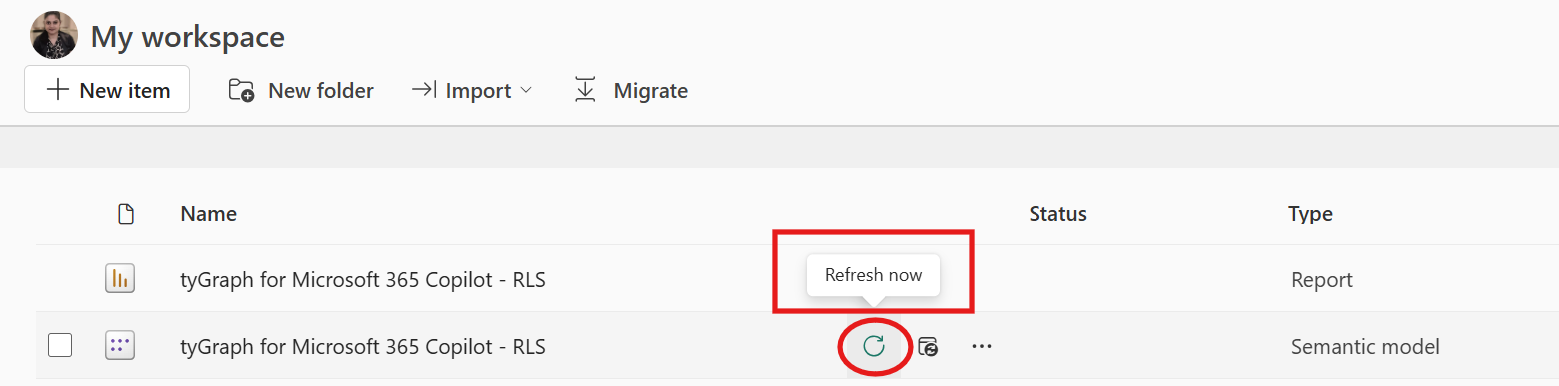
This ensures the new parameter values are applied and the report loads the correct data.
Verify the Report
-
After the refresh completes, open the related report.
-
Confirm that the visuals load correctly and that the data reflects the updated parameter values.
-
If visuals fail to load or the data appears incorrect, review the parameter values again in the semantic model settings.
Important Notes
-
You must have Edit or Admin permissions on the workspace to change parameter values.
-
Some parameters may be locked if they are managed through a deployment pipeline or automation.
-
Always refresh the semantic model after changing parameter values.