
Home > About AvePoint Cloud Backup for Microsoft 365 > AvePoint Cloud Backup > Teams App – AVA
Export to PDFTeams App – AVA
AVA, AvePoint Virtual Assistant, is a handy help desk assistant integrated with Microsoft Teams. AVA can automate common restore requests and other tedious tasks to make sure your help desk team and end users do not waste precious time (and money) searching through native Microsoft 365’s recycle bin or AvePoint Cloud Backup data in response to lost item requests, all by empowering users to recover and restore content themselves.
AVA now supports searching for lost files or emails, performing searches from deleted items, and backup data (when you use the OneDrive service, Exchange Online service, and Teams service in AvePoint Cloud Backup for Microsoft 365), and help restore the items that you are looking for. To get a quick start on AVA, refer to the .
Microsoft 365 Global Administrator or Teams Service Administrator of your organization can configure App Setup Policies to include AvePoint Virtual Assistant (AVA) as a pinned app in Teams. AVA will be added to the Teams clients for all users who are assigned with the app setup policy. After you edit the global policy or assign a policy, changes will take effect within 24 hours.
Complete the steps below to configure a setup policy to pin AVA in Teams:
-
Sign into the Microsoft Teams admin center using your Global Administrator or Teams Service Administrator credentials.
-
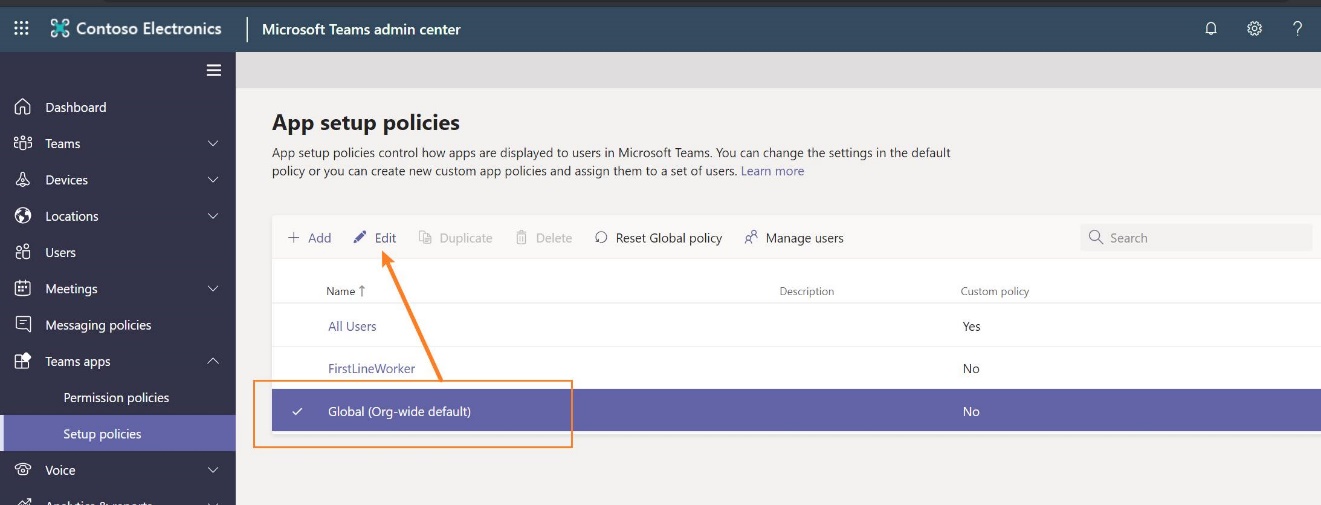
Navigate to Teams apps > Setup policies.
-
If you want to pin the app for all users in your tenant, edit the Global (Org-wide default) policy. If you only want to pin the app for specific users, create a custom policy and assign them to a set of users. For details on how to assign a custom policy to users, refer to .
-
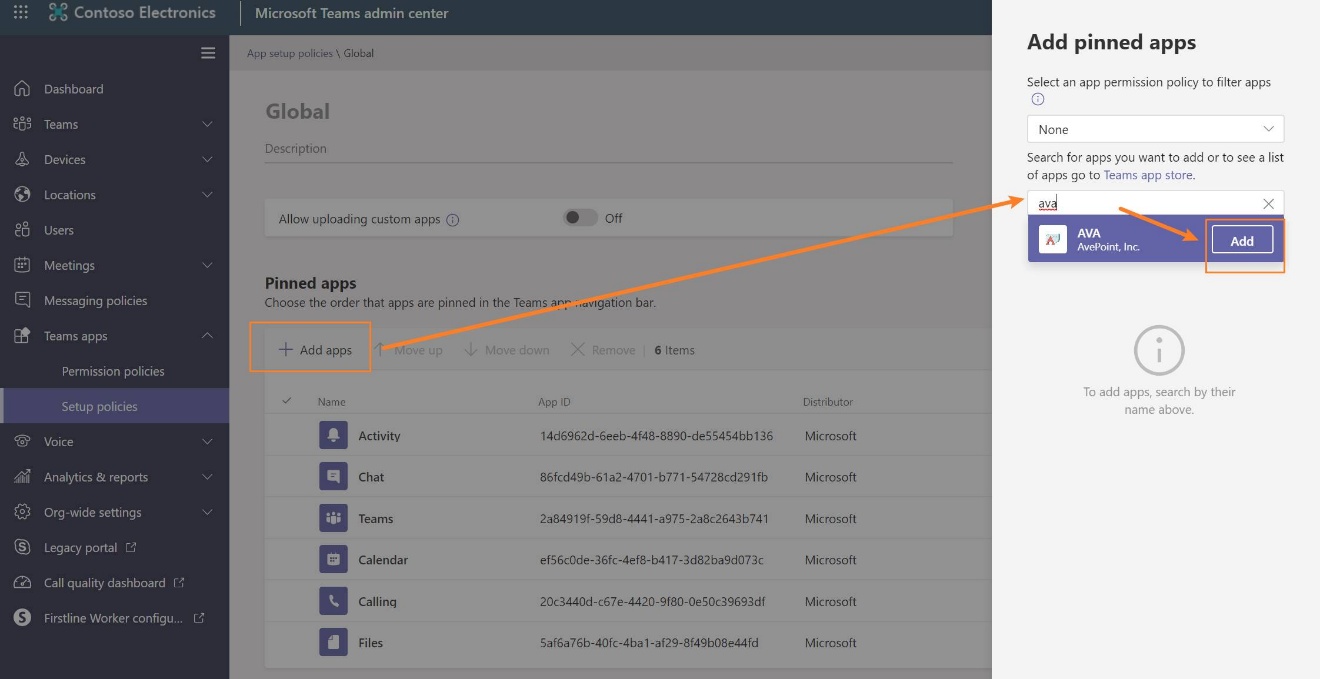
In the Pinned apps section, complete the following steps:
-
Click Add apps.
-
In the Add pinned apps panel, enter AVA in the search box, select the app, and then click Add.
-
Click Add at the bottom of the panel.
-
-
You can also set the order for the apps pinned in the app bar. Select the app and click Move up or Move down.
-
Click Save to save the app setup policy. The changes will take effect within 24 hours.