
Home > Restore and Recover Your Data > AvePoint Cloud Backup > Restore OneDrive Data
Download this articleRestore OneDrive Data
You can browse or search for OneDrive backup jobs or data to restore items to their original location, to another location, or to a storage location. AvePoint Cloud Backup now supports out-of-place restore operations between SharePoint Online sites, OneDrive, Teams sites, and Group sites. For more information on the supported restore types for OneDrive, refer to OneDrive Restore Options. Note that if the associated OneDrive user account no longer exists in Microsoft 365, the OneDrive cannot be restored.
If you want to restore the backup data to a storage location, you must have your own storage location configured. The default storage provided by AvePoint cannot be the destination of the restore. Additionally, the OneDrive site collections and sites do not support being restored to a custom storage location.
Complete the steps below to restore OneDrive data:
-
Navigate to the Restore > AvePoint Cloud Backup page, and then click OneDrive tile.
-
Select the items that you want to restore. You can choose one of the following methods to find the data to restore.
-
Search mode – Define a OneDrive address as the search scope and then use the properties to search for the items within the scope. Note that this method does not support searching and restoring the list items.
Refer to the steps below:
-
In the Name field, you can enter the address or display a name to search for OneDrive. The default search condition is to search the backup data for that OneDrive Address within the last backup cycle. The drop-down list will remind you of OneDrive accounts with unusual activities or under potential ransomware attacks.
-
In the Backup time range field, the time range of the last backup cycle is displayed by default. Click the Calendar button to customize the backup time range. The start date must be earlier than the end date. You can click Reset if you want to reset the settings. Click OK to save your customization.
-
Select OneDrive user, Library, Folder, or Document from the Level list for the items you want to search. If you want to search for all libraries, folders, or documents of that OneDrive user, you can leave the search conditions empty. To search for specific libraries or folders, enter the title or name or the keywords for search; to search for the specific Document-level items, you can choose whether to search for Suspicious files under potential ransomware attacks or Files deleted in unusual activities in File type and configure the following search conditions: Document name, Created date, Created by, Modified by, or Document size.
-
Click Search to search the items according to the conditions you configured. The search conditions and the search results are displayed. The search results table will display a maximum of 2000 items. You can edit the search conditions and click Search to adjust the search results.
-
Find and select the item you want to restore from the search results. In the Recovery point column, click the Calendar button to select a backup job that backed up this item at the status that you want to restore, and click Apply. Recovery points with objects with unusual activities detected or potential ransomware attack detected will be displayed with
 (Unusual activities detected) or
  (Potential ransomware attack detected).
 -
You can preview a file’s content by clicking its document name. In the preview window, use the buttons located in the upper-right corner to download, print, or generate a public link for the file. When downloading the file, set a password. This password will be required to open the downloaded file. When generating a public link, set both an expiration date and a password to ensure security.
The preview function supports the following file types: Word (DOC, DOCX, RTF, DOT, DOTX, and DOTM), Excel (XLS, XLSX, XLSB, XLT, XLTX, CSV, and TSV), PowerPoint (PPT, PPTX, PPS, POT, PPSX, PPTM, PPSM, POTX, and POTM), and PDF.
NOTEFiles that have sensitivity labels with encrypted data, contain archived data, or exceed 10 MB in size cannot be previewed.
-
Click the Restore button above the search result table to restore all selected items.
-
Proceed to step 3 to continue with the Restore settings.
-
-
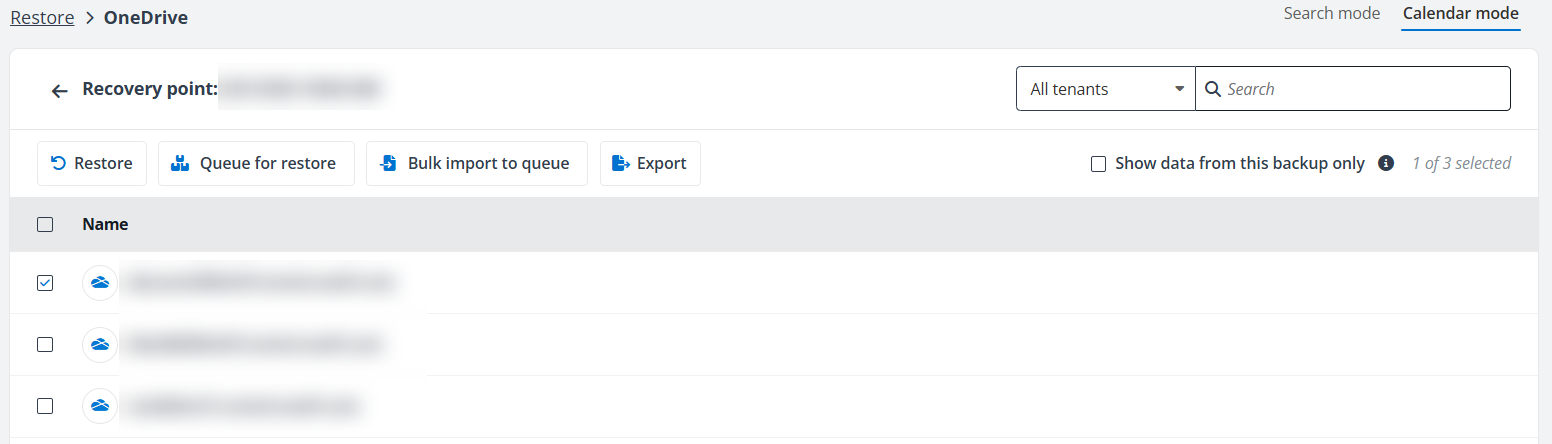
Calendar mode – Find a backup job that backed up the items at the time of the status you want to recover, and then search and select the items from the backup data of that backup job.
-
In the calendar, all backup jobs of OneDrive are displayed. You can select whether to display the finished with an exception or failed jobs in the calendar by selecting the Include jobs with only partial backup data option. Note that the data of these jobs may be incomplete. Hover over a backup job to show the backup job details.
-
Select a backup job. By default, all backup data for OneDrive, up to a maximum of 2000 items, is displayed in the table, including historical data from previous backups that contribute to the snapshot at that moment. You can select the Show data from this backup only option to only show the data backed up in the selected backup job. Recovery points with objects with unusual activities detected or potential ransomware attack detected will be displayed with (
) (Unusual activities detected) or ( ) (Potential ransomware attack detected). -
You can enter keywords to search the items, or you can click the backup data to browse the items you want to restore.
-
You can preview a file’s content by clicking its document name. In the preview window, use the buttons located in the upper-right corner to download, print, or generate a public link for the file. When downloading the file, set a password. This password will be required to open the downloaded file. When generating a public link, set both an expiration date and a password to ensure security.
The preview function supports the following file types: Word (DOC, DOCX, RTF, DOT, DOTX, and DOTM), Excel (XLS, XLSX, XLSB, XLT, XLTX, CSV, and TSV), PowerPoint (PPT, PPTX, PPS, POT, PPSX, PPTM, PPSM, POTX, and POTM), and PDF.
NOTEFiles that have sensitivity labels with encrypted data, contain archived data, or exceed 10 MB in size cannot be previewed.
-
The following actions are provided for the restore:
-
You can select the items you want to restore, and then click the Restore button above the table to restore all selected items at the same time. Note that you can only select the items at the same level in this way. Then, proceed to step 3 to continue with the Restore settings.
-
To restore OneDrive, you can select the OneDrive you want to restore, and then click the Queue for restore button above the table to add them for batch restore. To import multiple OneDrive from a CSV file, click the Bulk import to queue button.
After adding all desired OneDrive items to the queue, click the Restore queue (
 ) icon at the top of the page, and then click the Restore button to restore the OneDrive in one restore job. In the Queue for restore panel, you can also click the Want to bulk import objects to the queue? link to import multiple OneDrive from a CSV file.NOTE
In the restore process, the OneDrive in the Restore queue will be restored sequentially from first to last as listed. The objects in the Restore queue are ordered by their addition time, from oldest to newest.
If you leave the recovery point, the restore queue will be cleared.
-
-
-
-
If necessary, you can enter your comments for this restore job in the Description text box. For objects with unusual activities or under ransomware attacks, you can click the Potential ransomware attack detected or Unusual activities detected in the Suggested field below to enter it in the Description text box directly.
-
Select what you would like to restore for the selected items. You can choose to restore all content and security from the backup, or you can choose to only restore the security or content.
-
The security includes all the user permissions at the selected level and beneath. The restore-security-only restore job cannot add or delete any users in the target site collection.
-
The restore-content-only restore job will skip the conflicting documents/items or restore the documents/items with the suffix “_1” added, depending on which conflict resolution you choose at the content level.
-
-
Choose where to restore the backup data to. Note that the OneDrive site collections and sites only support being restored to the original location or restored to another location.
-
Restore the data to its original location – Restore the backup data to where the data are backed up.
-
Restore the data to another location – Restore the backup data to another destination. Configure the following settings:
If you are restoring OneDrive accounts from the Restore queue, select a tenant, and then choose a configured domain mapping profile.
For other restore scenarios, in the Select a destination object type field, select where to restore the backup data: SharePoint Online, OneDrive, Microsoft 365 Groups, or Teams. You can enter keywords to search for the restore destination. Available destinations are listed below the Search box. On the destination tree, click a node to load the nodes under it and click the Previous button to navigate back to the previous node. Select a node where you want to restore the backup data.
NOTEIf you choose to restore to OneDrive, only the Documents library, Site Assets library, and the custom libraries will be displayed in the destination tree. You can click Show All Libraries to display all lists and libraries.
Then select Attach or Merge as the restore action:
-
Attach will restore the backup data as child objects beneath the selected node. For example, if you want to restore a folder to another folder and select Attach, the restored folder will become the subfolder of the destination folder.
-
Merge will add the contents to the destination node. For example, if you want to restore a folder to another folder and select Merge, the subfolders and contents of the restored folder rather than itself will directly become the subfolders and contents of the destination folder.
NOTEWhen restoring a OneDrive library to another library, you can now select the Attach action to create a new folder named after the source username in the destination library.
-
-
Restore the data to your storage – Restore the backup data to your own storage location configured. This option is not available if the default storage location is used.
NOTEThe OneDrive site collections and sites do not support being restored to custom storage.
-
-
Select how to handle the conflicts in the restore job. The conflict occurs if a folder or file in the destination has the same name, or the item in the destination has the same GUID.
-
Container level conflict resolution – Select how to handle the conflicts at the container level.
-
Skip – The settings of the conflicting destination container will be retained in the destination.
-
Merge – The source container settings and the content will be merged to the conflicting destination container.
-
Replace – The settings of the conflicting destination container will be deleted and replaced by the source container settings, as well as the content within the container.
-
-
Content level conflict resolution – Select how to handle the conflicts at the content level.
NOTEThis is not available if Replace is selected as the container level conflict resolution. If you select to restore content only, only the Skip and the Append an “_1” to the Item/Document are available.
-
Skip – The conflicting destination content will be retained in the destination, and the backup data of the conflicting content will not be restored.
-
Overwrite – The conflicting destination content will be removed from the destination, and the backup data of the conflicting content will be restored.
-
Overwrite by Last Modified Time – If the last modified time of the conflicting destination content is earlier than that of the source content, the conflicting destination content will be removed from the destination, and the backup data of the conflicting content will be restored.
-
Append an “_1” to the Item/Document – If the last modified time of the conflicting destination content is the same, the restore will be skipped; if the last modified time is different, the conflicting destination content will be kept, and the backup data of the conflicting content will be added to the destination with a sequential number suffix added to the filename.
-
-
Apps conflict resolution – Select how to handle the app's conflict.
-
Skip – The conflicting destination app and AppData will be retained in the destination, and the backup data of the conflicting content will not be restored.
-
Overwrite – The conflicting destination app and AppData will be removed from the destination, and the backup data of the conflicting content will be restored.
-
Note the following:
-
If you choose to only restore security, you must select how to handle the security conflicts at the container level and content level. Replace will overwrite the security in the destination; Merge will combine the security in the backup with the security in the destination.
-
If the source has inherited permissions but the destination has unique permissions, it is not supported by the Graph API to perform a security-only restore to reset the destination to inherited status.
-
-
Expand the Advanced settings area to configure more restore settings. If you choose to restore to another location, the mapping settings will be available to allow you to update the permissions and metadata or language.
-
User mapping – Select a user mapping profile from the drop-down list. For more instructions on creating a new user mapping profile, refer to Configure Mapping Settings.
-
Language mapping – Select a language mapping profile from the drop-down list. For more instructions on creating a new language mapping profile, refer to Configure Mapping Settings.
-
Turn on/off the switch to define whether to restore the sharing permissions The Restore the sharing link permissions field will be unavailable if the OneDrive backup cycle of the selected recovery point was started after the November 2022 release. In this case, the restore job will restore the sharing permissions by default and the restore will not trigger the email alert. Note that if you do not want to restore the sharing permissions, you can choose to restore content only.
Note the following:
-
This feature only works for the sharing of items with specific people inside or outside your organization. For external users, the restore job can only restore the permissions for the users who have accessed the sharing link. After the restore, the sharing links will be changed, and OneDrive users can proceed to OneDrive > Shared library to view the content shared with you and shared by you. The links generated by the Copy link function in Microsoft 365 are also regarded as sharing links.
-
The Sharing setting is a tenant-level setting, and the AvePoint Cloud Backup service does not protect tenant settings. The restore job to restore a deleted site cannot restore the Sharing settings, including the external users and their permissions.
-
When restoring the files to another destination, the restored permissions and sharing links will be changed if the user in the original location is not included in the sharing scope in the destination.
-
-
Turn on/off the switch to define whether to allow restore jobs to rehydrate the data sets automatically when the backup data is stored in the Azure archive storage tier. This field is only functional for the BYOS subscription type. For AvePoint default storage, the restore job will automatically rehydrate data.
NOTEAvePoint recommends not storing the index database in the Azure archive storage tier.
-
Click Next to view the restore summary.
-
Click Restore to restore the selected items. After the job has started, you can navigate to the Job monitor to view additional job details. For details, refer to Job Monitor.