
Home > Configure Settings for AvePoint Cloud Backup > Manage Your Storage
Download this articleManage Your Storage
In the Settings > Storage page, the storage location and data retention time will be displayed. For custom storage location, you can configure when the backup data will be purged from the storage after the data expires the retention time. The default retention period for BYOS storage is 1 year, and you can customize it for specific containers or object types upon your purchased retention in the subscription.
If you purchased a subscription for BYOS (Bring your own storage) but are currently using AvePoint default storage for your backup data, your backup jobs will fail and we will send you an email notification every 7 days to remind you to update your BYOS storage configuration.
There are two types of storage locations: the default storage location and the custom storage location. The default storage location is hosted by AvePoint in Microsoft Azure Blob Storage, Amazon S3 storage, or Google Cloud Storage, and cannot be modified. The storage information on Microsoft Azure, Amazon S3 storage, or Google Cloud Storage is displayed on the Settings > Storage page. If you want to use your own storage, contact AvePoint to update your subscription. The default storage location resides in the same Data Center that was selected during your registration to AvePoint Online Services.
If you choose to use AvePoint default storage, you can choose the storage type of your AvePoint default storage location from the following:
-
Google Cloud Storage
NOTEThis storage type is not supported for customers that have Multi-Geo enabled and is only available in the Google Cloud Platform (GCP) data centers listed below:
-
GCP for Australia Southeast (Sydney)
-
GCP for West Europe (Eemshaven, Netherlands)
-
GCP for Japan (Tokyo)
-
GCP for East US (Moncks Corner)
-
GCP for South Korea (Seoul)
-
GCP for Saudi (Dammam)
-
-
Microsoft Azure Blob Storage
If you choose to use Microsoft Azure Blob Storage as the default storage type, Cloud Backup for Microsoft 365 will store your data in the data center you signed up for in AvePoint Online Services. For available data centers, refer to Microsoft Azure Cloud Platform.
NOTEIn October 2025 release, AvePoint Cloud Backup for Microsoft 365 supports United Arab Emirates (Dubai) as a new data center. In December 2025 release, Qatar Central (Doha) is also supported as a new data center.
If you signed up to AvePoint Online Services with the data center Australia Southeast (Victoria), and you have purchased a subscription to use AvePoint Azure storage to store backup data, the default storage region is Australia Southeast (Victoria), and the other optional storage region is New Zealand North (Auckland). You can choose from the two options in the wizard when you sign into the Cloud Backup for Microsoft 365 interface for the first time.
-
Amazon S3 storage
NOTEAvePoint Amazon S3 storage is not available for US Gov data center or data center operated by 21Vianet.
If you choose to use Amazon S3 storage as the default storage type, refer to the following data center mappings between the data center you signed up to AOS with and the Amazon S3 storage data center.
Data Center You Signed Up for AOS(Home Region) Amazon S3 Storage Data Center(Storage Region) East US (Virginia) US East (N. Virginia) North Europe (Ireland) Europe (Ireland) Southeast Asia (Singapore) Asia Pacific (Singapore) Australia Southeast (Victoria) Asia Pacific (Sydney) Japan West (Osaka) Asia Pacific (Tokyo) UK South (London) Europe (London) Canada Central (Toronto) Canada (Central) Germany West Central (Frankfurt) Europe (Frankfurt) Korea Central (Seoul) Asia Pacific (Seoul) France Central (Paris) Europe (Paris) Switzerland North (Zurich) Europe (Zurich) South Africa North (Johannesburg) Africa (Cape Town) United Arab Emirates (Dubai) Middle East (UAE) West Europe (Netherlands) Not Supported Qatar Central (Doha) Not Supported
For Multi-Geo customers, the default storage locations are distributed according to the data center mappings. If you are using default storage for Multi-Geo, you have a chance to choose to use the default storage or your own storage for each region while configuring data center mappings in the AvePoint Online Services interface. Once the configurations are saved, you can no longer change the storage path.
For data redundancy, note the following:
- For Microsoft Azure Blob Storage, Locally redundant storage (LRS) is the default option to replicate your data.
-
For Amazon S3 storage, objects will be redundantly stored on multiple devices across a minimum of three Availability Zones in an AWS Region.
-
For Google Cloud Storage, data is stored across available zones within a single region.
If your subscription has BYOS (bring your own storage) enabled, you can configure a custom storage location for all service types or configure separate storage for each service type to store your data, upon your subscription agreement.
The storage information, apart from its path information, can be modified.
Currently, you can choose from the following supported storage types for BYOS:
-
Microsoft Azure Blob Storage
-
Amazon S3
-
Amazon S3-Compatible Storage
-
FTP
-
SFTP
-
Dropbox
-
IBM Storage Protect-S3
-
IBM Cloud Object Storage
-
Google Cloud Storage
If you are using your own storage (BYOS), note the following:
-
Existing BYOS customers applying immutability policies to Azure blob storage should note the following:
-
Backup job behavior: The first backup job executed after applying an immutability policy will fail. However, subsequent backup jobs will process your data within the defined backup scope.
-
Data deletion restriction: If immutability polices are active on your storage, all data deletion operations, including unprotected data removal, data retention, manual deletion, and Data Subject Access Requests (DSARs) will be blocked. Data governed by these policies will remain immutable and cannot be altered or deleted unless the policies are modified.
-
-
If you are about to use your own Microsoft Azure Blob Storage as the storage location, AvePoint recommends using the device in the same Data Center as your AvePoint Online Services tenant for the best network performance. For available data centers, refer to Microsoft Azure Cloud Platform.
-
Before you add the Azure storage account to the Cloud Backup interface, you must first add the AvePoint IP addresses to your Azure storage account firewall and configure the firewall to allow AvePoint agent servers running on a dedicated ARM Vnet subnet to access your storage location. For details, refer to Allow AvePoint Agent Servers to Access Your Storage Account.
-
After the December 2023 release, Cloud Backup will write your new backup data to the cold tier by default to reduce storage costs. The supported Azure account kinds are StorageV2 and BlobStorage of Standard performance type. For existing customers, your former backup data are still stored in the cool tier.
Additionally, AvePoint recommends keeping the index database in a cool or hot tier, to ensure restore jobs automatically rehydrate data from the archive storage tier.
For details about blob access tiers and how to change access tiers, refer to the Microsoft article: Azure Blob storage: hot, cool, and archive access tiers.
-
If you are using your own Microsoft Azure Blob storage and facing the upper limit of your storage account, you can contact Microsoft Azure support to request an increase. If you have another Azure storage account, you can also append it through the Storage Location tab in AvePoint Cloud Backup for Microsoft 365 interface. Currently, you can only append one additional storage account, and this is only available for BYOS customers on Azure. Once the new storage location is saved, the new storage will be used to store backup data for further incremental backup jobs and restore jobs. Cloud Backup services will no longer write to the legacy storage location. However, you must ensure your legacy storage is accessible if the backup job to start later is an incremental backup. Otherwise, the incremental backup will fail. The full backup job to start a new cycle will not be impacted in this case.
Allow AvePoint Agent Servers to Access Your Storage Account
If you are using or plan to use your own storage device, read the instructions in this section carefully and complete the settings upon your need. Otherwise, you can skip this topic.
When you are using your own storage device, you may have set up the storage firewall to only allow trusted clients for security concerns. To ensure that AvePoint cloud products can access your storage, complete the settings as required in the following conditions:
If you are using a trial subscription and the storage account you want to use in the trial has a firewall enabled, read the conditions below and complete the configurations.
For Microsoft Azure Cloud Platform data centers:
-
If you are using Microsoft Azure storage, refer to the following:
-
If your storage account is in the same data center as the one you use to sign up for AvePoint Online Services or your storage account is in its paired region, you must add the Azure Resource Manager (ARM) vNet subnets where the AvePoint servers are running on to your storage networking. You can find additional details in this Microsoft article: Grant access from a virtual network, and get the subnet ID of AvePoint cloud products for your data center from Download ARM Vnet IDs. For detailed instructions, refer to the Add ARM Virtual Networks section below.
-
Other than the condition above, you need to add all the reserved IP addresses to the Azure storage firewall. For details, refer to the Add Reserved IP Addresses to Azure Storage Firewall section below.
-
-
If you are using Amazon S3 in Southeast Asia (Singapore) data center, you need to add all the reserved IP addresses and specific VPC ID to the bucket policy. For details, refer to the AddReserved IP Addresses and VPC ID to Amazon S3 Bucket Policy section below.
-
If you use a storage type other than Microsoft Azure storage and Amazon S3, you must add reserved IP addresses to your storage firewall. To get the list of the reserved IP addresses, refer to Download a List of Reserved IP Addresses.
For Google Cloud Platform (GCP) data centers:
-
If you use the Google Cloud Storage in Google Cloud Platform (GCP) data centers, you need to add specific VPC ID to the bucket policy. For details, refer to the Update the lP Filter on a Google Cloud Storage Bucket Policysection below.
-
If you use a storage type other than Google Cloud Storage, you must add reserved IP addresses to your storage firewall. To get the list of the reserved IP addresses, refer to Download a List of Reserved IP Addresses.
Add Reserved IP Addresses to Azure Storage Firewall
Follow the steps below:
-
Navigate to AvePoint Online Services interface > Administration > Security.
-
Click Download next to the Reserved IP Addresses tile to download the list of reserved IP addresses of AvePoint Online Services. For details, refer to Download a List of Reserved IP Addresses.
-
Navigate to the storage account that you want to secure.
-
Select Networking on the menu.
-
Check that you’ve selected to allow access from Selected networks.
-
Enter the IP address or address range under Firewall > Address Range.
-
Select Save to apply your changes.
Add Reserved IP Addresses and VPC ID to Amazon S3 Bucket Policy
To use Amazon S3 storage in Southeast Asia (Singapore) data center, you must add all the reserved IP addresses and the AvePoint AWS VPC ID to your bucket policy.
Follow the instructions in the bucket policy template below.
Add ARM Virtual Networks
There are two ways to add ARM Virtual Networks:
-
Use the Azure CLI tool (https://docs.microsoft.com/en-us/cli/azure/install-azure-cli?view=azure-cli-latest)
-
Use the Azure Az PowerShell (https://docs.microsoft.com/en-us/powershell/azure/install-az-ps?view=azps-5.1.0)
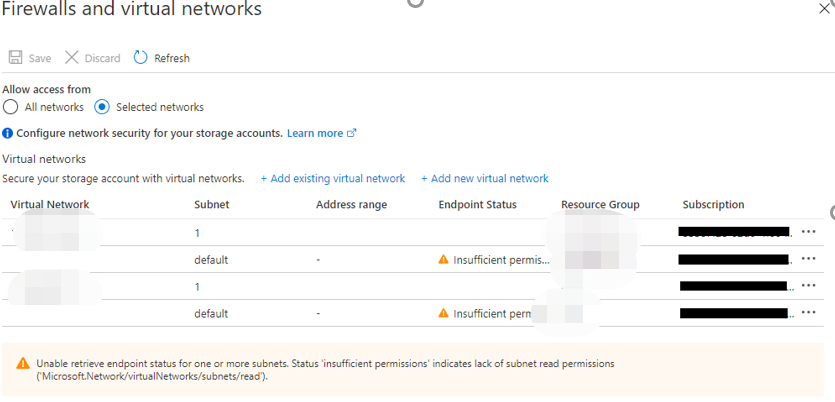
You will see the virtual network rules in Azure Portal, as the screenshot below shows. You may also notice that a warning message “Insufficient Permission…” is displayed. It is because the subnet is not in your subscription. You can ignore it.
Update the IP Filter on a Google Cloud Storage Bucket Policy
To use the Google Cloud Storage in Google Cloud Platform (GCP) data centers, you must add the AvePoint Google VPC ID to your bucket policy.
Follow the instructions in the bucket policy template below.
Change Storage Location
If you want to change to use your own storage location, contact AvePoint to update your subscription and then complete the following steps. Otherwise, Cloud Backup will continue to store data in the AvePoint-hosted default storage.
-
On the Storage page, the Change to my own storage link is available. Click Change to my own storage. A pop-up window appears.
-
In the pop-up window, you must choose how to handle the existing backup data stored in the default storage location.
-
Retain all backup data currently stored in AvePoint’s storage for 90 days – The backup data in the default storage location will be retained for 90 days after the storage change. You will get an email notification 7 days before the data deletion. For data migration, contact AvePoint support. The next backup job for each of the enabled backup types will store the backup data in the configured custom storage location.
-
Remove all backup data from AvePoint’s storage – The backup data will be removed from the default storage location, and you cannot use the previous backup data for restore. After the storage location is changed, the backup jobs for the enabled backup types will start in a few seconds, and the new backup schedule of an object type will start once the corresponding backup job starts. The backup data will be stored in the configured custom storage location.
-
-
Click OK to save the settings and configure the custom storage location.
Note the following:
-
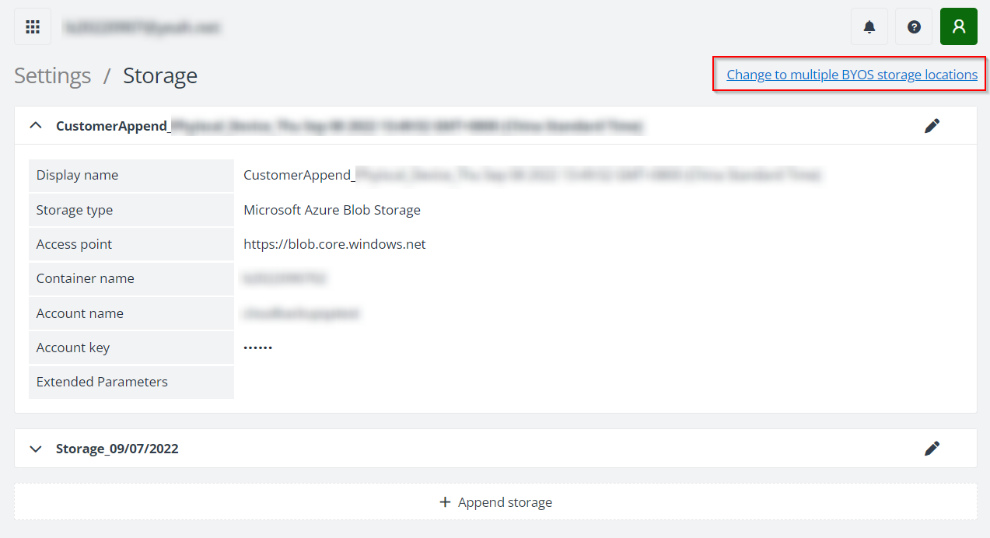
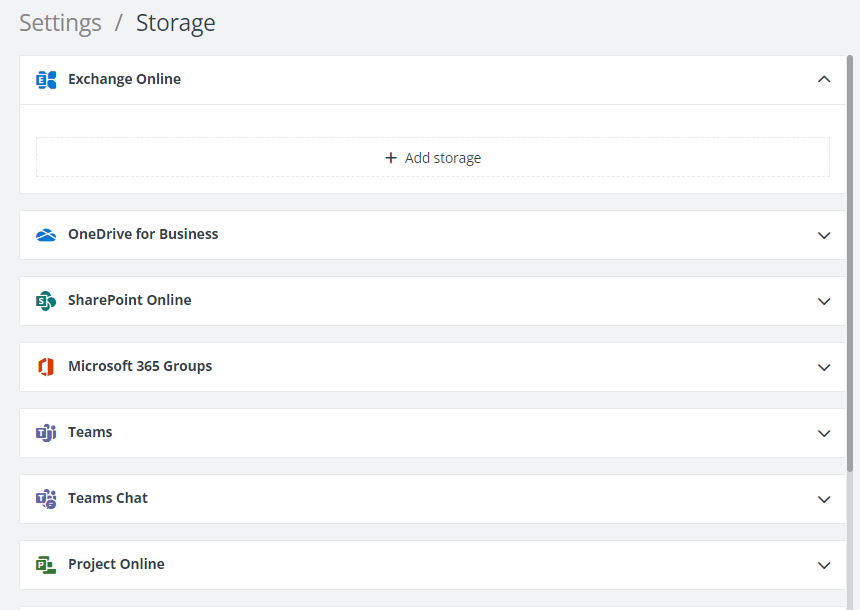
If you are using your own storage and would like to configure separate storage locations for each service type, contact the AvePoint support team. The Storage page will display the configurations, as the screenshot below shows. You can configure a storage for each enabled backup service.
-
If you are using the Microsoft Azure Blob storage and facing the upper limit of your storage account, you can append an additional storage account of Microsoft Azure Blob Storage for backup and restore. If you have already appended the storage, you can view the storage information on the Storage page.
NOTEWe recommend that you contact Microsoft Azure support first to request an increase in the maximum capacity of the storage account that you are currently using.
-
To append an additional storage location, you need another Azure storage account. Currently, you can only append one additional storage account, and this is only available for BYOS customers on Azure. Once you save the new storage location, the new storage will be used to store backup data for further incremental backup jobs and restore jobs. Cloud Backup services will no longer write to the legacy storage location. For details on storage configuration, refer to the Microsoft Azure Blob Storage section in Storage.
-
-
Configure the storage information. For details on configuring storage information, refer to Storage. Click Validation Test to test whether the entered information is valid. If successful, click Apply to save and apply your own storage.
NOTEThe changes from the default storage to a custom storage cannot be reverted, and the custom storage cannot be changed to another custom storage once saved.
Either using the AvePoint default storage or your own storage, the data retention settings can be applied to your backup data to help save your storage costs. Once there is backup data approaching the retention period, your administrator group or your service provider’s administrator group will receive the Data Retention Notification. Once the next full snapshot of your Microsoft 365 scope takes place, we will begin pruning the old backup data that met your retention settings.
-
If you want to keep your data in default storage, you can contact your AvePoint Account Manager to update your subscription and increase your retention settings, but please note that increasing your data retention may increase the price you pay for your backup. If you want to archive the backup data that met the retention settings for potential restore in the future, instead of letting them be deleted from AvePoint storage, you can submit an export request to export the data from the default storage as a paid service. For details, refer to Introduction to Data Export Service.
-
If your subscription is the BYOS type, you can update your retention settings by navigating to General Settings > Retention Policy. Increasing your data retention may increase the price you pay for your backup.
Storage Information
Refer to the sections below for the storage configuration details of the supported storage types.
Amazon S3
AvePoint will, by default, use HTTPS (SSL) communication to access your Amazon S3 storage and store your backup data to the S3 Glacier Instant Retrieval automatically. Your existing backup data before the February 2025 release will remain in the S3 Standard storage class. You can move the backup data from S3 Standard/S3 Glacier Instant Retrieval to S3 Standard-IA, S3 One Zone-IA, or S3 Intelligent-Tiering, and Cloud Backup for Microsoft 365 can restore the backup data of those storage classes. However, it is not recommended to activate the archive access tier if you are using S3 Intelligent-Tiering. Activating the archive access tier will cause data object files that have not yet been accessed for 90 days to be archived, and Cloud Backup cannot access the archived data in your Amazon S3 storage.
Follow the instructions below:
-
Storage type – Select Amazon S3 from the drop-down list.
-
Bucket name – Enter the bucket name you wish to access.
Note the following:
-
The entered name must match an existing bucket. If no bucket is available, refer to Creating a bucket to create one.
-
Ensure the bucket policy in Amazon S3 storage applied to your account contains the following required permissions:
-
Read: Get Object
-
List: ListBucket
-
Write: DeleteObject; PutObject; DeleteObjectVersion
-
-
-
Access key ID – Enter the corresponding access key ID to access the specified bucket. You can view the Access key ID from your AWS account.
NOTEThe AWS account must have the AmazonS3FullAccess policy assigned.
-
Secret access key – Enter the corresponding secret key ID to access the specified bucket. You can view the Secret access key from your AWS account.
-
Storage region – Select the Storage region of this bucket from the drop-down menu. The available regions are
US East (N. Virginia) US East (Ohio) US West (Northern California) US West (Oregon) Canada (Central) EU (Ireland) EU (Frankfurt) EU (London) Asia Pacific (Singapore) Asia Pacific (Tokyo) Asia Pacific (Sydney) Asia Pacific (Seoul) Asia Pacific (Mumbai) South America (Sao Paulo). -
Extended Parameters – Enter the following extended parameters if necessary. If you have multiple parameters to enter, press Enter on your keyboard to separate the parameters. Refer to the instructions below to add parameters.
-
RetryInterval – Customize the retry interval when the network connection is interrupted. Enter any positive integer between 0 and 2147483646 (the unit is millisecond). For example, RetryInterval=30000 means that it will try to reconnect every 30000 milliseconds.
If you do not configure this parameter, the value is 30000 milliseconds by default.
-
RetryCount – Customize the reconnection times after the network connection is interrupted. Enter any positive integer between 0 and 9. For example, RetryCount=9 represents when the network connection is interrupted, and it can reconnect at most 9 times.
If you do not configure this parameter, the value is 6 by default.
-
CustomizedMetadata – Configure if customized metadata or user-added metadata is supported. By default, customized metadata and user-added metadata are all supported.
-
CustomizedMode=Close– This physical device will not support customized metadata or user-added metadata.
-
CustomizedMode=SupportAll – This physical device will support all customized metadata and user-added metadata.
-
CustomizedMode=CustomizedOnly – This physical device will only support user-added metadata.
-
CustomizedRegion – Configure the customized region of the physical device. For example, enter CustomizedRegion=s3.us-gov-west-1.amazonaws.com to configure the GovCloud account.
-
Amazon S3-Compatible Storage
Follow the instructions below:
-
Storage type – Select Amazon S3-Compatible Storage from the drop-down list.
-
Bucket name – Enter the bucket name you wish to access.
Note the following:
-
The entered name must match an existing bucket. If no bucket is available, refer to Creating a bucket to create one. Note that as a general guidance, the exact steps may vary depending on the specific product. Refer to your specific product documentation for any additional configurations required.
-
Ensure the bucket policy in Amazon S3-compatible storage applied to your account contains the following required permissions:
-
Read: Get Object
-
List: ListBucket
-
Write: DeleteObject; PutObject; DeleteObjectVersion
-
-
-
Access key ID – Enter the corresponding access key ID to access the specified bucket.
-
Secret access key – Enter the corresponding secret key ID to access the specified bucket.
-
Endpoint – Enter the URL used to connect to the place where you want to store the data.
NOTEIt is recommended that you enter a URL that begins with https://.
-
Extended Parameters – Enter the following extended parameters if necessary. If you have multiple parameters to enter, press Enter on your keyboard to separate the parameters. Refer to the instructions below to add parameters.
-
Allow_Insecure_SSL – By default, the storage client expects an SSL certificate issued by a public trusted certificate authority over HTTPS transport to ensure integrity. A self-signed certificate on the storage server side will fail the certificate validation. If you choose to use a self-signed certificate, you can set the Allow_Insecure_SSL to true in the Extended parameters to bypass the certificate validation.
-
SignatureVersion – By default, Cloud Backup uses V4 authentication to access your storage. If you want to use V2 authentication, add SignatureVersion=V2 into the extended parameters.
-
RetryInterval – Customize the retry interval when the network connection is interrupted. Enter any positive integer between 0 and 2147483646 (the unit is millisecond). For example, RetryInterval=30000 means that it will try to reconnect every 30000 milliseconds.
If you do not configure this parameter, the value is 30000 milliseconds by default.
-
RetryCount – Customize the reconnection times after the network connection is interrupted. Enter any positive integer between 0 and 9. For example, RetryCount=9 represents when the network connection is interrupted. It can reconnect at most 9 times.
If you do not configure this parameter, the value is 6 by default.
-
CustomizedMetadata – Configure if customized metadata or user-added metadata is supported. By default, customized metadata and user-added metadata are all supported.
-
CustomizedMode=Close – This physical device will not support customized metadata or user-added metadata.
-
CustomizedMode=SupportAll – This physical device will support all customized metadata and user-added metadata.
-
CustomizedMode=CustomizedOnly – This physical device will only support user-added metadata.
-
Cert_thumbprint – If you have a self-signed certificate for S3 server and only want to pass the certificate validation with a specific thumbprint, enter your thumbprint as the value of the parameter.
-
Virtualhosting – By default, it is set to false. If your bucket does not support using path-style domain names, you need to configure virtualhosting = true to use virtual-hosted-style domain names.
-
Microsoft Azure Blob Storage
If you are using your own Microsoft Azure Blob Storage (BYOS subscription) and interested in how the backup data is stored in Azure Blob storage, refer to Storage for details.
Follow the instructions below:
Before adding the storage account to the Cloud Backup interface, ensure that AvePoint agents have access to your storage. For details, refer to Allow AvePoint Agent Servers to Access Your Storage Account.
-
Storage type – Select Microsoft Azure Blob Storage from the drop-down list.
-
Access point – Enter the URL for the Blob Storage Service. The default URL is https://blob.core.windows.net.
-
Container name – Enter the container name you wish to access.
-
Account name – Enter the corresponding account name to access the specified container.
-
Account key – Enter the corresponding account key to access the specified container.
-
CDN enabled – Select this checkbox if the Microsoft Azure content delivery network (CDN) is enabled.
-
Extended Parameters – Enter the following extended parameters if necessary. If you have multiple parameters to enter, press Enter on your keyboard to separate the parameters. Refer to the instructions below to add parameters.
-
RetryInterval – Customize the retry interval when the network connection is interrupted. You are allowed to enter any positive integer between 0 and 2147483646 (the unit is millisecond). For example, RetryInterval=30000 means that it will try to reconnect every 30000 milliseconds.
If you do not configure this parameter, the value is 30000 milliseconds by default.
-
RetryCount – Customize the reconnection times after the network connection is interrupted. You are allowed to enter any positive integer between 0 and 9. For example, RetryCount=9 represents when the network connection is interrupted. It can reconnect at most 9 times.
If you do not configure this parameter, the value is 6 by default.
-
CustomizedMetadata – Configure if customized metadata or user-added metadata is supported. By default, customized metadata and user-added metadata are all supported.
-
CustomizedMode=Close **–**This physical device will not support customized metadata or user-added metadata.
-
CustomizedMode=SupportAll – This physical device will support all customized metadata and user-added metadata.
-
CustomizedMode=CustomizedOnly – This physical device will only support user-added metadata.
-
FTP
Note the following for the best practice of using FTP storage type and then provide the storage information as follows:
-
Use a high-performance computer as the FTP server, especially those with fast disk read and write speed.
-
Use a high-level port as the port of the FTP server, such as a port after 6000, to prevent other software installed on the FTP server from occupying the same port and affecting the data being uploaded and downloaded.
-
Only the passive mode of an FTP device is supported
-
Do not support the FTP device to enable SSL/TLS. If you need high-level data transmission security and encryption, we recommend using the SFTP service instead. Cloud Backup for Microsoft 365 also supports using SFTP devices. You can contact AvePoint Support for assistance.
-
If the FTP server you want to use is in an internal network environment and there is a firewall between the internal network and external network, ensure all the ports (the connection port and all the ports in the dynamic port range of the FTP server) can pass through the firewall.
-
If the FTP server has set access control using IP addresses, you must download the reserved IP addresses from the AvePoint Online Services interface and add them to the firewall’s allow list. For detailed instructions, refer to Download a List of Reserved IP Address.
Follow the instructions below:
-
Storage type – Select FTP from the drop-down list.
-
Host – Enter the IP address or name of the FTP server.
-
Port – Enter the port to use to connect to this FTP server. The default port is 21.
-
Username – Enter the username to use to connect to this FTP server.
-
Password – Enter the password of the specified username.
-
Extended Parameters – Enter the following extended parameters if necessary. If you have multiple parameters to enter, press Enter on the keyboard to separate the parameters. Refer to the instructions below to add parameters:
-
verifyindexdbsize=false – By default, Cloud Backup jobs check the index database file size when uploading index. If your FTP server does not support obtaining file size on device, you can use this parameter. This parameter is not recommended as it may risk of the index database loss.
-
IsRetry – Whether or not to try again when Cloud Backup fails to write the data in the physical device.
-
If you enter IsRetry=true, it will try again when Cloud Backup fails to write the data in the physical device.
-
If you enter IsRetry=false, it will not try again when Cloud Backup fails to write the data in the physical device.
-
-
RetryInterval – Customize the retry interval when the network connection is interrupted. You are allowed to enter any positive integer between 0 and 2147483646 (the unit is second). For example, RetryInterval=30 means that it will try to reconnect every 30 seconds.
If you do not configure this parameter, the value is 30 seconds by default.
-
RetryCount – Customize the reconnection times after the network connection is interrupted. You are allowed to enter any positive integer between 0 and 9. For example, RetryCount=9 represents when the network connection is interrupted. It can reconnect at most 9 times.
If you do not configure this parameter, the value is 6 by default.
-
SFTP
Follow the instructions below:
-
Storage type – Select SFTP from the drop-down list.
-
Host – Enter the IP address or name of the SFTP server.
-
Port – Enter the port to use to connect to this SFTP server. The default port is 22.
-
Root folder – Enter the root folder that you wish to access.
-
Username – Enter the username used to access the root folder.
-
Authentication method – Select the Password or Public key as the authentication method.
-
Password – Enter the corresponding password of the user used to access the root folder.
-
Public key – Enter the private key and the corresponding private key password to access the root folder.
-
-
Extended Parameters – Enter the following extended parameters if necessary. If you have multiple parameters to enter, press Enter on the keyboard to separate the parameters. Refer to the instructions below to add parameters:
-
IsRetry – Whether or not to try again when Cloud Backup fails to write the data in the physical device.
-
If you enter IsRetry=true, it will try again when Cloud Backup fails to write the data in the physical device.
-
If you enter IsRetry=false, it will not try again when Cloud Backup fails to write the data in the physical device.
-
-
RetryInterval – Customize the retry interval when the network connection is interrupted. You are allowed to enter any positive integer between 0 and 2147483646 (the unit is second). For example, RetryInterval=30 means that it will try to reconnect every 30 seconds.
If you do not configure this parameter, the value is 30 seconds by default.
-
RetryCount – Customize the reconnection times after the network connection is interrupted. You are allowed to enter any positive integer between 0 and 9. For example, RetryCount=9 represents when the network connection is interrupted. It can reconnect at most 9 times.
If you do not configure this parameter, the value is 6 by default.
-
Dropbox
Follow the instructions below:
-
Storage type – Select Dropbox from the drop-down list.
-
Root folder name – Enter a name for the root folder, which will be created in Dropbox and used to store the data.
-
Token secret – Click Retrieve Token. Enter the email address and the password of the Dropbox account in the pop-up window to log into Dropbox, and then the token will appear in this pop-up window. Enter the appeared token in the Token secret text box.
-
Extended Parameters – Enter the following extended parameters if necessary. If you have multiple parameters to enter, press Enter on your keyboard to separate the parameters. Refer to the instructions below to add parameters.
-
RetryInterval – Customize the retry interval when the network connection is interrupted. You are allowed to enter any positive integer between 0 and 2147483646 (the unit is millisecond). For example, RetryInterval=30000 means that it will try to reconnect every 30000 milliseconds.
If you do not configure this parameter, the value is 30000 milliseconds by default.
-
RetryCount – Customize the reconnection times after the network connection is interrupted. You are allowed to enter any positive integer between 0 and 9. For example, RetryCount=9 represents when the network connection is interrupted. It can reconnect at most 9 times.
If you do not configure this parameter, the value is 6 by default.
-
IBM Storage Protect -S3
Follow the instructions below:
-
Storage type – Select IBM Storage Protect -S3 from the drop-down list.
-
Bucket name – Enter the bucket name you wish to access.
NOTEThe entered name must match an existing bucket.
-
Access key ID – Enter the corresponding access key ID to access the specified bucket.
-
Secret access key – Enter the corresponding secret key ID to access the specified bucket.
-
Endpoint – Enter the URL used to connect to the place where you want to store the data.
NOTEThe URL must begin with http:// or https://.
-
Extended parameters – Enter the following extended parameters if necessary. If you have multiple parameters to enter, press Enter on your keyboard to separate the parameters. Refer to the instructions below to add parameters.
-
Allow_Insecure_SSL – By default, the storage client expects an SSL certificate issued by a public trusted certificate authority over HTTPS transport to ensure integrity. A self-signed certificate on the storage server side will fail the certificate validation. If you choose to use a self-signed certificate, you can set the Allow_Insecure_SSL to true in the Extended parameters to bypass the certificate validation.
-
SignatureVersion – By default, Cloud Backup uses V4 authentication to access your storage. If you want to use V2 authentication, add SignatureVersion=V2 into the extended parameters.
-
RetryInterval – Customize the retry interval when the network connection is interrupted. Enter any positive integer between 0 and 2147483646 (the unit is millisecond). For example, RetryInterval=30000 means that it will try to reconnect every 30000 milliseconds.
If you do not configure this parameter, the value is 30000 milliseconds by default.
-
RetryCount – Customize the reconnection times after the network connection is interrupted. Enter any positive integer between 0 and 9. For example, RetryCount=9 represents when the network connection is interrupted. It can reconnect at most 9 times.
If you do not configure this parameter, the value is 6 by default.
-
CustomizedMetadata – Configure if customized metadata or user-added metadata is supported. By default, customized metadata and user-added metadata are all supported.
-
CustomizedMode=Close – This physical device will not support customized metadata or user-added metadata.
-
CustomizedMode=SupportAll – This physical device will support all customized metadata and user-added metadata.
-
CustomizedMode=CustomizedOnly – This physical device will only support user-added metadata.
-
Cert_thumbprint – If you have a self-signed certificate for S3 server and only want to pass the certificate validation with a specific thumbprint, enter your thumbprint as the value of the parameter.
-
Virtualhosting – By default, it is set to false. If your bucket does not support using path-style domain names, you need to configure virtualhosting = true to use virtual-hosted-style domain names.
-
IBM Cloud Object Storage
Follow the instructions below:
-
Storage type – Select IBM Cloud Object Storage from the drop-down list.
-
Bucket name – Enter the bucket name you wish to access.
NOTEThe entered name must match an existing bucket. If no bucket is available, refer to Creating a bucket to create one.
-
Access key ID – Enter the corresponding access key ID to access the specified bucket.
-
Secret access key – Enter the corresponding secret key ID to access the specified bucket.
-
Endpoint – Enter the URL used to connect to the place where you want to store the data.
NOTEThe URL must begin with http:// or https://.
-
Extended parameters – Enter the following extended parameters if necessary. If you have multiple parameters to enter, press Enter on your keyboard to separate the parameters. Refer to the instructions below to add parameters.
-
Allow_Insecure_SSL – By default, the storage client expects an SSL certificate issued by a public trusted certificate authority over HTTPS transport to ensure integrity. A self-signed certificate on the storage server side will fail the certificate validation. If you choose to use a self-signed certificate, you can set the Allow_Insecure_SSL to true in the Extended parameters to bypass the certificate validation.
-
SignatureVersion – By default, Cloud Backup uses V4 authentication to access your storage. If you want to use V2 authentication, add SignatureVersion=V2 into the extended parameters.
-
RetryInterval – Customize the retry interval when the network connection is interrupted. Enter any positive integer between 0 and 2147483646 (the unit is millisecond). For example, RetryInterval=30000 means that it will try to reconnect every 30000 milliseconds.
If you do not configure this parameter, the value is 30000 milliseconds by default.
-
RetryCount – Customize the reconnection times after the network connection is interrupted. Enter any positive integer between 0 and 9. For example, RetryCount=9 represents when the network connection is interrupted. It can reconnect at most 9 times.
If you do not configure this parameter, the value is 6 by default.
-
CustomizedMetadata – Configure if customized metadata or user-added metadata is supported. By default, customized metadata and user-added metadata are all supported.
-
CustomizedMode=Close – This physical device will not support customized metadata or user-added metadata.
-
CustomizedMode=SupportAll – This physical device will support all customized metadata and user-added metadata.
-
CustomizedMode=CustomizedOnly – This physical device will only support user-added metadata.
-
Cert_thumbprint – If you have a self-signed certificate for S3 server and only want to pass the certificate validation with a specific thumbprint, enter your thumbprint as the value of the parameter.
-
Virtualhosting – By default, it is set to false. If your bucket does not support using path-style domain names, you need to configure virtualhosting = true to use virtual-hosted-style domain names.
-
Google Cloud Storage
AvePoint will, by default, automatically store your backup data in the archive storage class to help reduce storage costs. It is not recommended to enable the AutoClass feature in your storage, as any requests to change the storage class will fail and may result in additional costs.
Note the following:
-
Google Cloud Storage is not supported if you are using Cloud Backup for Microsoft 365 in the data center operated by 21Vianet in China.
-
The following permissions are required for the Google Cloud Storage. For permission details, refer to IAM permissions for Cloud Storage.
-
storage.buckets.get
-
storage.objects.list
-
storage.objects.create
-
storage.objects.delete
-
storage.objects.get
-
Follow the instructions below.
-
Storage type – Select Google Cloud Storage from the drop-down list.
-
Bucket name – Enter the bucket name you wish to access.
NOTEThe entered name must match an existing bucket. If no bucket is available, refer to Creating a bucket to create one.
-
Service account key (.json) – Click the Browse button to select and upload a service account key file in JSON format that has been generated in the Google Cloud Storage platform. To create a service account and a service account key, refer to Create a service account and Create a service account key.