
Home > Data Management for AvePoint Cloud Backup > Manually Delete Backup Data
Export to PDFManually Delete Backup Data
IT administrators may need to remove the backup data of individual files, emails, or other documents or items to prevent any future restores. In AvePoint Cloud Backup for Microsoft 365, you can navigate to Data management > Manually delete backup data to select and search for the content that you want to delete backup data for. After the removal, the index entries associated with these individual items are permanently deleted, ensuring that the data is destroyed and non-recoverable.
Note that the SharePoint Online search results will include all backup items matching your search conditions across SharePoint Online sites, Group sites, and Teams sites (including private/shared channel sites). Additionally, you can now delete content at both the folder and document level for Exchange Online, OneDrive, and SharePoint Online.
Note the following:
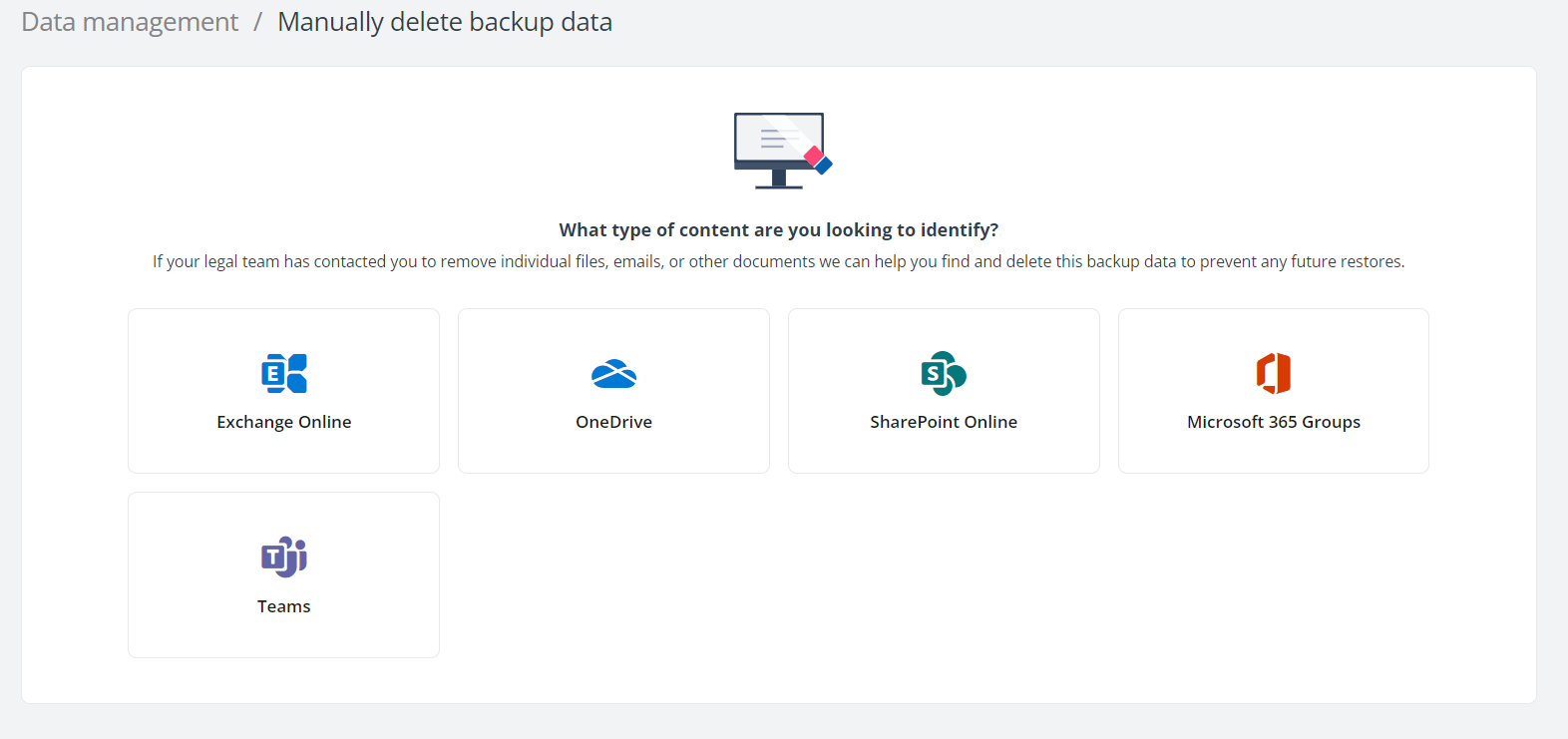
Follow the steps below:
-
In the Manually delete backup data page, click the Exchange Online tab, SharePoint Online tab, Microsoft 365 Groups tab, OneDrive tab, or Teams tab for the backup data that you are looking for.
-
Enter and select the mailbox, site collection, group, or team where the object that you are looking for belongs or the document in the Name or URL field, and then configure other conditions.
-
*Note: For Exchange Online, OneDrive, and SharePoint Online backup data, you can now delete content at both the folder-level and the document-level.
-
Click Search. The items that meet the search conditions and have backups are displayed in the table. The search results will display a maximum of 2000 items. You can click Download list above the table to download a list of items in the tables.
-
*Note: For SharePoint Online backup data, the search results will include all backup items which meet the search conditions in SharePoint Online sites, Group sites and Teams sites.
-
You can configure the search conditions to narrow down the search results or search in the other objects of this type or for the items of the other levels.
-
To delete a file, item, or email, you can select the checkbox ahead of it and click the Delete button above the table, or you can directly click the Delete button on the right of the row. To delete multiple files, items, or emails, select the checkbox ahead of each of them and then click the Delete button above the table.
-
The Delete data window appears, asking for confirmation. Select the I understand that the selected backup data will be permanently deleted. option and then click Delete. A notification message will appear on the upper-right of the interface to show if the job has successfully started.