
Home > Data Management for AvePoint Cloud Backup > Remove Unprotected Data
Export to PDFRemove Unprotected Data
AvePoint Cloud Backup provides the feature to manage and remove backup data for objects that are no longer protected. This includes Out-of-scope objects and Offboarded users.
Cloud Backup will check unprotected objects once a week and update the reports. You can check for the Last updated time in the upper-right corner of this page. Your administrator group or the service provider’s administrator group will receive the email notification ”Legacy Cloud Backup Data for Microsoft 365 identified and scheduled for removal”, including to be deleted in seven days and new content added to the list of unprotected data. If some of your content marked for deletion has been moved back before being deleted, you will receive the email notification “Data protection scope updated -content no longer marked for deletion” as an update.
The Deletion history tab displays the deletion records of Out-of-scope objects and Offboarded users whose backup data has been removed including their Unprotected date, Deletion date, unprotected Reason, and the Deletion Job ID.
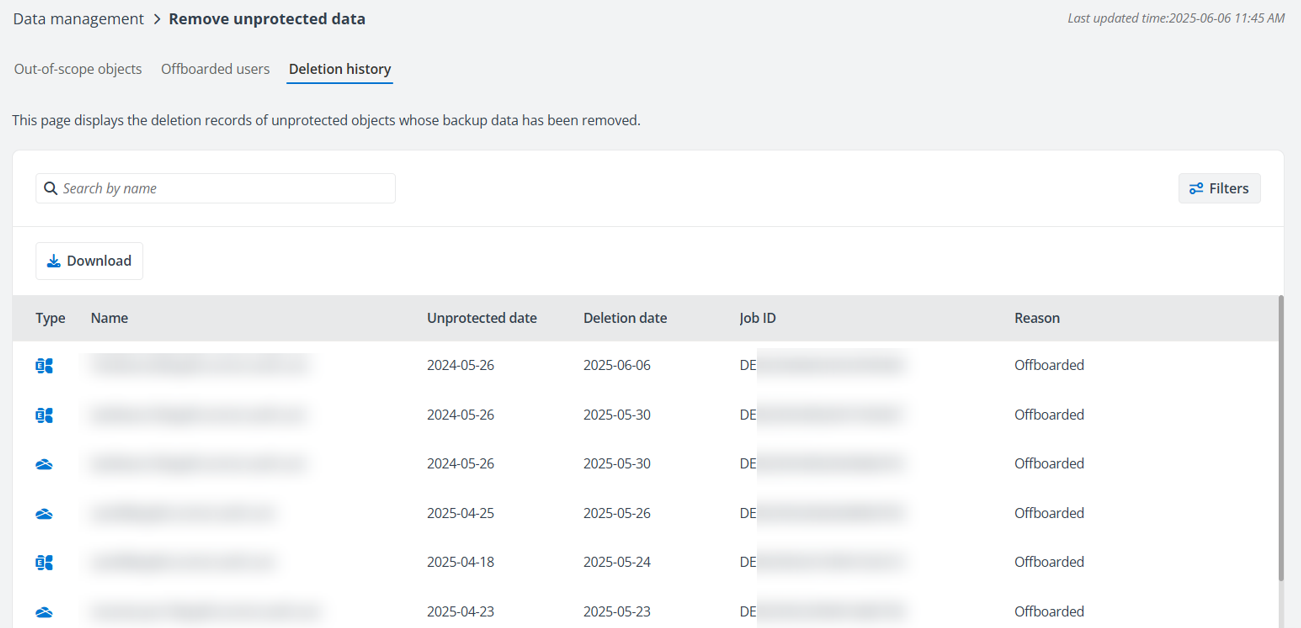
On each tab, you can also perform the following:
Out-of-Scope Objects
If you have moved objects from a protected selection to an unprotected scope (this also means if content dynamically changes to an unprotected container), which indicates that you do not want this data protected, for the sake of your privacy, Cloud Backup will delete the corresponding backup data on the Expiration date. You can view the reasons for unprotected status in the Reasons column. To prevent certain backup data from deletion, you can update the backup scope on the home screen to include the out-of-scope objects. The deletion records for out-of-scope objects are displayed in the Deletion History tab after their backup data is removed.
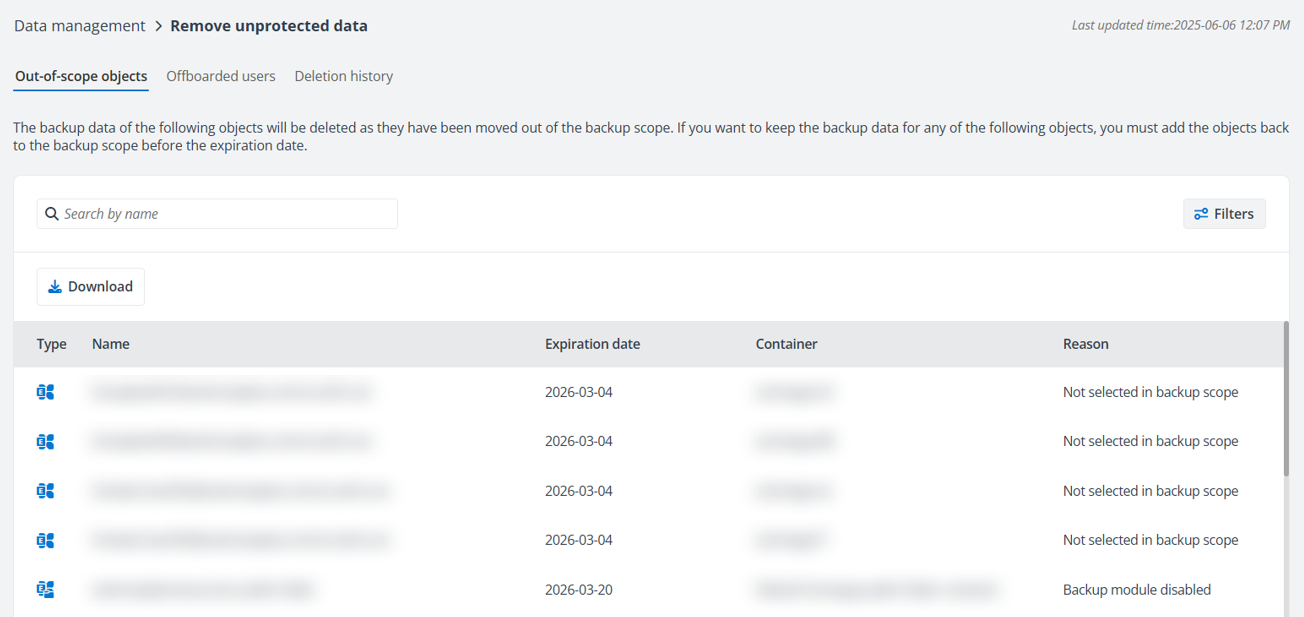
Note the following:
Offboarded Users
Offboarded users refers to users who have departed the organization, and their corresponding objects no longer exist in Microsoft 365.
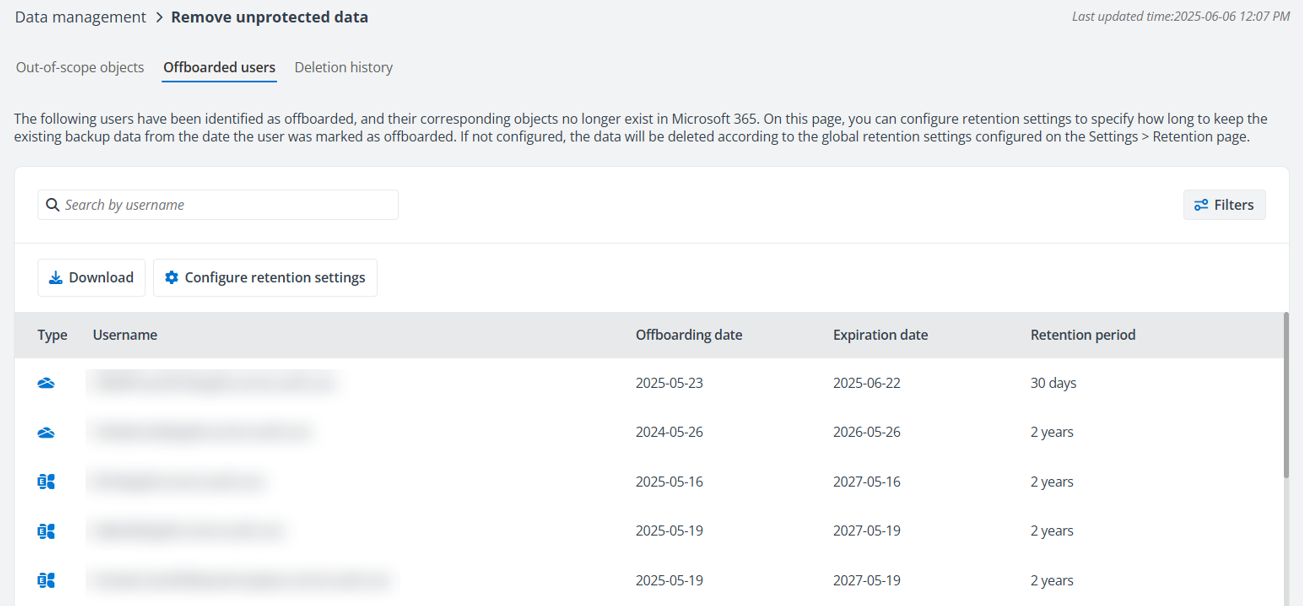
AvePoint Cloud Backup checks weekly whether users still exist in Microsoft 365 and updates the Offboarded users tab accordingly. The last updated time is displayed in the upper right corner of the page.
*Note: Since the check is performed weekly, the Offboarding date reflects when AvePoint Cloud Backup detected that the user and object were no longer in Microsoft 365. This date may be later than the actual deletion date.
With the Settings permission, you can click Configure retention settings on the tab to specify how long to keep the existing Exchange Online and OneDrive backup data from the date the user was marked as offboarded. Cloud Backup will delete the corresponding backup data on the Expiration date. Note that the configured retention period here will apply to all users within the specified scope. To edit the retention period for a certain object, hover over an object and click the Edit ( ) icon. The deletion records for Microsoft 365 objects of offboarded users are displayed in the Deletion History tab after their backup data is removed.
To prevent certain backup data from deletion, you can adjust the retention period or disable the deletion function for offboarded users. If the retention settings for offboarded users is not enabled, the data will be deleted according to the global retention settings configured on the Settings > Retention page. Also, if a shorter retention period is configured in the global retention settings (Settings > Retention), that will take precedence.
Note that the feature does not apply to the Trial subscription or the subscriptions with multi-Geo enabled, which indicates, your backup data for offboarded users already taken will be deleted according to the global retention settings.