
Home > Configure Settings for AvePoint Cloud Backup > Configure Security Settings
Download this articleConfigure Security Settings
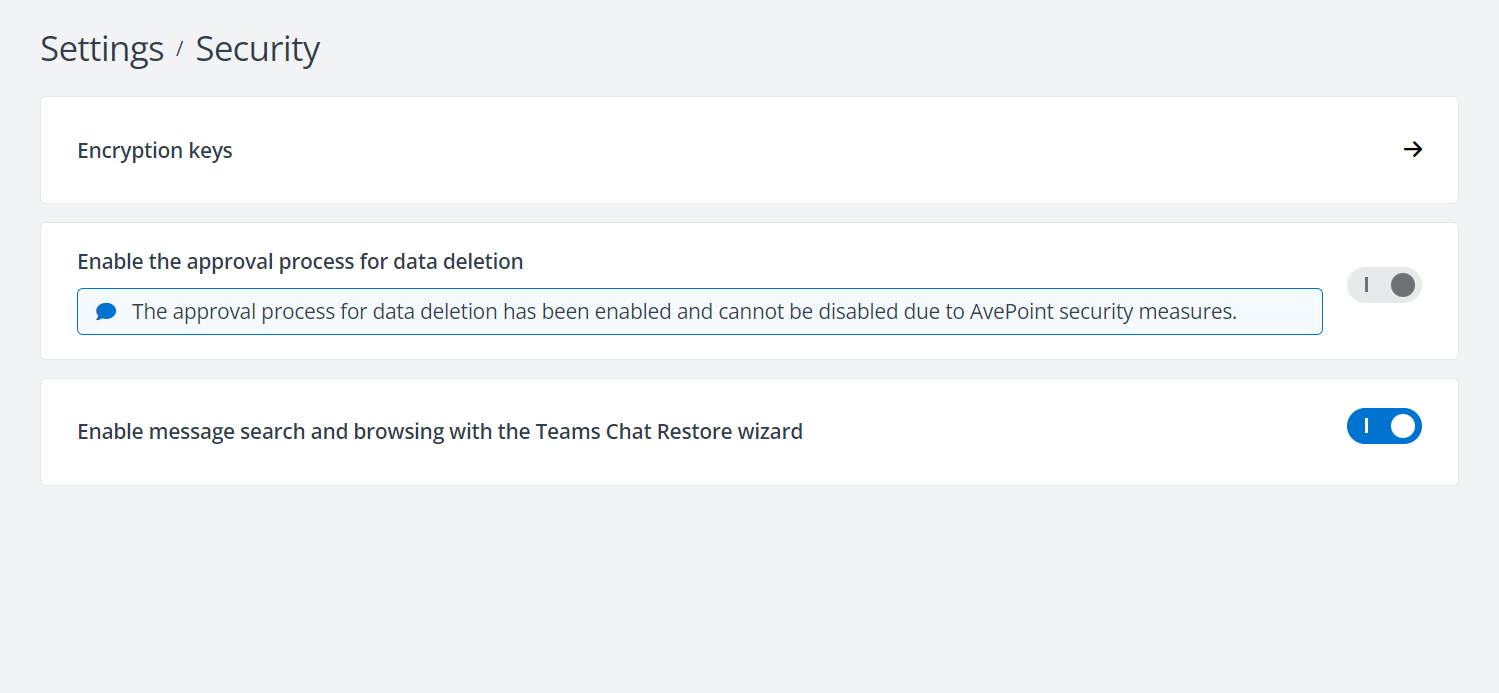
In Settings > Security, you can choose to:
-
Export Encryption Keys
-
Enable the approval process for data deletion
-
Enable message search and browsing with the Teams Chat Restore wizard
Export Encryption Keys
This feature is only available for administrators of the AvePoint Online Services tenant. The Support account you invited for troubleshooting will not be able to access the page. To export the encryption key, navigate to Settings >Security > Encryption keys.
By default, this page is not available to the users who are using default storage hosted by AvePoint. You can contact the Support Team to enable this feature if needed.
The backup data generated by AvePoint Cloud Backup is encrypted. If you have chosen our data export service, you will need an encryption key to help you convert the backup data to plain file format. Note that you must export the encryption key before your move away from this product, as you will not be able to sign in to the Cloud Backup interface if your subscription has ended.
If you only want to export a small set of backup data to plain file format, use the Export feature we provided in the Restore wizard. For details, refer to Export and Download Your Data.
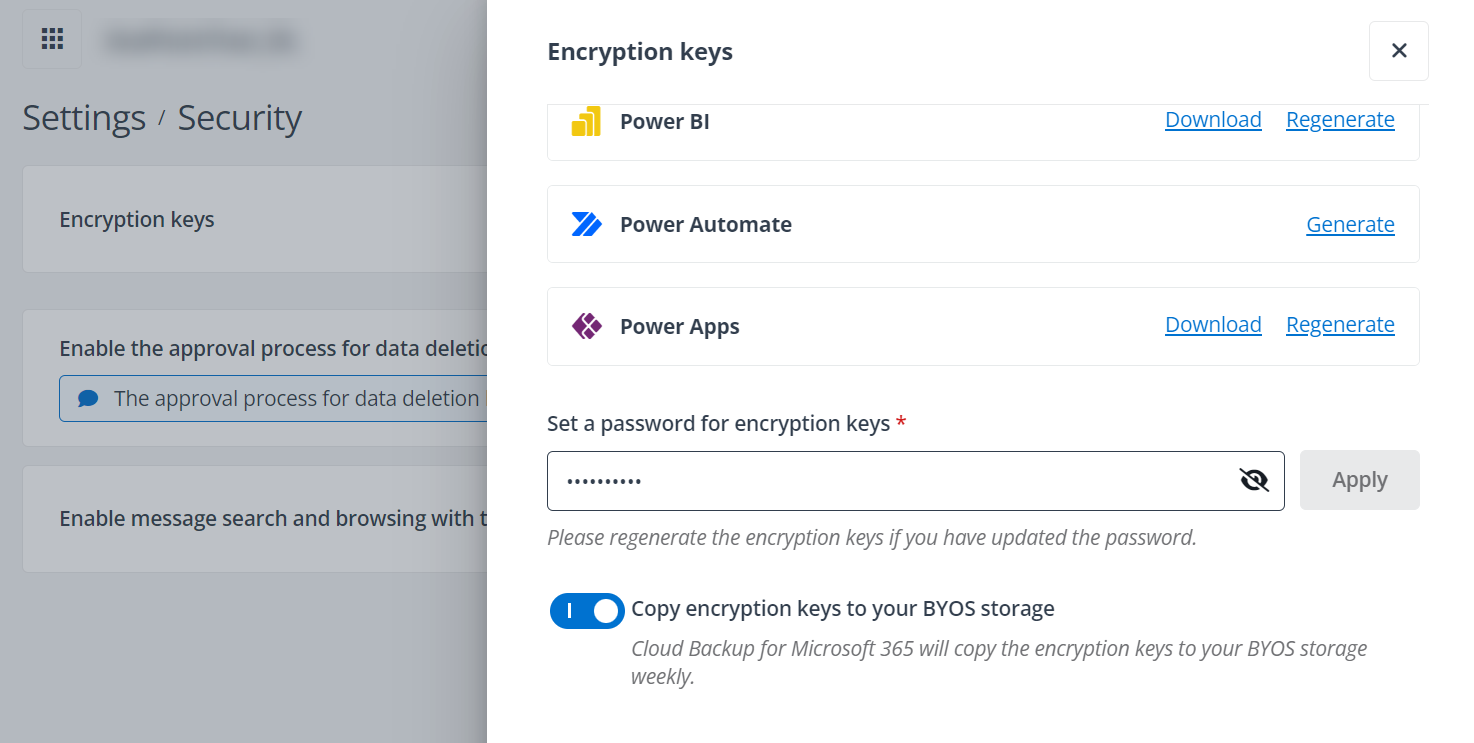
Before generating encryption keys, you should first set a password for encryption keys and click the Apply button to apply the password. The password is used to access the encryption keys in the standalone tool. You can also configure whether to allow AvePoint Cloud Backup for Microsoft 365 to copy the encryption keys to your BYOS storage weekly.
To generate and download the encryption key for the service types for which you have performed a backup, click the Generate button to generate the key, and then click Download to download the ZIP file and save it to your local computer.
If you have performed backups or updated the password after the last time you generated the key, click Regenerate to regenerate the key for the updated backup data and download the file again.
Enable Approval Process for Data Deletion
To avoid accidental data loss, you can set an approval process for the data deletion. With this feature enabled, data deletion requests and email notifications will be sent to the administrators when you delete data in Manually delete backup data and Data subject access requests.
To enable the approval process for the data deletion, navigate to Settings > Security, and turn on the Enable the approval process for data deletion switch. Note that the approval process for data deletion cannot be disabled once it’s enabled due to AvePoint security measures.
Then administrators can access the Cloud Backup for Microsoft 365 interface and click My tasks on the upper-right of the interface to view the request details, and then approve or reject your requests. The deletion jobs will start when the requests are approved. Note that the requests will be automatically invalidated if not approved within 7 days.
Enable Message Search and Browsing with the Teams Chat Restore Wizard
Select whether to allow users to search and browse chat messages in the Teams Chat Restore wizard. Once disabled, in the Teams Chat Restore wizard, users have no permissions to access Chat message search results through the Search mode, and cannot browse Teams chat messages through the Calendar mode.