
Home > Report Center for AvePoint Cloud Backup > View Storage Consumption Report
Export to PDF#View Storage Consumption Report
- The **Storage** **consumption** report displays the backup data size in storage, its growth, and trends to help administrators to monitor and manage the storage consumption. This report is not available to default storage customers. If you are a BYOS storage customer and want to enable this report, contact the AvePoint Support team.
- The report is updated once a week and is only available to the AOS Service Administrator and the Application Administrators of AvePoint Cloud Backup for Microsoft 365. For the subscription with multi-Geo enabled, only the AOS Service Administrators can view this report.
- > ***Note**: This report does not support the trial subscription using BYOS, and the report does not include the index file size, which takes about 1% to 1.5% of your total data size.
- You can choose whether to display the report with the retention data included by using the **Include** **retention** **data** option. If you deselect the **Include** **retention** **data** option, the report will not include the backup data size that has been deleted by yearly retention jobs. However, the data deleted by other deletion jobs, such as deletion jobs for the [Data Subject Access Requests](#missing-link) feature and the [Manually Delete Backup Data](#missing-link) feature, will still be included.
- > ***Note**: If you have configured a retention period that is less than 1 year, the data deleted by the day unit retention jobs will always be included in the Storage Consumption Report.
- In the **Dashboard** tab > **Storage** **overview** section, you can view and download the storage consumption information of each service type in all your storage or only the legacy or current storage. Click **Download** **report** () in the upper-right corner of this section to download and save the storage overview data in the XLSX file.
- The **Usage** **history** section at the bottom of this page displays the storage growth history in the line chart for the last 6 months. You can click the arrow () button to navigate to the **Usage** tab for additional details.
- 
#Usage Tab
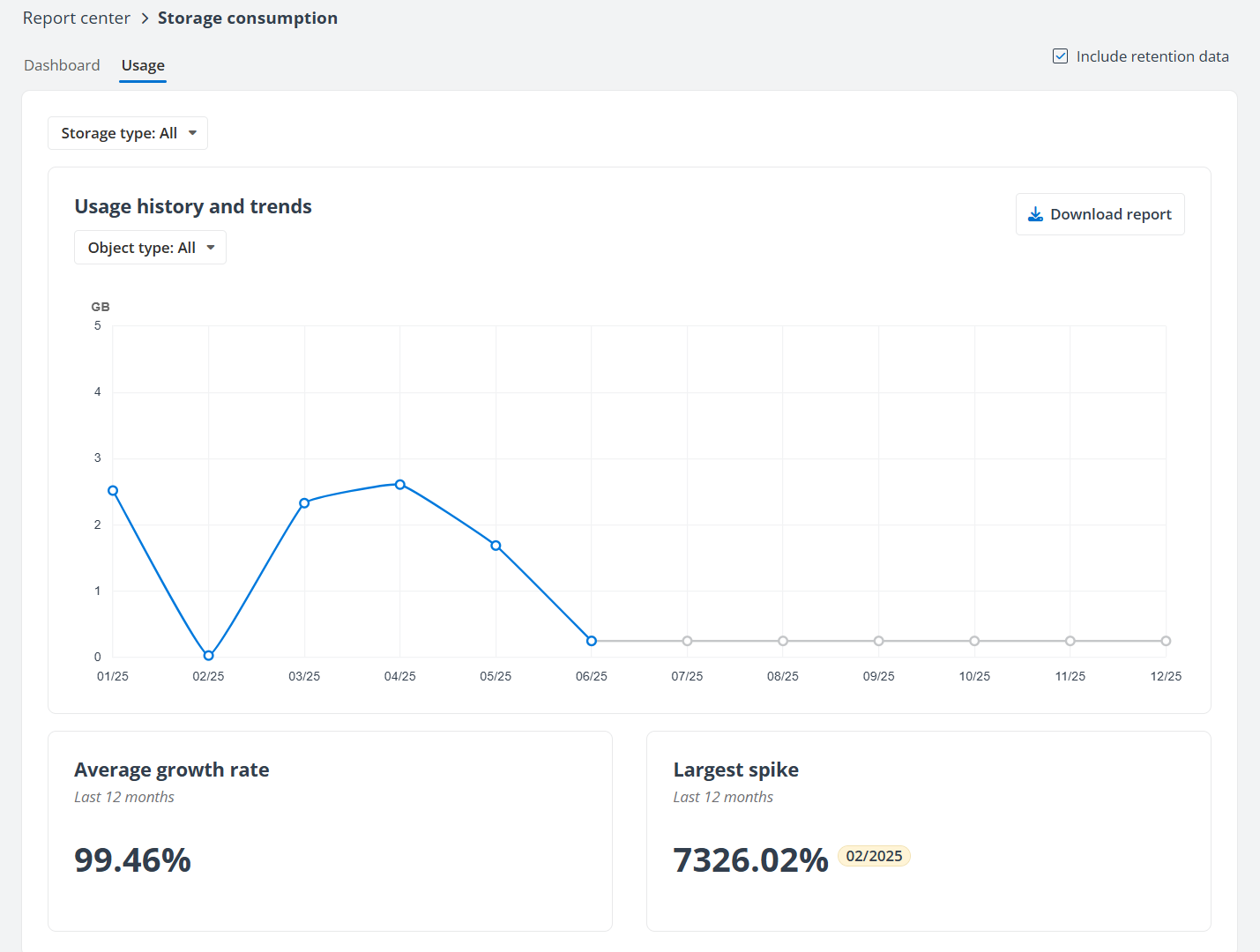
- The **Usage** tab can show the storage growth history and trends for all object types or a specific object type, the average growth rate in the past 12 months, and the largest spike. You can also choose to display the usage report for all storage, or only the legacy or current storage, as well as whether to include retention data.
You can also click Download report to download the report to your computer to drill down in Excel or other data analysis tools.
On this page